Tuesday, August 11, 2020

CI/CD as a Code for .NET Core application and Kubernetes using Azure DevOps +YAML.

Building CI/CD process for the .NET Core application could be complicated especially when you are dealing with Kubernetes and Docker and if you need to include code style analysis, unit test and code coverage report.

In this article I am going to explain the process of building simple CI/CD pipeline for existing .net core application to moving it to Azure Kubernetes Services using Azure DevOps. The final Pipeline will be easy to understand and reusable.

Deployment Architecture

Deployment process includes the following steps: fetching the code from Git Repository, building application, restoring NuGet packages, running unit test, building unit test and code coverage reports, pushing docker image to registry and deploying to AKS cluster.

Image for post

Azure Kubernetes Cluster setup

I have used simple AKS cluster, with 3 nodes architecture that contains Ingress-nginx load balancer. You can also use Traefik.ioistio.io even Standard Azure Load Balancer.

Image for post

Detailed description of how to setup AKS cluster including Ingress setup and deployment scripts can be found Here.

After deploying AKS, the main resource group it will look like in the image below.

Image for post

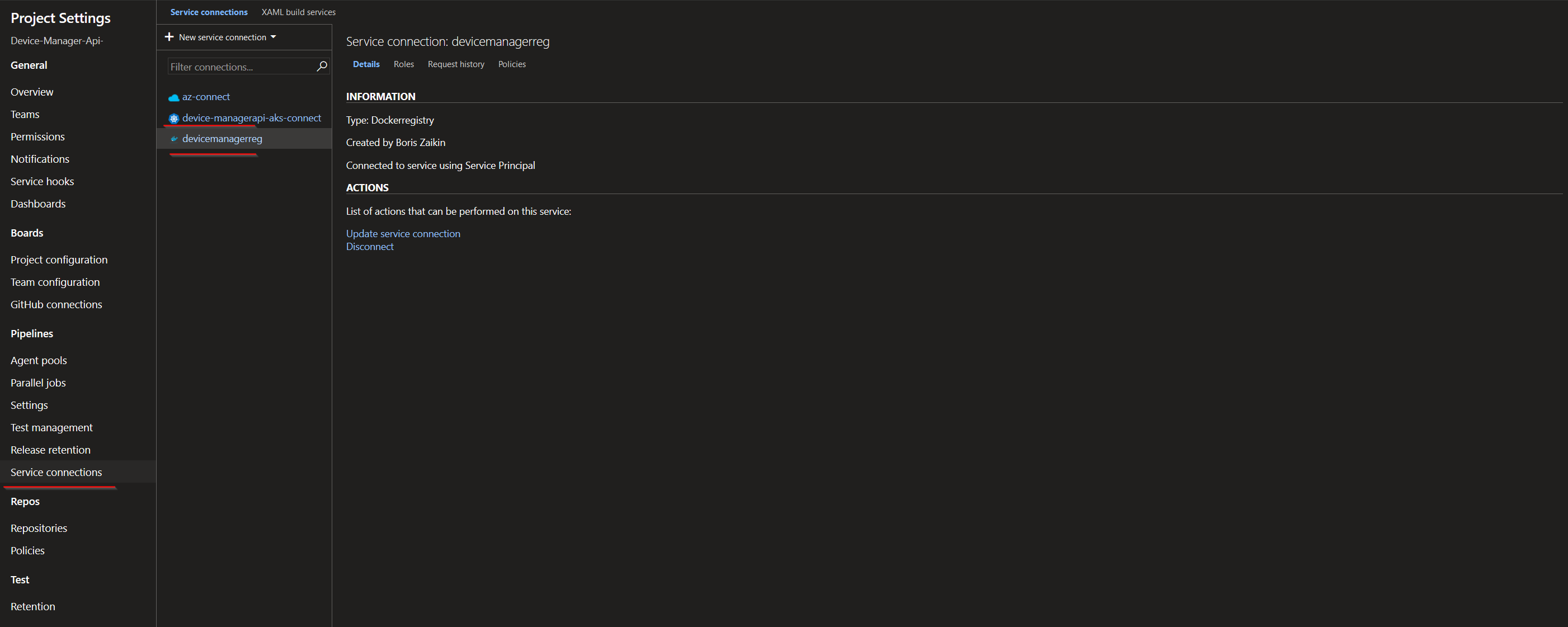
Setup service connections

Before starting to configure the main pipeline steps the connection between Azure Container Registry(ACR) and Azure Kubernetes service needs to be granted by granting access of AKS service principal to ACR. RBAC service principal for Azure DevOps is created and everything is ready to push and pull docker images withing pipelines. Alternatively you can do it in Azure DevOps Service Connection which I will explain in the next session.

Here you can find the detail description how to configure connection between ACR and AKS.

Azure DevOps service connection with Azure Kubernetes Services and Azure Container Registry.

By Using Service Connection you can connect Azure DevOps to your, already deployed AKS cluster, Azure Container Registry, Docker Registry (Docker Hub) and many other services.

Image for post

Creation of connection to ACR is quite easy, you just need to specify a connection name, a subscription and a registry name and that’s it.

Image for post

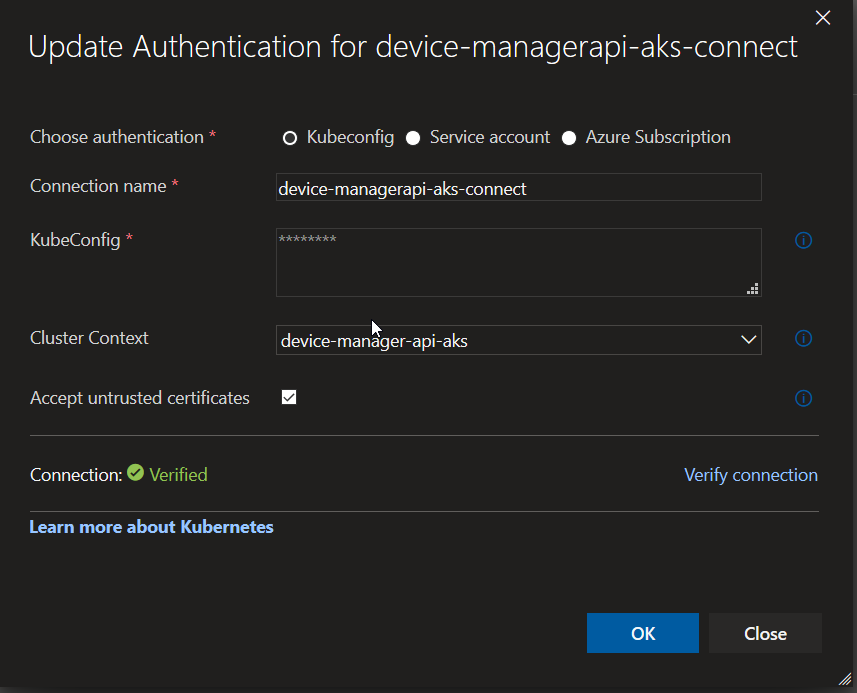
You can connect (and authenticate) your AKS cluster using Kubeconfig, Service Account and Azure Subscription. In my project I used Kubeconfig, as one of the fast option, because you need just find kubeconfig JSON, copy it and choose your Cluster context.

Image for post

You can find KubeConfig it in the following directory (In the Windows): C:\Users\your_user_name\.kube\config Here is documentation how to find and work with KubeConfig also for Linux and Mac.

Pipeline steps

Finlay I’m moving to pipeline steps and the very first step is to use a script for restoring all NuGet dependencies/packages, building dot net core application, Running Unit Tests, building code coverage report. Also please notice that I use system variable $(Build.BuildNumber) as tag for the coverage report generation. At the end test results will be published as artifacts and Azure DevOps can build visualization analytics charts.

Below you can see Tests blade with statistic data and Test Results in the Tests section of the Azure DevOps

Image for post
Image for post

Step 2 - Code coverage results

The next step is to publish code coverage results to DefaultWorkingDirectory. The whole process is based on Cubertura Report Generator, a .Net core library.

The first statistic results are already available:

Image for post

The detailed file by file report you can find on Code Coverage tab. This report is based on generated xml reports.

Image for post

Step 3 and 4 — Building Container and Pushing it to the ACR

After the previous steps have been completed the project is to be put into a container. For this I am going to use version 1 Docker step. You need to specify a path to a Docker file like I did it here, provide image name, for example, boriszn/devicemanagerapi and tag — 1.102.1., and the last step is to specify a container registry, for example, devicemanagerreg.azurecr.io.

For a tag creation I used semantic versioning and hard-coded some version numbers to simplify the Pipeline, however you can also use different approaches to build the a tag, for example using variables which are required to run a pipeline or take then from git version.

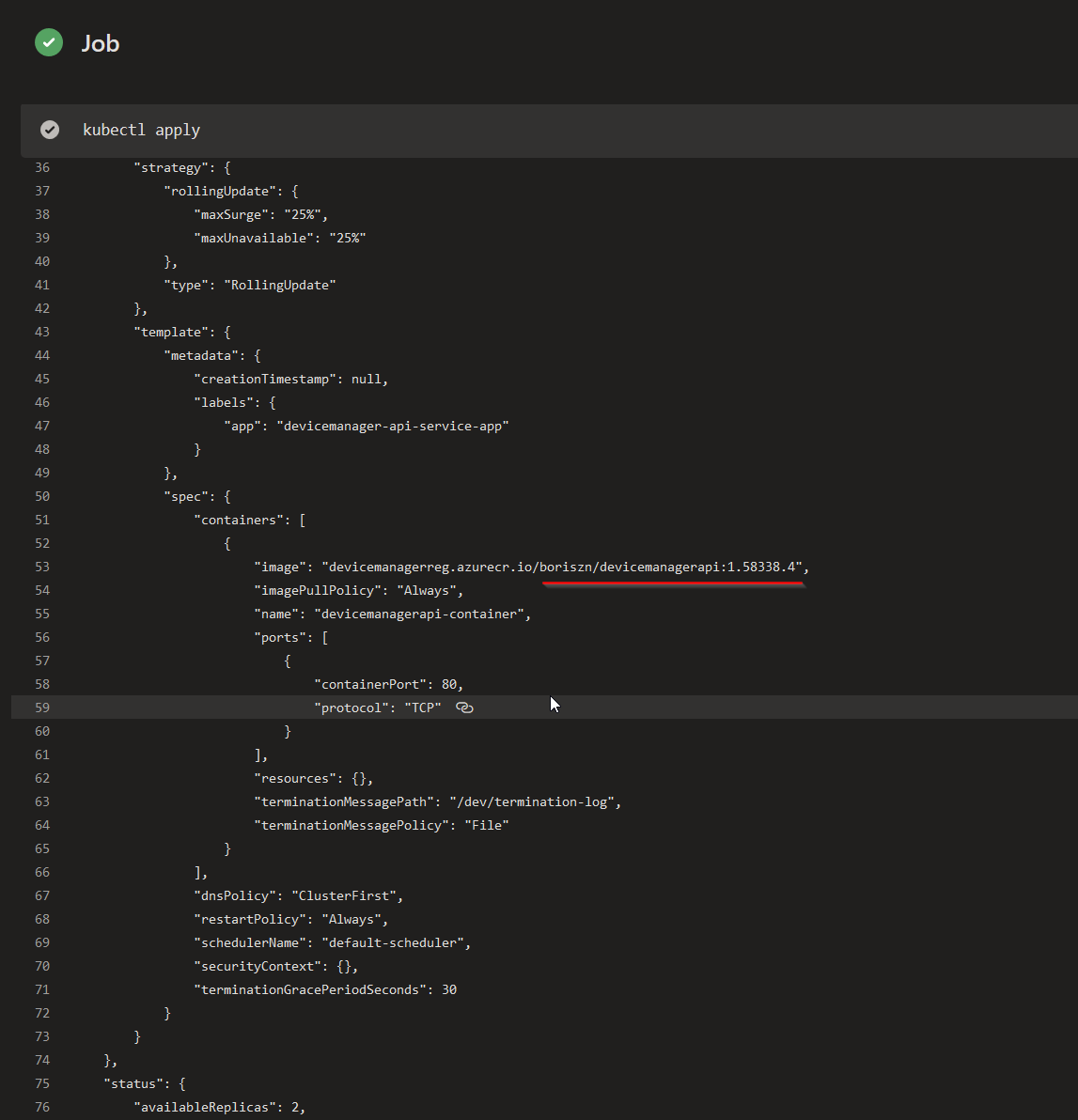
The next step is to push our dockerised app to the Azure Container Registry. Here I specified command and image to push. You should take into account that I pushed 2 images with the first image tag 1.58338.4 and the second one is tag: latest.

Image for post
Image for post

AKS deployment steps

For Azure Kubernetes Deployment you need to replace a build number in AKS deployment yaml file and display it in Azure DevOps after successful execution.

After that run “Apply” command for AKS cluster.

Two important parameters here are a path to my cluster deployment YAML script (./deployment/aks-deployment.yaml) and a cluster name (device-manager-api-aks). Other parameters were explained in the previous sections.

Image for post

That’s it! Below I’ve listed complete YAML pipeline that we configured in the previous few sections and that is easy to import to your Azure DevOps projects. If you have any questions reach out in the comments!

Monday, August 10, 2020

Continuously Deploying Angular to Azure App Service with Azure DevOps

 Introduction

In the previous article, we saw how to integrate an Angular application with Azure DevOps so that we are continuously building our project, and publishing the output(s) as artifacts, attached to the build pipeline.

In this article, we'll be creating a Release Pipeline to automatically deploy to an Azure App Service whenever such an artifact was published.

Creating the Release Pipeline

We'll be creating the release pipeline in the same project as the build pipeline for which we want to deploy the artifacts.

Navigate to releases from the project's sidebar, and select New pipeline.

As we are going to make use of an Azure App Service to host our Angular application, select the Azure App Service deployment template, and click apply:
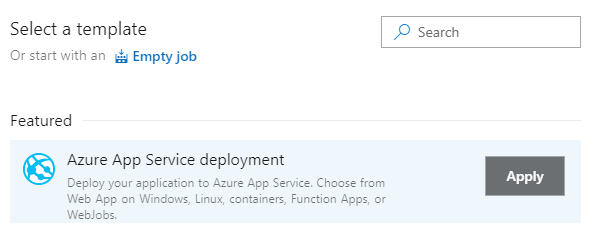
Azure App Service deployment

Azure DevOps supports multiple stages in a single Release pipeline (e.g. Development, Testing, Production environments). For this article, we'll only be using one stage, which is already created by default, using the name Stage 1. If you want you can give it an appropriate name, or keep it as is.
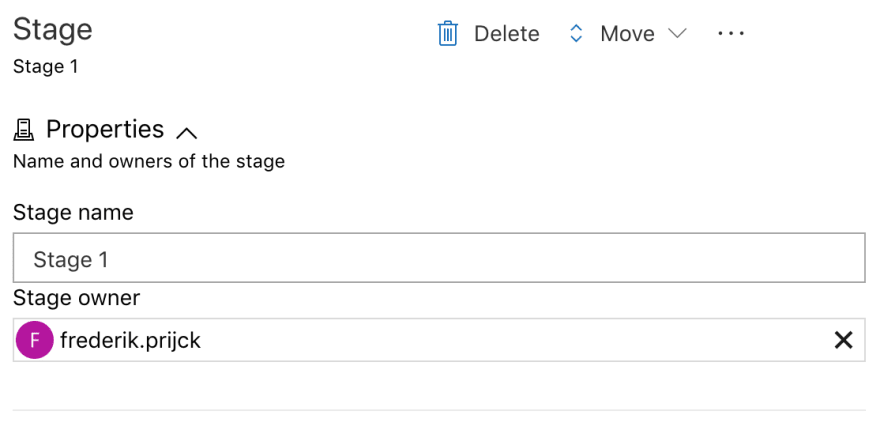
Stage 1

When selecting the Azure App Service deployment template, a task is automatically added to the Release pipeline. Head over to Tasks section, and fill in the required information. We'll need to select the Azure subscription. (Here is how you can create one if you don't have it yet. Make sure you chose Free Trial subscription to not be charged. Free Trial shouldn't be used for production) on which the App Service is running.

If this is the first time you're connecting Azure DevOps to your Azure account, you will need to click Authorize. Once we've authorized Azure DevOps to communicate with our Azure Subscription, we can select the App Service that will host our application (make sure you've selected value from the dropdown, and not just typed it manually):

Authorizing Azure

If you don't have the App Service created on the Azure Portal, you need to open Azure Portal Dashboard, and find App Service button on the left. Then, select it, and click the Add button. Here what you should see:
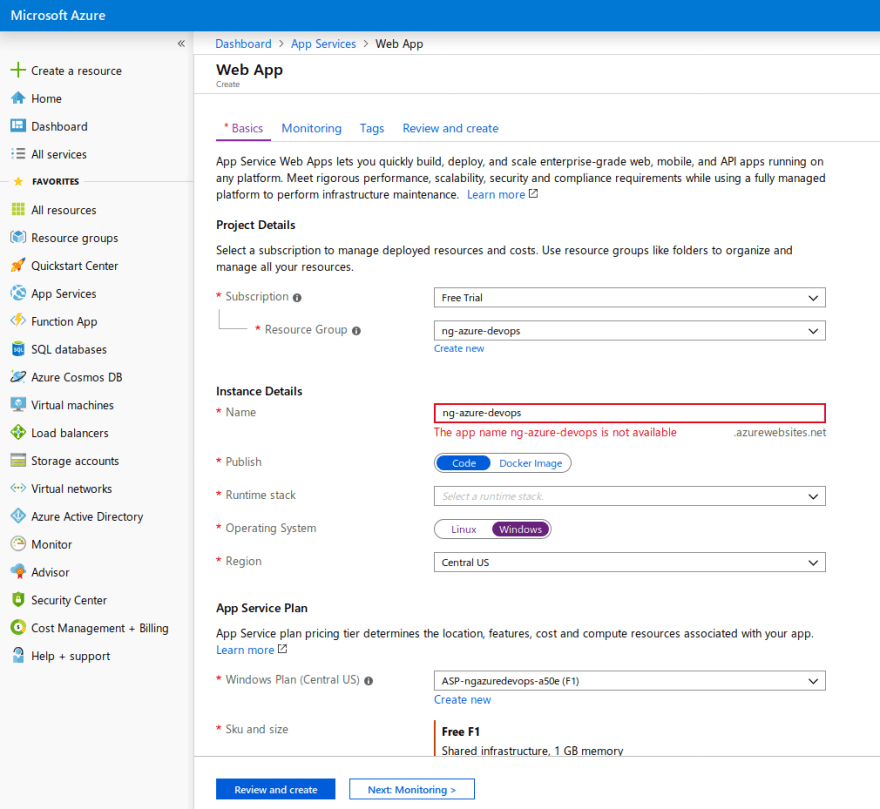
Adding "ng-azure-devops" App Service

Adding build artifacts

Now that we've configured the destination environment for our deployment task, go to the Pipeline section (to the left of the Tasks section) to add the artifact we want to deploy. Click Add Artifact, select the Build source type (as the artifacts are stored within the build pipeline), and select the appropriate build pipeline from the source dropdown. You can keep the default values for both the version to deploy, as we always want to deploy the latest version, and the source alias. The source alias is the folder that will be used to download the artifacts. We will be using this value throughout the next steps when manipulating, and uploading the artifacts.

Add an artifact

This will make all artifacts that belong to the build pipeline available in the release pipeline. They will be downloaded automatically when the release pipeline is triggered.

Now that we have both the artifacts, and the environment configured, we'll need to make one extra change to our deployment. For the Deploy Azure App Service task, we will need to specify which artifact it has to deploy.

Our Build pipeline publishes two artifacts:

  • Code Coverage report
  • The ng build build output which we want to deploy

If needed, we could add an extra step to deploy the code coverage artifact, but for this article, we're only going to deploy the ng build output, which is being published as an artifact with the name web-app, and made available in our Azure App Service deployment step inside the _ng-azure-devops directory (which is the source alias that was configured when adding the artifacts).

Now go to Tasks tab in our pipeline, click on deployment task, and change the Package or Folder to $(System.DefaultWorkingDirectory)/_ng-azure-devops/web-app.
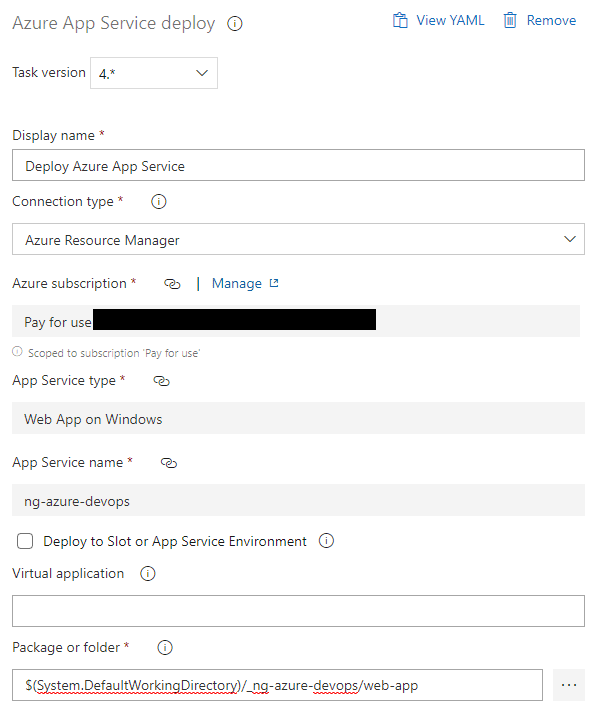
Configure Artifacts for deployment

Continuous deployment trigger

Even though we could save the configuration, and create manual releases at this point, in order to continuously deploy our artifacts, we'll need to set up a trigger. Click on the lightning strike symbol that's showing up on your artifact in the pipeline section, enable the Continuous deployment trigger, and add a branch filter for the branch you want to deploy (which is master in this case). We don't need the Pull request trigger for this article.

Continuous deployment trigger

Save the changes for your release pipeline, and trigger a new build (by either making a code change or by manually queuing it from the build pipelines.

Once the build and release pipelines are completed successfully, you should be able to navigate to the App Service's URL, and see the default Angular project.

Default Angular CLI project

Environment specific configuration

When deploying our application, we might need some configuration that can be different for every environment that's hosting our application. As often frontend applications need to communicate with a backend, we'll be making the API URL configurable so that it can differ for each environment.

Angular environments

Angular has a built-in environment system that allows you to specify multiple environment configurations. When building the application with a given target environment, Angular CLI will replace the environment.ts file with the content of the environment-specific environment file (e.g. environment.prod.ts)

Even though this works quite well, the downside of this is that we need to recompile and reupload the artifacts for each environment to which we are planning on deploying. However, the idea behind an Azure DevOps release pipeline is to only build the artifacts once, while still being able to deploy them to, theoretically, an endless amount of environments.

Runtime environment configuration

As we need to be able to deploy our application to multiple environments using a different configuration, we will need a way to swap out environment configuration after the artifacts were built.

A typical way to do this in an Angular application is by including a config.json file in the assets directory that contains the configuration. Putting it in the assets directory ensures it's being copied to the dist folder when running ng build.

{
    "apiUrl": "http://localhost"
}

We can load the config file as part of an APP_INITIALIZER, ensuring the application isn't started before the config file is loaded.

@Injectable({
  providedIn: 'root'
})
export class ConfigService {
  config: Config;

  constructor(private http: HttpClient) {}

  loadConfig() {
    return this.http
      .get<Config>('./assets/config.json')
      .toPromise()
      .then(config => {
        this.config = config;
      });
  }
}

export const configFactory = (configService: ConfigService) => {
  return () => configService.loadConfig();
};

@NgModule({
  ...
  providers: [
    {
      provide: APP_INITIALIZER,
      useFactory: configFactory,
      deps: [ConfigService],
      multi: true
    }
   ],
   ...
})
export class AppModule { }

Wherever we need access to the environment-specific configuration, we can inject the ConfigService to use the config property.

@Component({
  selector: 'app-root',
  templateUrl: './app.component.html',
  styleUrls: ['./app.component.css']
})
export class AppComponent {
  title = 'ng-azure-devops';

  constructor(configService: ConfigService) {
    console.log('config', configService.config);
  }
}

In the above component, we're injecting the ConfigService in order to log the entire config object to the console. This should allow us to inspect whether or not the configuration has been set correctly for our environment. In a real application, you probably need to inject the config in your services that are responsible for calling that environment-specific API.

We don't need to add a separate config file for each environment to which we're deploying. Instead, we'll use a single file, and update its content as part of the release pipeline. This allows for a separation between your code-base, and the different amount of environments it's being deployed to.

Adjust tests, and make sure they pass. Then commit, and push the changes to the repository.

Modifying config.json on Azure DevOps

We'll need to modify the contents of config.json as part of a task in the release pipeline, move over to the release pipeline, edit it, and add a File transform task before deploying our application.
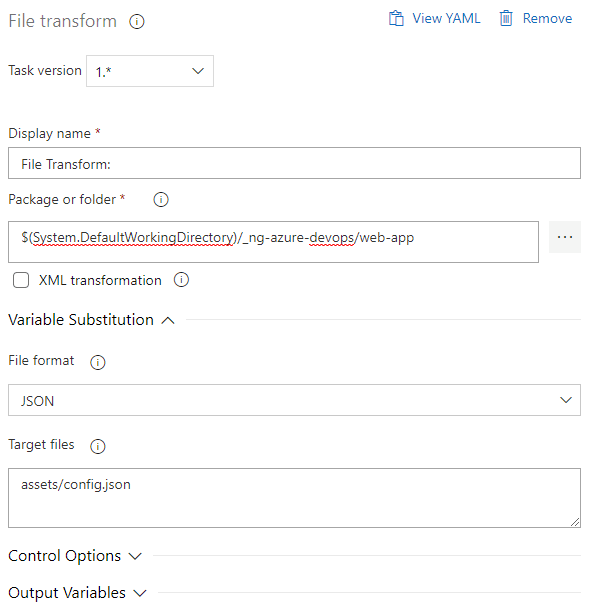
File transform task

There are three important parts of this task that we need to configure:

  • Package or folder: points to the correct artifact for which we want to transform a file
  • File format: Azure DevOps' File Transform task supports both XML and JSON. We'll be using JSON for this article.
  • Target files: Include the path to the config.json file, relative to the root of your artifact.

That's all we need to do in order for the File Transform task to start processing the config.json file prior to deploying it.

In order to define what names and values it should use while transforming the config file, we will need to create variables as part of the release pipeline. The file transform task will try and find all variable's names, and update its value accordingly.

For this article, all we need is an apiUrl variable with a value different from what we have locally (I went with localhost locally and thisdot.co for the environment):

Release pipeline variables

If you have a more complex configuration object, using nested paths, you need to specify them using a JSONPath expression, see https://docs.microsoft.com/en-us/azure/devops/pipelines/tasks/utility/file-transform?view=azure-devops for more information on the file transform task.

Enabling JSON files on Azure

An Azure App Service doesn't allow JSON files to be served by default. In order to do so, we need to add a web.config file (more info on configuring system.webServer can be found at https://docs.microsoft.com/en-us/iis/configuration/system.webserver/).

<?xml version="1.0" encoding="utf-8"?>
<configuration>
    <system.webServer>
        <staticContent>
            <remove fileExtension=".json" />
            <mimeMap fileExtension=".json" mimeType="application/json" />
        </staticContent>
    </system.webServer>
</configuration>

We could add this config file to our git repository, and ensure it's also copied to the dist folder when running ng build. This get's a little complex if all we need is to enable JSON.

Luckily, we can also add a file as part of a release pipeline. As our web.config file will be very small, I'll be using this approach. This, again, keeps our source-code independent on where we'll be hosting it.

Move over to the release pipeline, and add a new task, either before or after transforming the config file. We do need to ensure this task is added before deploying the artifacts, so ensure it's executed before the deployment task.

The task for creating a file is not part of Azure DevOps itself. You can get it for free through the Marketplace: https://marketplace.visualstudio.com/items?itemName=eliostruyf.build-task

Once installed, edit the release pipeline, and add a new File Creator task, providing:

  • file path: this is the path, including filename, for the file that's being created
  • file content: Any content that should go in the created file.

File creator task

Save the release pipeline, and create a new release (either by triggering a new build, or manually creating a release using the last known artifacts).

Once the release was completed successfully, navigating to the URL of the App Service should show the default Angular application as well as a console output showing the environment-specific configuration.

Angular CLI default project

Conclusion

Azure DevOps makes setting up continuous deployment a breeze. In only a few steps, we have integrated an Angular application to automatically deploy our artifacts to one or more environments, providing each environment with the required environment-specific configuration.

This should take away a lot of time from manual deployments, allowing your team to focus on the quality of the software instead.

This article was written by Frederik Prijck who is a Software Engineer at This Dot.

You can follow him on Twitter at @frederikprijck .

Need JavaScript consulting, mentoring, or training help? Check out our list of services at This Dot Labs.

Release app with Azure DevOps Multi Stage Pipeline


MultiStage pipelines are still in preview on Azure DevOps, but it is time to experiment with real build-release pipeline, to taste the news. The Biggest limit at this moment is that you can use Multi Stage to deploy in Kubernetes or in the cloud, but there is not support for agent in VM (like standard release engine). This support will be added in the upcoming months but if you use azure or kubernetes as a target you can already use it.

My sample solution is in GitHub, it contains a real basic Asp.NET core project that contains some basic REST API and a really simple angular application. On of the advantage of having everything in the repository is that you can simply fork my repository and make experiment.

Thanks to Multi Stage Pipeline we finally can have build-test-release process directly expressed in source code.

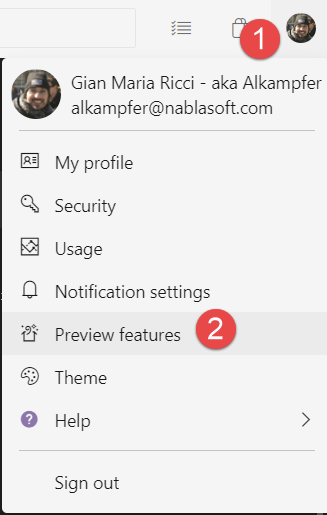
First of all you need to enable MultiStage Pipeline for your account in the Preview Features, clicking on your user icon in the upper right part of the page.

image

Figure 1: Enable MultiStage Pipeline with the Preview Features option for your user

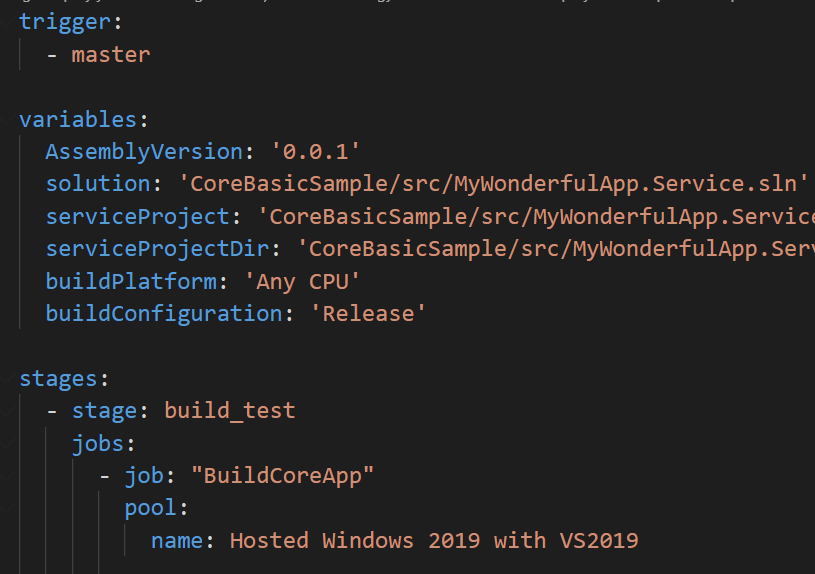
Once MultiStage Pipeline is enables, all I need to do is to create a nice release file to deploy my app in azure. The complete file is here https://github.com/alkampfergit/AzureDevopsReleaseSamples/blob/develop/CoreBasicSample/builds/build-and-package.yaml and I will highlight the most important part here. This is the starting part.

image 

Figure 2: First part of the pipeline

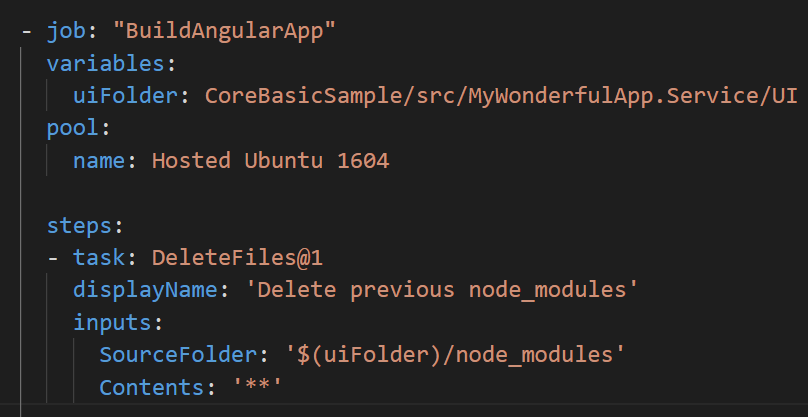
One of the core differences from a standard pipeline file is the structure of jobs, after trigger and variables, instead of directly having jobs, we got a stages section, followed by a list of stages that in turns contains jobs. In this example the first stage is called build_test, it contains all the jobs to build my solution, run some tests and compile Angular application. Inside a single stage we can have more than one job and in this particular pipeline I divided the build_test phase in two sub jobs, the first is devoted to build ASP.NET core app, the other will build the Angular application.
image

Figure 3: Second job of first stage, building angular app.

This part should be familiar to everyone that is used to YAML pipeline, because it is, indeed, a standard sequences of jobs; the only difference is that we put them under a stage. The convenient aspect of having two distinct jobs, is that they can be run in parallel, reducing overall compilation time.

If you have groups of taks that are completely unrelated, it is probably bettere to divide in multiple jobs and have them running in parallel.

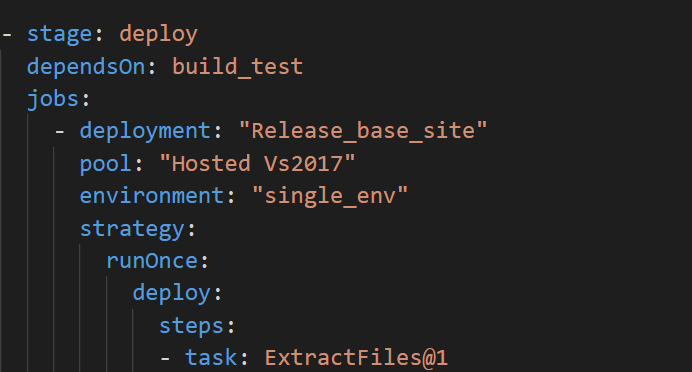
The second stage is much more interesting, because it contains a completely different type of job, called deployment, used to deploy my application.

image

Figure 4: Second stage, used to deploy the application

The dependsOn section is needed to specify that this stage can run only after build_test stage is finished. Then it starts jobs section that contains a single deployment job. This is a special type of job where you can specify the pool, name of an environment and then a strategy of deploy; in this example I choose the simplest, a run once strategy composed by a list of standard tasks.

If you ask yourself what is the meaning of environment parameter, I’ll cover it in much extension on a future post, for this example just ignore it, and consider it as a way to give a name to the environment you are deploying.

MultiStage pipeline introduced a new job type called deployment, used to perform deployment of your application

All child steps of deployment job are standard tasks used in standard release, the only limitation of this version is that they run on the agent, you cannot run on machine inside environment (you cannot add anything else than kubernetes cluster to an environment today).

The nice aspect is that, since this stage depends on build_test, when deployment section runs, it automatically download artifacts produced by previous stage and place them in folder $(Pipeline.Workspace) followed by another subdirectory that has the name of the artifacts itself. This solves the need to transfer artifact of the first stage (build and test) to deployment stage

image

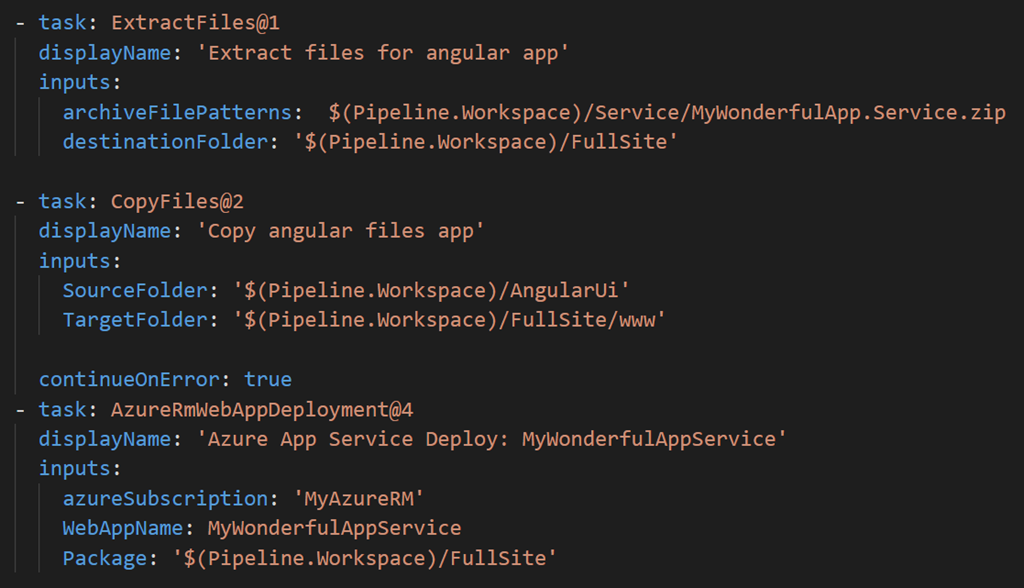
Figure 5: Steps for deploying my site to azure.

Deploying the site is really simple, I just unzip asp.NET website to a subdirectory called FullSite, then copy all angular compiled file in www folder and finally use a standard AzureRmWebAppDeployment to deploy my site to my azure website.

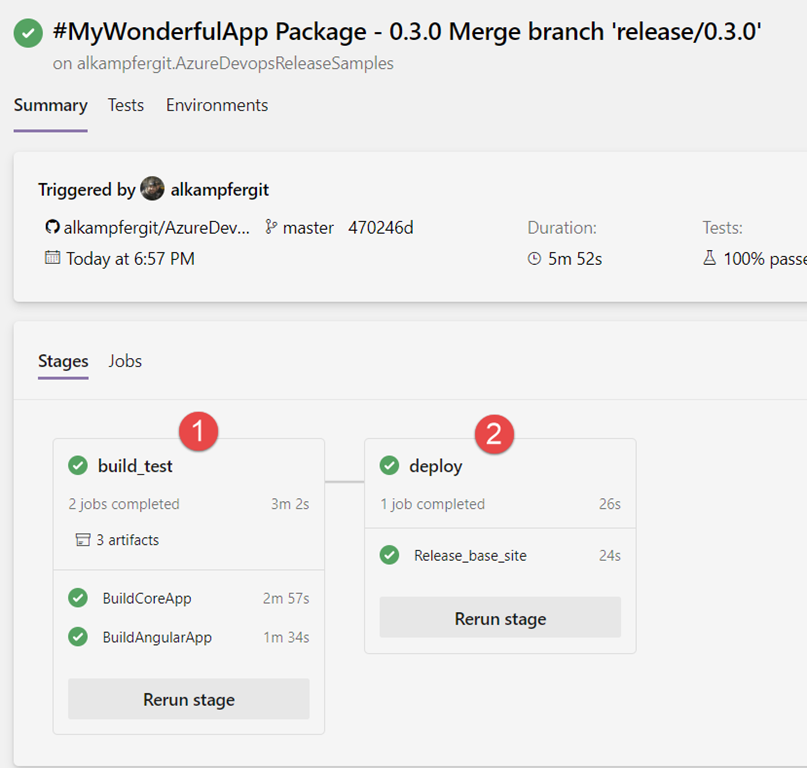
Running the pipeline shows you a different user interface than a standard build, clearly showing the result for each distinct stage.

image

Figure 6: Result of a multi stage pipeline has a different User Interface

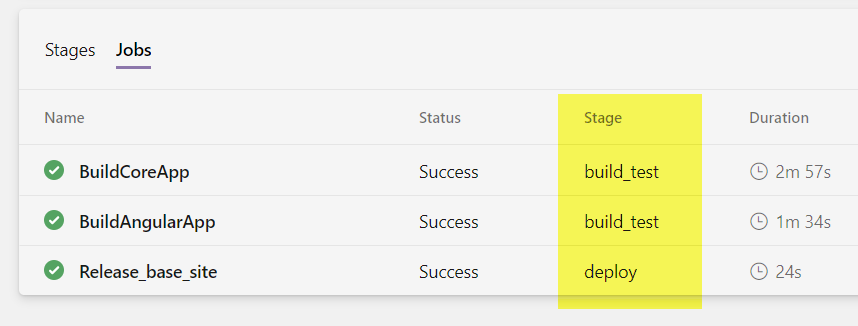
I really appreciate this nice graphical representation of how the stage are related. For this example the structure is is really simple (two sequential steps), but it shows clearly the flow of deployment and it is invaluable for most complex scenario. If you click on Jobs you will have the standard view, where all the jobs are listed in chronological order, with the Stage column that allows you to identify in which stage the job was run.

image

Figure 7: Result of the multi stage pipeline in jobs view

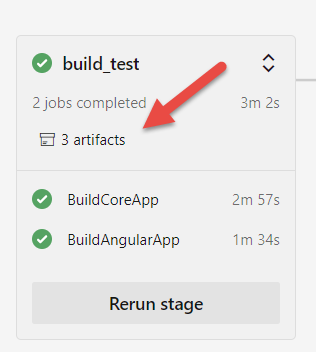
All the rest of the pipeline is pretty much the same of a standard pipeline, the only notable difference is that you need to use the stage view to download artifacts, because each stage has its own artifacts.

image

Figure 8: Downloading artifacts is possible only in stages view, because each stage has its own artifacs.

Another nice aspect is that you can simply rerun each stage, useful is some special situation (like when your site is corrupted and you want to redeploy without rebuilding everything)

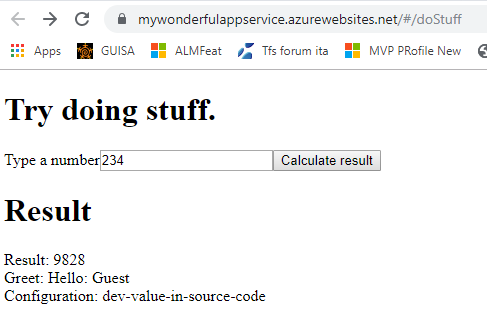
Now I only need to check if my sites was deployed correctly and … voilĂ  everything worked as expected, my site is up and running.

image

Figure 9: Interface of my really simple sample app

Even if MultiStage pipeline is still in preview, if you need to deploy to azure or kubernetes it can be used without problem, the real limitation of actual implementation is the inability to deploy with agents inside VM, a real must have if you have on-premise environment.

Cache Design and patterns

 In this article  we will look at application design and how cache design will be helping to get data from back end quickly.  scope of this ...