Wednesday, April 29, 2026

Creating a Custom Python Application Image and Deploying to Docker

This ties in well with the previous infrastructure studies I’ve been completing, and I’d like to be able to combine both skills to build out a cloud-based deployment pipeline for my Python projects.

Get Michael Rodgers’s stories in your inbox

Join Medium for free to get updates from this writer.

To begin with, I’ve created a local development Docker host, with Jenkins installed for CI/CD, and Prometheus and Grafana installed for monitoring. My next step is following the Docker documentation for Pythonwhich details deploying a Flask application to a container. I’ve listed the steps I’ve taken below.

Steps Taken

Prepare Repository and Minimal Flask Server

I’ll be using the GitLab repo that I’ve previously stored files relating to this Docker host, creating a new branch for this project.

  • mkdir hello-py && cd hello-py to create a folder within the file structure to hold project files
  • mkdir server && cd server && touch main.py to create the code file structure and Flask server entry point, entering the following code:
from flask import Flask

app = Flask(__name__)

@app.route("/")
def home():
return print("hello, py!")


if __name__ == "__main__":
app.run(debug=True)
  • Within the hello-py/server folder, open a terminal instance and create a Python virtual environment, selecting relevant OS specific commands:
# Linux & macOS
python3 -m venv .venv
source .venv/bin/activate

# Windows
py -3 -m venv .venv
.venv\scripts\activate
  • Following this, in VSCode, press ⇧⌘P and select the Python interpreter
  • python -m pip install --upgrade pip within VSCode’s .venv terminal to update pip
  • python -m pip install flask to install Flask
  • pip freeze > requirements.txt to output the Python package requirements
  • I added .venv to the .gitignore file to prevent the folder from being committed to the repo
  • python -m flask run to start the server at URL http://localhost:5000

Create a Dockerfile

  • touch Dockerfile within the hello-py directory create a file to build the custom Docker image
  • # syntax=docker/dockerfile:1 specify the Dockerfile syntax
  • FROM python:3.9.13-slim-buster specify the base Python image to use
  • WORKDIR /hello-py create a working directory for the subsequent commands
  • COPY requirements.txt requirements.txt copy the pip requirements file
  • RUN pip3 install -r requirements.txt use the copied requirements file to install pip dependencies
  • COPY . . will copy the Python project files into the /hello-py image directory
  • CMD [ "python3", "-m" , "flask", "run", "--host=0.0.0.0"] supply the command to run that will launch the server, and make it accessible outside of the container

The final Dockerfile code should look like this:

# syntax=docker/dockerfile:1

# base python image for custom image
FROM python:3.9.13-slim-buster

# create working directory and install pip dependencies
WORKDIR /hello-py
COPY requirements.txt requirements.txt
RUN pip3 install -r requirements.txt

# copy python project files from local to /hello-py image working directory
COPY . .

# run the flask server
CMD [ "python3", "-m" , "flask", "run", "--host=0.0.0.0"]

Build the Image

  • docker build --tag hello-py . in the local file’s terminal to build the image using the Dockerfile
Custom Python server image built with Dockerfile

Testing the Image in a Local Container

  • docker run -d -p 5001:5000 hello-py on my local machine to test that the image was built successfully

I’m using an external port of 5001 on the container on my local machine as I have been using port 5000 for running the Flask server through VSCode’s terminal, and want to make sure there are no conflicts. When we move the image to the remote Docker host I’ll use an external port of 5000

Container deployed from custom image on local computer

Push to Docker Hub and Deploy to Remote Container

  • docker login --username=mjrod run this if required to connect CLI to Docker Hub account
  • docker tag hello-py mjrod/hello-py tag the image with your Docker Hub username: <username>/<image-name>
  • docker push mjrod/hello-py to push a new repository to Docker Hub to store the image
Image pushed from CLI to Docker Hub successfully

After this, log into the remote Docker host using SSH and run the following

  • docker pull mjrod/hello-py:latest to pull the previously uploaded image from Docker Hub
  • docker run -d -p 5000:5000 --name=hello-py mjrod/hello-py to launch the container
Containers deployed on remote Docker host

Navigate to http://<remote-docker-ip>:5000 to see the Python application running in the remote container

Next Steps

  1. Begin coding my Python application — now that I have the ability to package up my Python code and deploy it to a container, I’d like to begin building high-quality web applications to cement both my programming and infrastructure learnings.
  2. Build a Jenkins pipeline to automate the rebuilding phases for each Docker images — each time I make code changes, the steps outlined in this document will need to be repeated to make the images reflect the code base. I’d like to link my Gitlab repo and my Docker host using Jenkins to automate some of this task away.

Thursday, November 27, 2025

Cache Design and patterns

 In this article  we will look at application design and how cache design will be helping to get data from back end quickly.  scope of this article is to look in to general use cases and the best practices available.

There could be lot of specific scenario and good solutions but customization will be based on some standard practices.  Cache at different levels will be starting point for this topic. When data cached at the client side , browser side,  servicer side or even DB side all different scenarios will be suitable for different application/ functionality. 

  • Web server caching frequently requested web pages.
  • Database Query Caching: Caching the results of frequently executed database queries to avoid repetitive database hits.
  • API Response Caching: Caching the responses from external APIs to reduce network round trips and improve response times.
  • Web Server Caching: Web servers like Nginx and Apache can cache static and dynamic content to serve requests faster.
  • Browser Caching: Your web browser caches resources (images, CSS, JS) to speed up subsequent visits to websites.
  • DNS Caching: DNS resolvers cache domain name to IP address mappings to accelerate website lookups.


In this article I will also go though complete details of API caching from graphql  and few other available solutions.

Technologies used in cache design: 

Client-side caching is a technique used to store data locally on the client’s device to improve the performance and efficiency of web applications

Server-side caching is a technique used to store copies of data on the server to improve response times and reduce the load on back-end systems. By keeping frequently accessed data in a cache, servers can quickly serve requests without needing to repeatedly query a database or perform complex computations. 

Lotof legacy systems used Akamai to cheche content and it was very good solution for application of large scale as Akamai has edge network around the world and cache servers are quite powerful. so it all started especially images or some of the key web data akamaized and delivered to web sites lot.

There are many companies made similar products some of them are based on edge network infrastructure and some are cloud based . Here are few examples 


Content Delivery Network (CDN) Caching Techniques

To implement CDN caching, website owners can use the following solutions:

  • Cloud-based CDNs: Services like Amazon CloudFront, Google Cloud CDN, and Cloudflare offer CDN solutions that can be easily integrated with the website.
  • Self-hosted CDNs: Website owners can also set up their own CDN infrastructure using open-source solutions like Varnish Cache or Nginx.

Dynamic Caching Techniques

To implement dynamic caching, website owners can use the following solutions:

  • Varnish Cache: Varnish Cache can be used to cache the output of dynamic scripts and serve them directly from the cache.
  • WordPress Caching Plugins: WordPress has a range of caching plugins, such as WP Rocket, W3 Total Cache, and WP Super Cache, that can help with dynamic caching.
  • Custom Caching Mechanisms: Website owners can also build their own custom caching mechanisms using in-memory data stores like Memcached or Redis.
Above techniques re more depending on third party infrastructure to scale up the application instead of fine tuning application using in build cache techniques.  Again inbuild cache can help to some extent and after that either it should be hardware scaling which is expensive so alternative should be above mentioned third party vendors software solutions.

Some of the use cases just plugging in third party will just solve the performance and scalability. Eg in my web site i do read content i.e images from Choudary. I can still deliver from azure blog and rendering on page. But cloud nary already make sure these images are loaded faster  and easy to adopt. No additional coding required to achieve this.

Technical challenge: 
Initial design is get data from azure blob . Which is big slow as www.talash.azurewebsites.net  display 100 images on landing page. These images will change for each request.  API is coming from Graphql end point.
Graphql request cached. But once cache expires it takes 19 seconds to get images urls and get meta data for images like likes, downloads etc. On top of   design should address real time  showing likes for images i.e updating this data  if other users browsing and done some thing like downloaded or commented. so if we request images every time it is 19 sec loading time. If we cache request data and still if we want to show user actions real time make tis design bit tricky.

Solution

1. Signal R solved problem of real time updates. works perfect if two users brow same content and do any user action will reflect on other user pages.

2. Graphql api cached at server level. so fetching time reduced. If it is ne fetch it is 19 sec otherwise it is .5 ms.  Appollo client used at client side to get more control on cache . 

.3 On expansion of tool bars which basically show image information like clicks and download numbers  latest data will be fetched. This section made collapsable so that only if user interested will get latest data otherwise data will be same when page loaded. this will avoid every user click for all images to all concurrent users. 

4. To reduce 19 sec after cache expiry, some work around solution made. As there is over head with "Cold Start" of the some azure resource which is around 5 to 8 sec , implemented an function app which runs every 5 min basically it will reduce the
any latency related to "Cold start" in azure. 

Enhancements:

1. Load images query should get new data in every 5 min and fetch should be cached and also it should avoid " stampede" situation where cache expiration should not cause bad user experience to multiple concurrent users. 

2. "User Query" like data fetching and refetching mechanism to get image information and refetch modified information . It should handle mutation situation carefully.

3. Looking at scalability aspects like if application restarts or latency related to "cold start" with cloud infrastructure and some features of distributed cache using raidis or other external cache systems. 

So finally can get all images with their updated information real time still able to cache content and achieve 20ms loading tie for my landing page. The solution can be further fine tuned. Any mutation can expire meta data and then send to concurrent users as notifications. But above design address lot of performance issues using cache at the same time avoiding any data integrity issues. 

We can look at more Use cases and design and solutions. Above example is to understand different dimensions of caching. Caching support will be different for different languages and technologies. Here are few good examples for Node js,
react and few other technologies.

Node Js:
React:
dotnet:

Angularl:


1. Twitter

  • Caching Strategy: Cache-Aside and In-Memory Caching
  • Problem: Twitter deals with massive amounts of data, with millions of tweets being read and written every second. The need to quickly serve user timelines and handle the high read/write throughput is critical.
  • Solution: Twitter uses Memcached, an in-memory caching system, to store timelines and user sessions. By caching the results of expensive database queries, Twitter can serve user requests more quickly.
  • Benefits: This reduces the load on the primary database, speeds up data retrieval, and enhances the overall user experience.

2. Netflix

  • Caching Strategy: Distributed Caching and Write-Through Caching
  • Problem: Netflix needs to deliver video content to millions of users worldwide with minimal latency and high reliability.
  • Solution: Netflix uses an open-source tool called EVCache, which is based on Memcached, to cache metadata and frequently accessed data. This distributed caching system spans multiple data centers to ensure data availability and quick access.
  • Benefits: This strategy allows Netflix to serve content recommendations, user data, and other API responses quickly, ensuring a seamless viewing experience even during peak times.

3. Amazon

  • Caching Strategy: Content Delivery Network (CDN) Caching and Cache-Aside
  • Problem: Amazon's e-commerce platform handles an immense volume of product queries, user sessions, and transactional data.
  • Solution: Amazon uses Amazon CloudFront, a CDN, to cache static assets like images, videos, and CSS files at edge locations closer to users. Additionally, they employ DynamoDB with DAX (DynamoDB Accelerator) to provide fast in-memory acceleration for read-heavy workloads.
  • Benefits: This reduces latency, speeds up data access, and decreases the load on backend systems, ensuring a fast and reliable shopping experience.


Monday, May 12, 2025

Retrieve logs from Application Insights programmatically with .NET Core (C#)

Ref: Retrieve logs from Application Insights programmatically with .NET Core (C#)


When working with Azure's Application Insights, there's some times where I would've wanted to quickly and programmatically export specific events, search the logs or otherwise pull some data out based on dynamic metrics of applications or monitoring solutions I've set up.

In this post we'll take a look at how easy it is to use the Microsoft.Azure.ApplicationInsights NuGet package to utilize .NET Core to retrieve data programmatically from Application Insights.

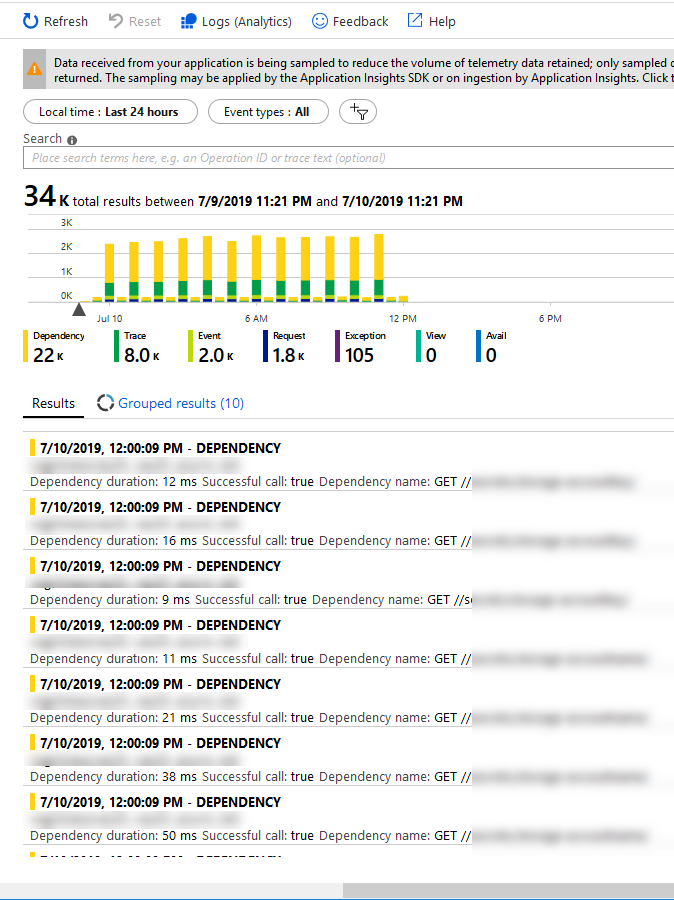
For example, in the Azure Portal I can easily see my Application Insights data on demand and search and filter my logs in the intuitive and simplified UI:

Azure Application Insights listing all types of events in the Azure Portal

However, you don't always want to use this view, or Log Analytics or Azure Monitor for the parsing and retreival of data. When you've got any type of requirement to do this programmatically and work with the data in other ways, there's good news...

In the following section, we'll talk about how we can programmatically expose information from App Insights (Exceptions, Custom Events, ...).

Here's an example of listing all exceptions in the last 12 hours and just printing the messages out. For demo purposes, it should be clear how the code works by the end of this post:

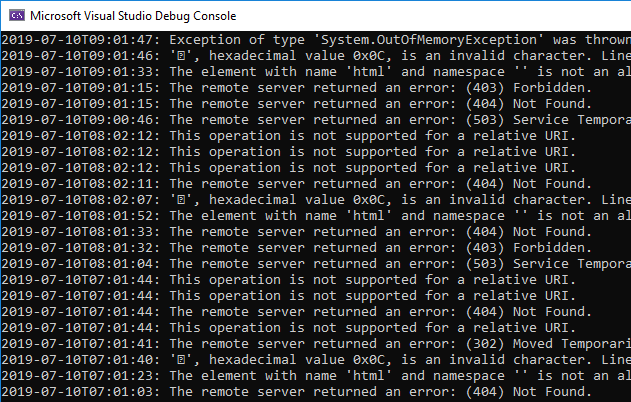
Console app in .NET Core which lists Azure Application Insights exceptions from code.

Follow along to learn step by step how to programmatically fetch information from your Application Insights service.

Don't forget to leave a comment in the bottom!

Step 1. Setup a new Azure AD Application

For this to work, we need to prepare a few things:

  • A new Azure AD Application with a new Secret (ClientId, ClientSecret).
  • Assign the required permissions of the new app to your Application Insights service.

This can be done using the Azure CLI, using the Azure Portal or any of the management API's. I'm using the portal in this context - hence the following steps are all relative to your Azure Portal.

1.1. Create an Azure AD Application

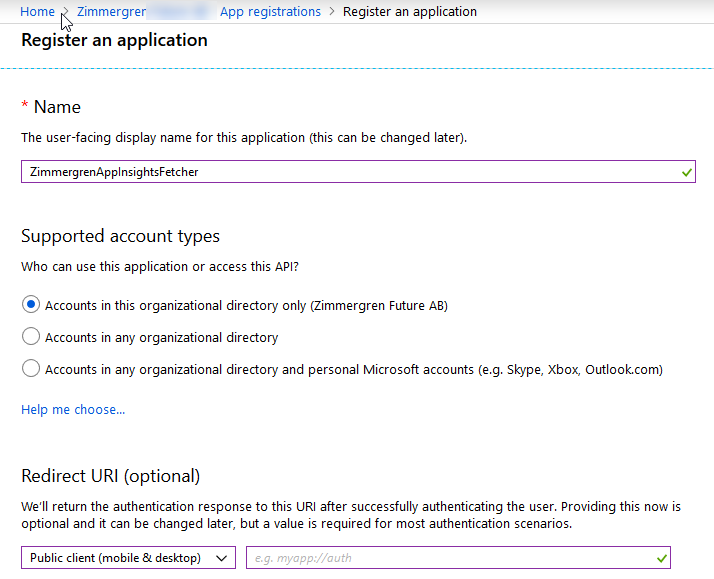
Go to Azure Portal - Azure Active Directory - App Registrations and then "+ New registration":

Azure AD application registration in the new Azure Portal experience.

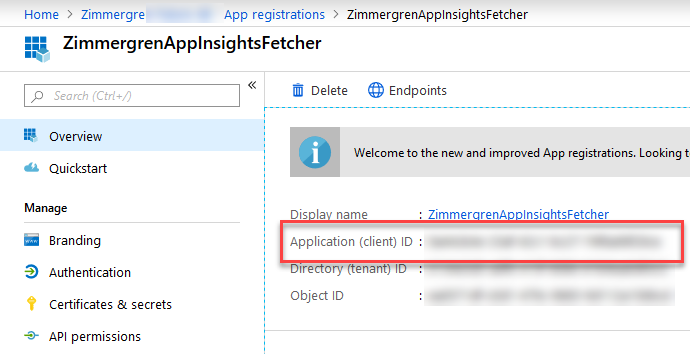
Make note of the App Id (ClientId) from your new application's "Overview" page. You'll need this in the code later:

Get the Application Id (ClientId) for the new Azure AD Application

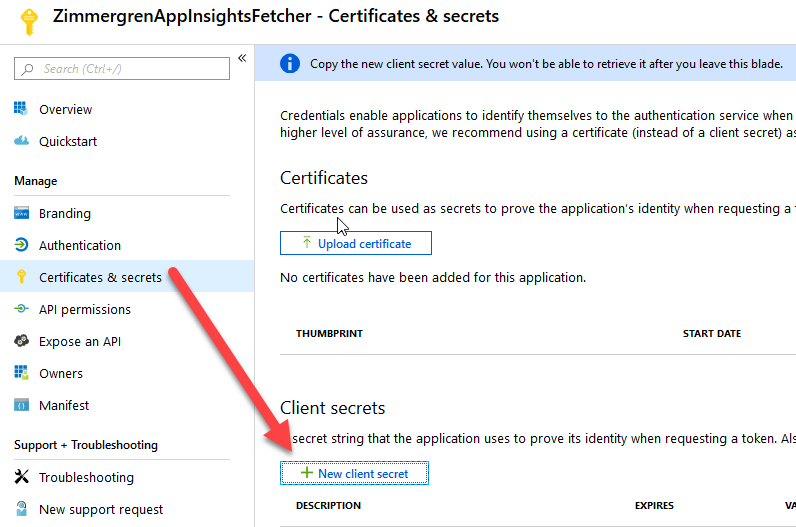
Click "Certificates & Secrets" and "+ New client secret" in order to create a new secret for this application. Make a note of the secret, as you'll need it in the code later:

Create a Client Secret for your Azure AD application.

Great, we're now prepared for configuring the access rights of our application and allow it to read/contribute/whatever to our Application Insights service.

1.2. Assign Role Based Access Control to App Insights for your Azure AD Application

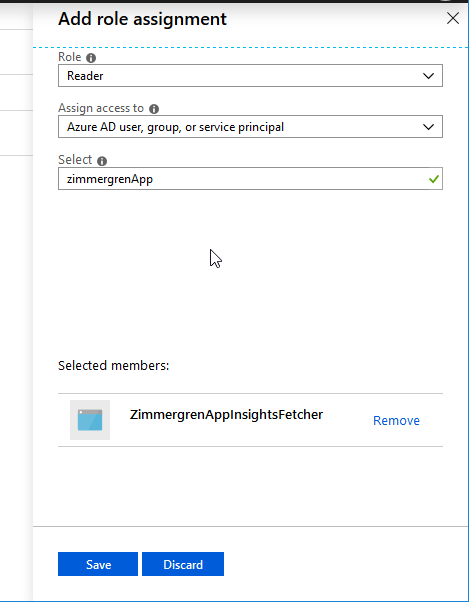
In order for our new AAD app to access Application Insights, we need to assign the desired role so it can access and read data from App Insights.

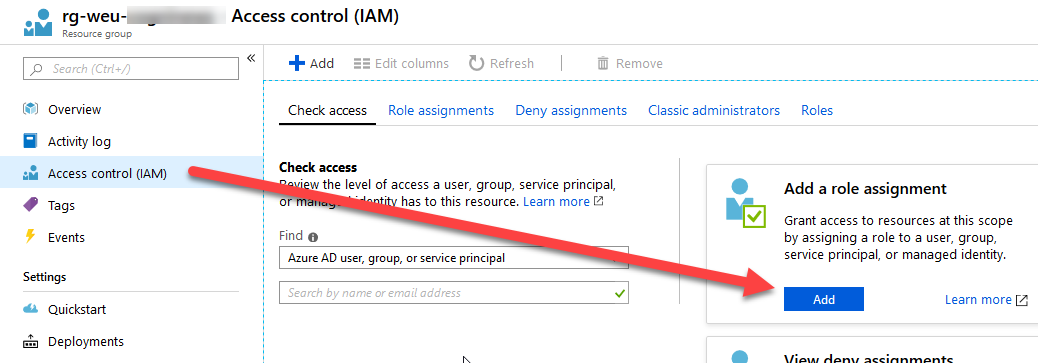
Go to your App Insights resource and then "Access control (IAM)" and click "Add" in the "Add a role assignment" box.

Application Insights role based access control with IAM.
Assign RBAC permissions to the application and ensure our new Azure AD application can read data from App Insights.

1.3. Grab the Application Insights API Identifier

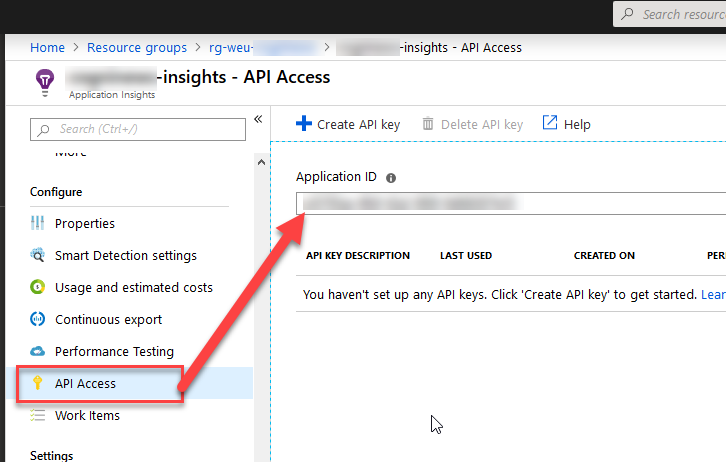
For us to access the App Insight from the API, we need to grab the Application ID from "API Access" - "Application ID":

When this is done, we have:

  • A new Azure AD application
  • Created and copied a secret for our app, and copied the ClientId (App Id)
  • Configured RBAC so it can access App Insights
  • Copied the App Insights API Application ID

We are now prepared to programmatically use this app to access App Insights, and can use the SDK's to fetch data.

Step 2. Programmatically reading logs from Application Insights with .NET Core

Okay, we're done with the configuration and preparation phase. We've set up our new Azure AD application and ensured that it has access specifically to the App Insights that I want it to have access to using IAM.

In the demo code below, I haven't used protected secrets - please ensure you take care of your credentials if you use any code below; Don't use plain-text credentials ;)

My demo application is just a Console Application, so following along should be easy.

2.1. Get the required NuGet packages

There's two nuget packages we want in order to reach a working code sample.

2.2. Grab the code!

Since the code itself is very basic, you can just grab it in its demo-shape from below, and start using it as-is and then modify it to fit your own needs.

using System;
using Microsoft.Azure.ApplicationInsights;
using Microsoft.Rest.Azure.Authentication;

namespace Zimmergren.Azure.AppInsightLogFetcher
{
    public class Program
    {
        private static ApplicationInsightsDataClient _applicationInsightsDataClient;
        static void Main(string[] args)
        {
            WireUp();

            WriteExceptionsDemo();
            WriteCustomEventsDemo();
        }

        static void WireUp()
        {
            var activeDirectoryServiceSettings = new ActiveDirectoryServiceSettings
            {
                AuthenticationEndpoint = new Uri("https://login.microsoftonline.com"),
                TokenAudience = new Uri("https://api.applicationinsights.io/"),
                ValidateAuthority = true
            };

            var serviceCredentials = ApplicationTokenProvider.LoginSilentAsync(
                    domain: "<Your Azure AD domain name, or tenant id>",
                    clientId: "<Your Azure AD App Client Id>",
                    secret: "<Your Azure AD App Client Secret>",
                    settings: activeDirectoryServiceSettings)
                .GetAwaiter()
                .GetResult();

            _applicationInsightsDataClient = new ApplicationInsightsDataClient(serviceCredentials)
            {
                AppId = "<Your Application Insights Application ID>"
            };
        }

        private static void WriteCustomEventsDemo()
        {
            var events = _applicationInsightsDataClient.GetCustomEvents();
            foreach (var e in events.Value)
            {
                var name = e.CustomEvent.Name;
                var time = e.Timestamp?.ToString("s") ?? "";
                Console.WriteLine($"{time}: {name}");
            }
        }

        private static void WriteExceptionsDemo()
        {
            var exceptions = _applicationInsightsDataClient.GetExceptionEvents(TimeSpan.FromHours(24));
            
            foreach (var e in exceptions.Value)
            {
                // Just for demo purposes...
                var time = e.Timestamp?.ToString("s") ?? "";
                var exceptionMessage = e.Exception.Message;
                if (string.IsNullOrEmpty(exceptionMessage))
                    exceptionMessage = e.Exception.InnermostMessage;
                if (string.IsNullOrEmpty(exceptionMessage))
                    exceptionMessage = e.Exception.OuterMessage;

                Console.WriteLine($"{time}: {exceptionMessage}");
            }
        }
    }
}

That's it. If you've configured your Azure AD application and App Insight correctly, you can simply grab this code and replace the <...> strings with the values of your own environments.

Security awareness: As always, consider your application configuration and security. Don't put any credentials and secrets in plain text in your source code. Code snippet above is provided as a PoC only and shouldn't be used in this shape if you put it to use in your own software and systems.

Enjoy!


Deploy a Python API to an Azure App service with Azure container registry and Azure DevOps

 S ummary : Article explain deployment of phyton api which get data from sql database . On-Prem database in a SQL server instance using the...