Wednesday, August 19, 2020

Implement Security and Compliance in an Azure DevOps pipeline


In this lab we will Create a new Azure DevOps project and populate the project repository with our application code, then we will crate a new build pipeline, install WhiteSource Bolt from the Azure DevOps Marketplace to make it available as a task and activate it. Finally then we will add WhiteSource Bolt as one of our build tasks and scan our project code for security vulnerabilities and licensing compliance issues and view the resultant report.

DevOps Course Source

This lab is used in the following courses.

  • AZ-400T05: Implementing Application Infrastructure - Module 5 Compliance and Security. The lab compliments the AZ-400 series of courses to help you prepare for the AZ-400 Microsoft Azure DevOps Solutions certification exam.

Pre-requisites:

  • An Azure subscriptions
  • An Azure DevOps account

Lab Tasks:

  • Create an Azure DevOps account and populate the project repository with our application code
  • Create a Build pipeline
  • Install WhiteSource Bolt from the Azure DevOps marketplace and activate it
  • Add WhiteSource Bolt as a build task in our build pipeline
  • Run our build pipeline and view WhiteSource security and compliance report

Estimated Lab Time:

  • approx. 80 minutes

Task 1: Create and Configure Azure Devops environment

Our first task is to create an Azure DevOps project. To do this you will need an Azure DevOps account. If you have an existing Azure DevOps account you can use that and just create a new project, as outlined from step 3 below.

  1. If you do not have an Azure DevOps (formerly known as Visual Studio Team Services (VSTS)) account, you can sign up for a free account by going to http://visualstudio.com. Then, under Azure DevOps (formerly VSTS) section click the Get Started for free link.
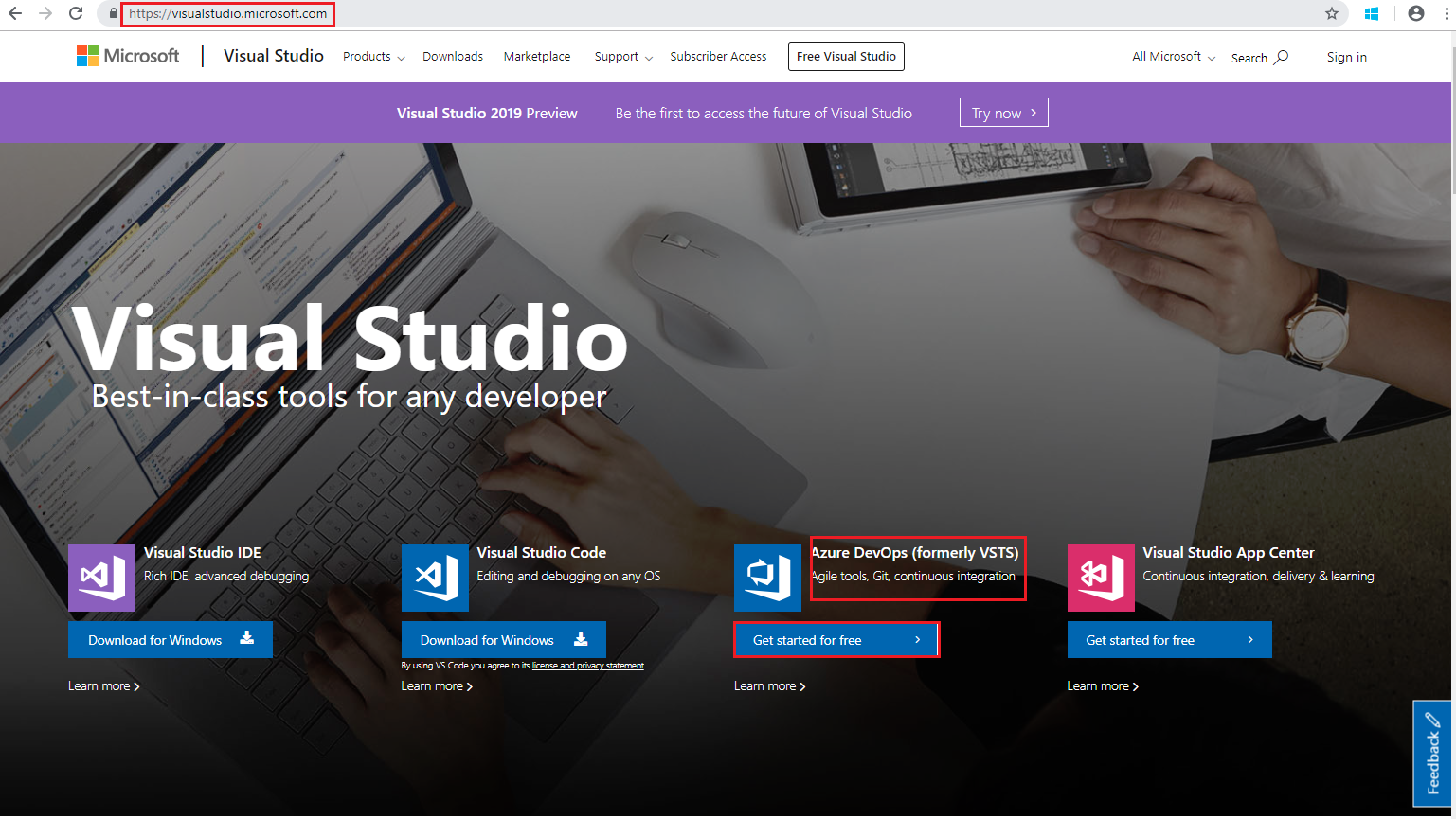
    Screenshot of the wbe page https://visualstudio.com with the Azure DevOps (formerly VSTS) section and Get started for free sections highlighted.

  2. Sign in with your Microsoft account. If you do not have a Microsoft account, you can create one by clicking on No account? Create one! and following the steps complete the process to create your free Azure DevOps account.

  3. Go to http://visualstudio.com and in you Azure DevOps account click on the + Create project button.
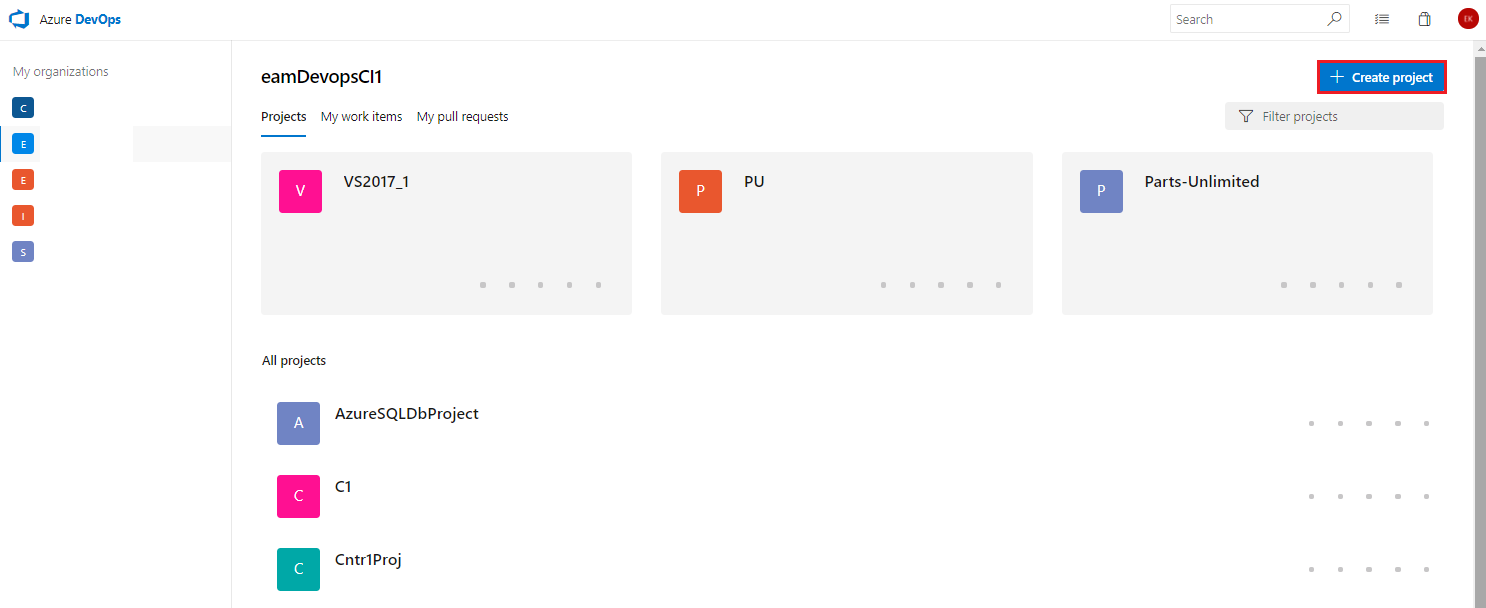
    Screenshot of the Azure Devops account  page with the + Create project button highlighted.

  4. In the create new project dialogue and click Create

    Project name: securityandcomplianceproj or any name you wish Visibility: Private
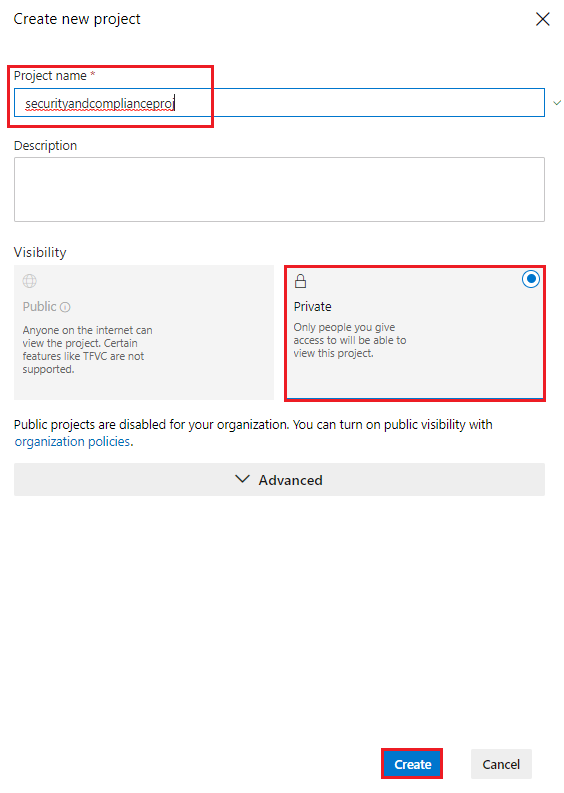
    Screenshot of the Create new project dialogue with property values highlighted.

  5. In your new project, go to Repos and under the section or import a repository click *Import
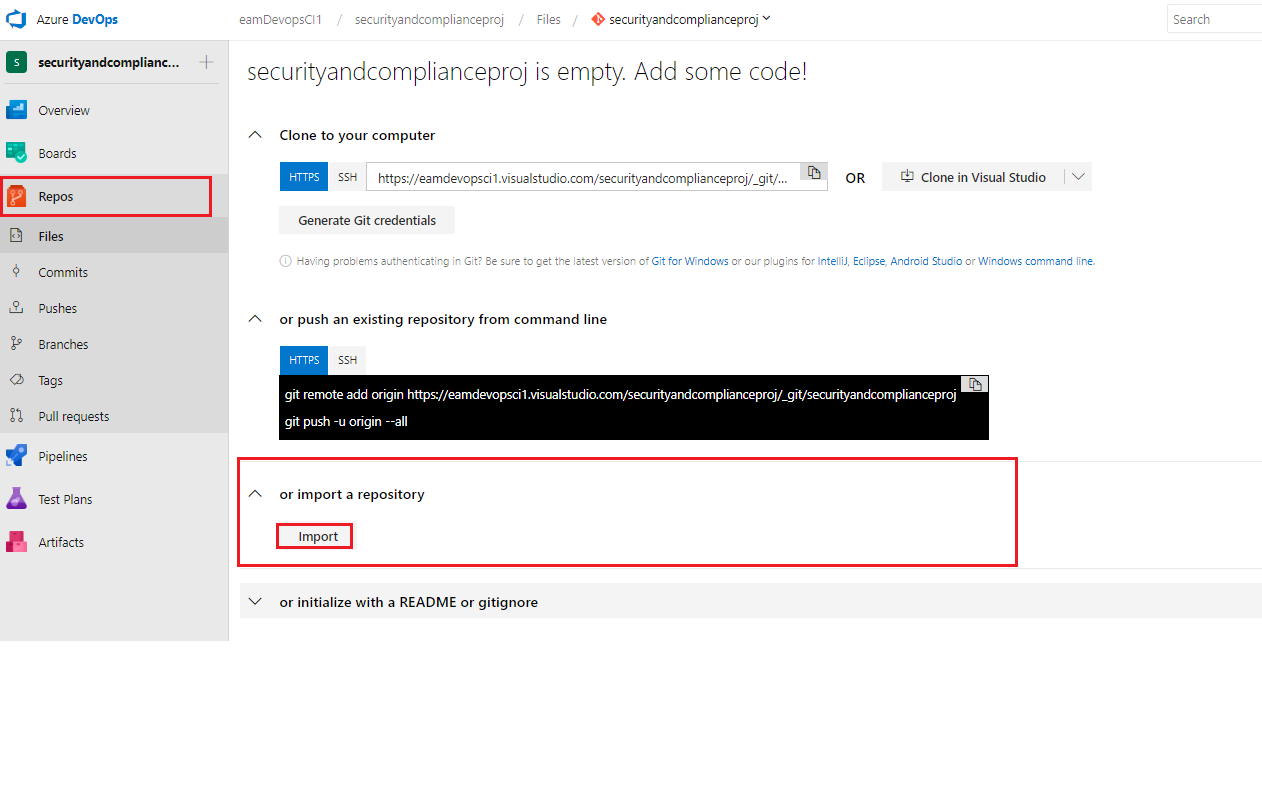
    Screenshot of the Repo under the import a repository section with Import button highlighted

  6. In the Import a Git repository dialogue select the below and click Import. We are using an existing repository that is available on GitHub at https://www.github.com/microsoft/partsunlimitedmrp

    • Source type: Git
    • Clone URL: https://github.com/Microsoft/PartsUnlimitedMRP.git
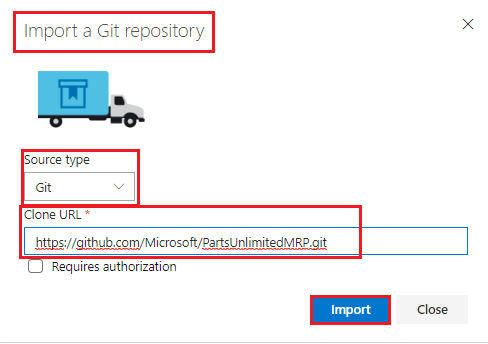
    Screenshot of the Repo under the import a repository section with Import button highlighted

  7. Once imported you should now see the files populated in your Azure DevOps repo.
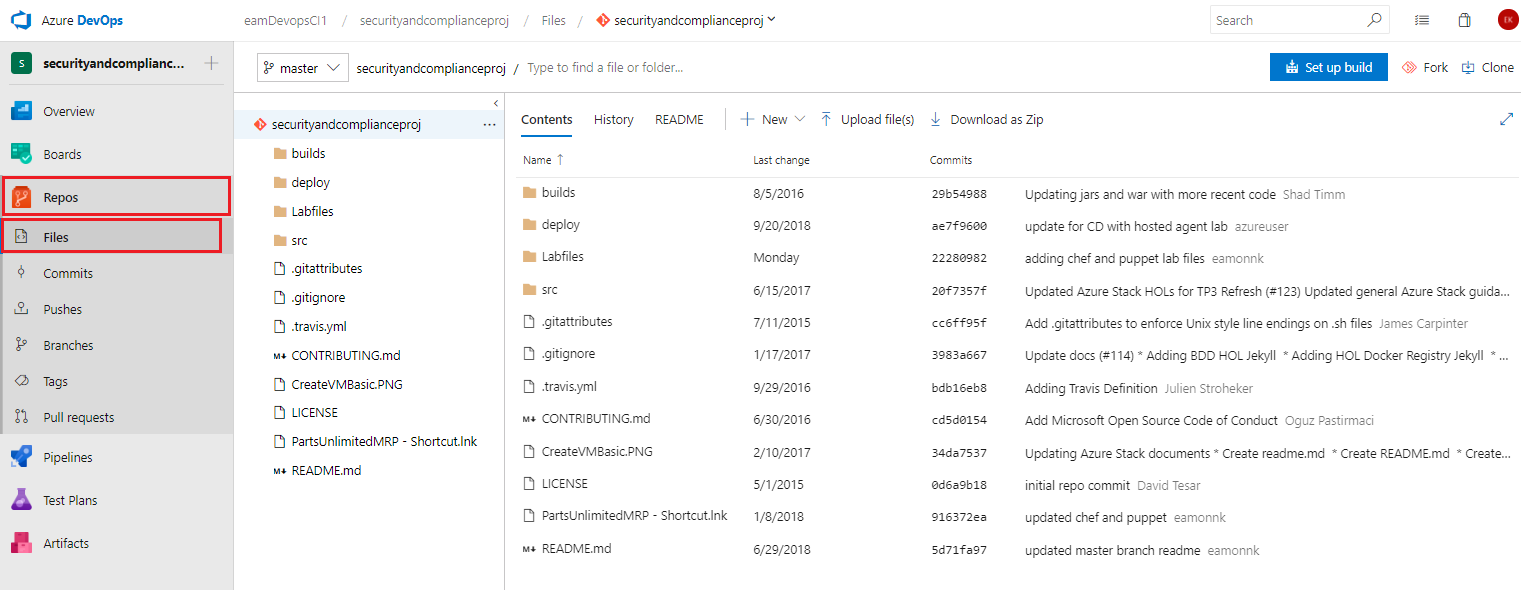
    Screenshot of the Repo and then Files populated with the files

Task 2: Create a Build pipeline

  1. Go to Pipelines > Build and select New pipeline
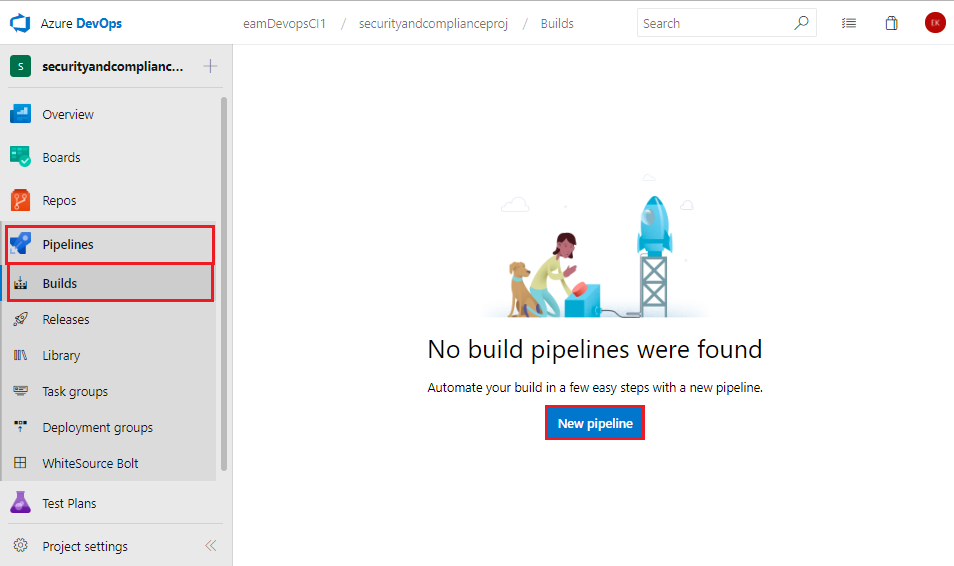
    Screenshot of the Pipelines build with the New pipeline button highlighted

  2. In the Select a source pane use the below values and click Continue

    • Select a source: Azure Repos Git < this should be the default value >
    • Repository: < whatever you called your azure devops project i.e. securityandcomplianceproj >
    • Default branch for manual and scheduled builds: master
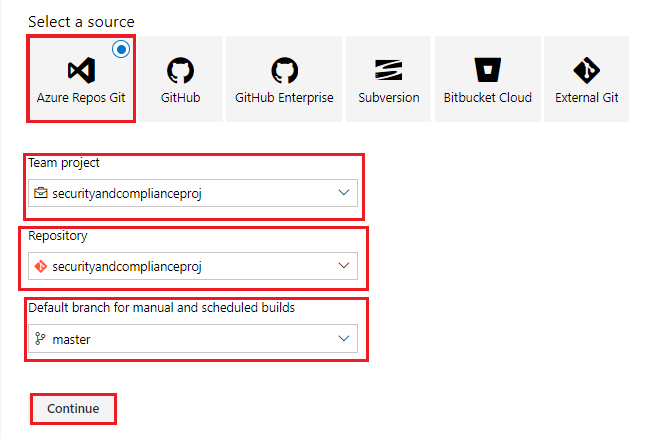
    Screenshot of the select a source pane with the field values highlighted

  3. In the Select a template pane scroll down to the end of the list, choose Empty pipeline, and click Apply.
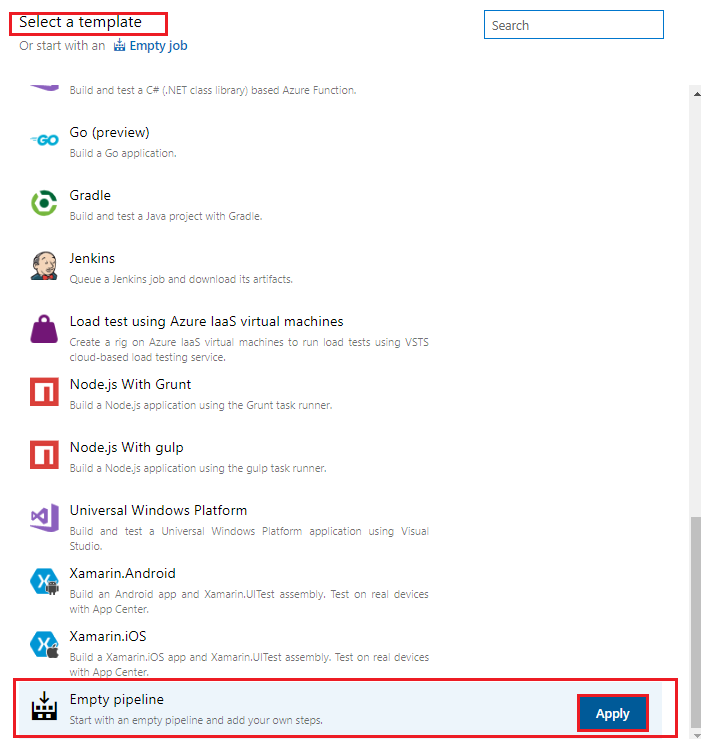
    Screenshot of the select a template pane with empty pipeline highlighted

  4. Under the Tasks tab and then Pipeline in the Agent pool drop down box select Hosted VS2017
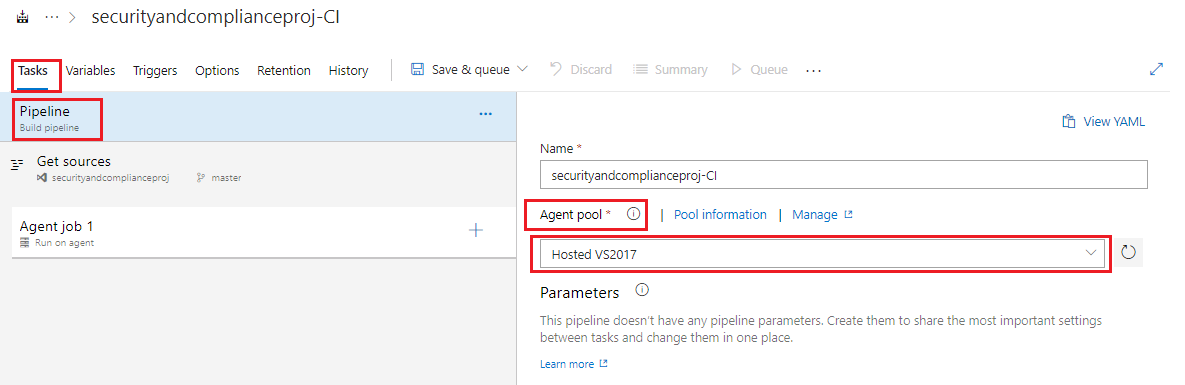
    Screenshot of the select a template pane with empty pipeline highlighted

  5. Click on the Agent job 1 section, click the + button to add a task, click on Build and scroll down to find the Gradle task. Then, click the Add button three times next to the Gradle task to add three Gradle tasks to the build pipeline. Gradle will be used to build the Integration Service, Order Service, and Clients components of the MRP app.
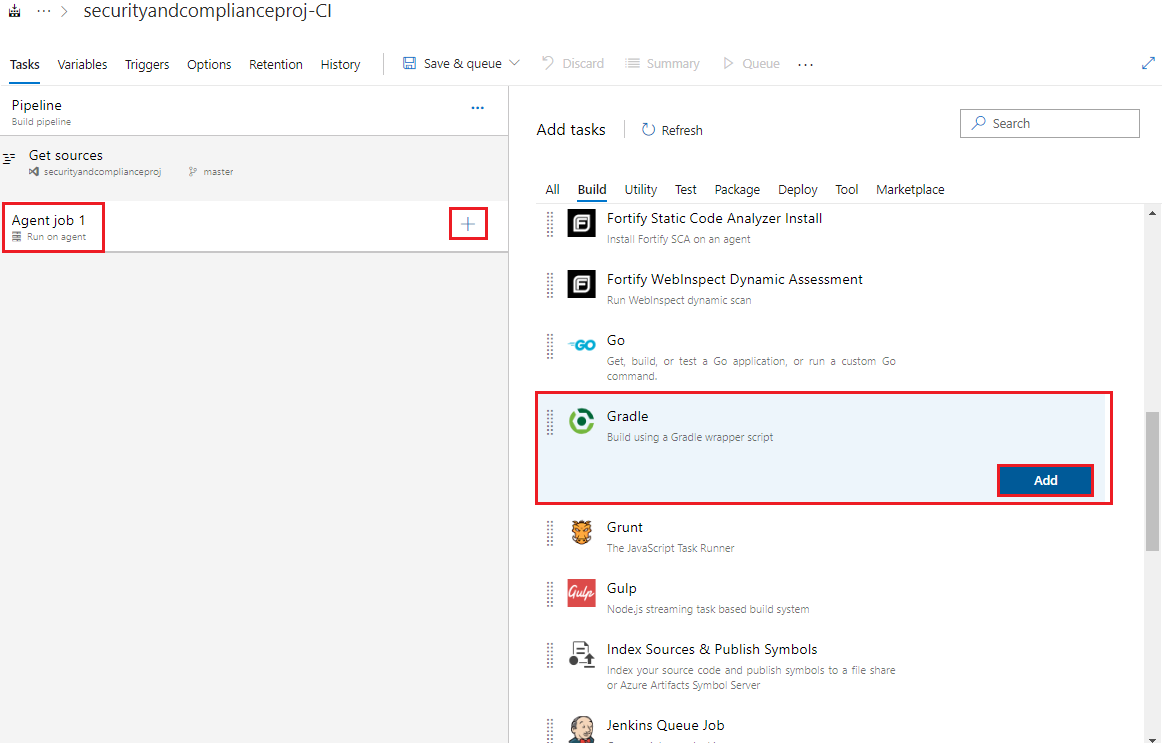
    Screenshot of the Add tasks build task options with Gradle highlighted

  6. Select the first Gradle task and set the below values, leaving any items not mentioned as their default values.

    • Display name: IntegrationService
    • gradle wrapper: src/Backend/IntegrationService/gradlew (either type or browse using the  button)
    • Working Directory: src/Backend/IntegrationService (either type or browse using the  button)
    • JUnit Test Results: uncheck the checkbox to Publish to Azure Pipelines/TFS, since we will not be running automated tests in the Integration Service.
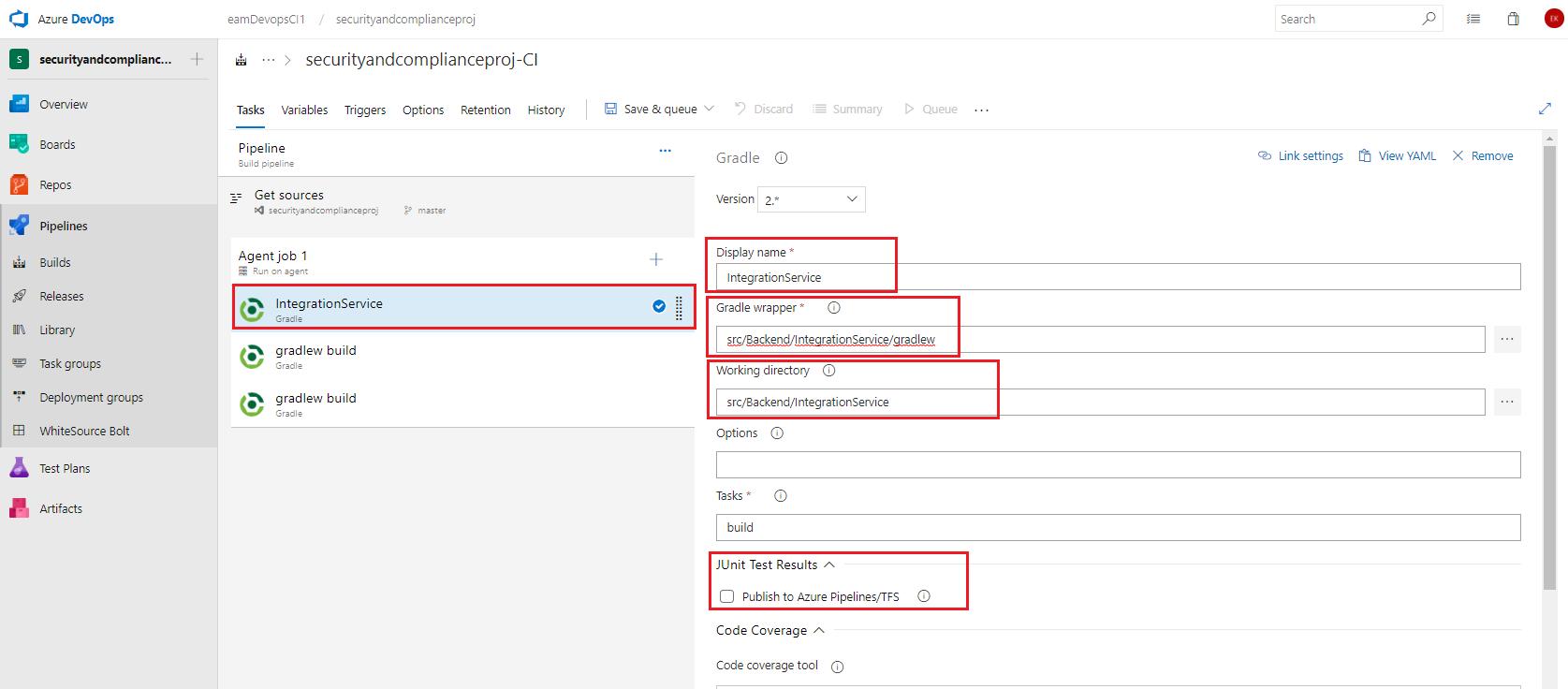
    Screenshot of the first gradle task with the field values mentioned configured and highlighted

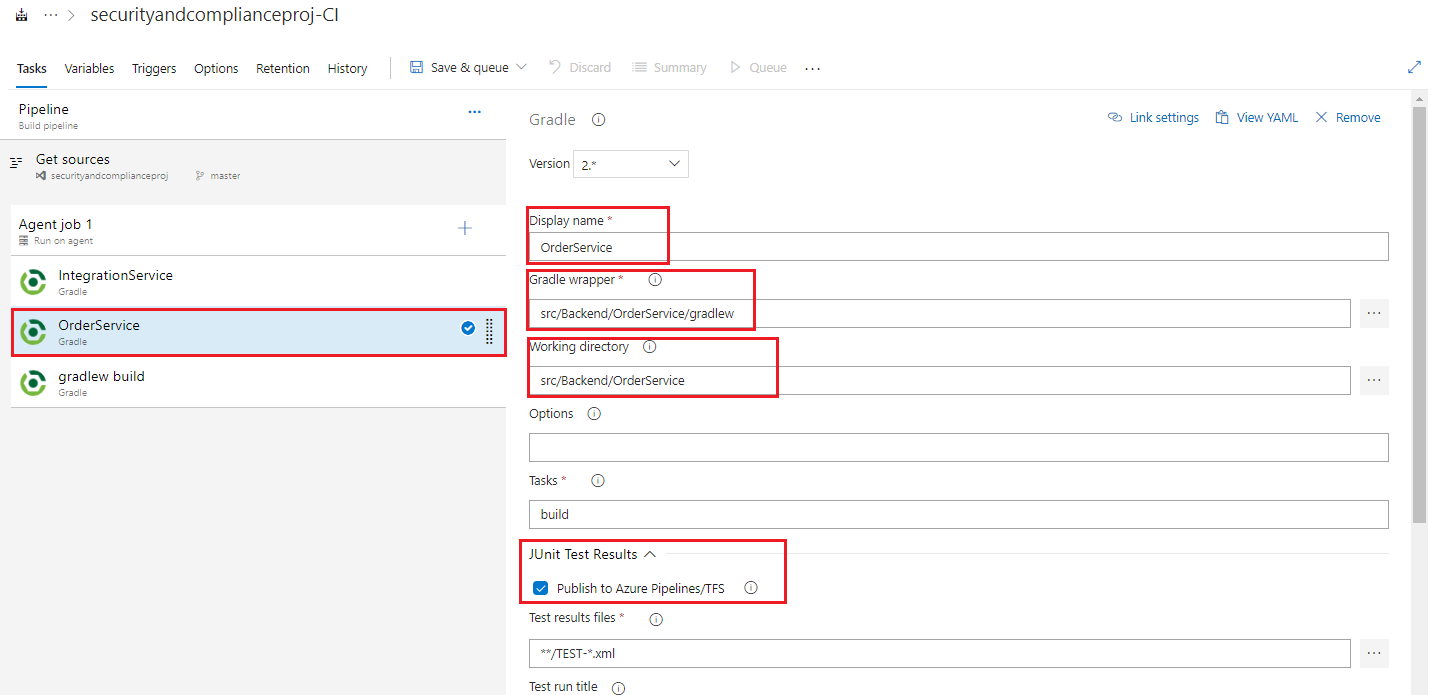
  7. Select the first Gradle task and set the below values, leaving any items not mentioned as their default values.

    • Display name: OrderService
    • gradle wrapper: src/Backend/OrderService/gradlew (either type or browse using the  button)
    • Working Directory: src/Backend/OrderService(either type or browse using the  button)
    • JUnit Test Results: check the checkbox to Publish to Azure Pipelines/TFS , and set the Test Results Files field to **/TEST-*.xml. Since the Order Service does have unit tests in the project, we can automate running the tests as part of the build by adding in a test in the Gradle tasks field.

    Screenshot of the second gradle task with the field values mentioned configured and highlighted

  8. Select the first Gradle task and set the below values, leaving any items not mentioned as their default values.

    • Display name: Clients
    • gradle wrapper: src/Clients/gradlew (either type or browse using the  button)
    • Working Directory: src/Clients(either type or browse using the  button)
    • JUnit Test Results: uncheck the checkbox in JUnit Test Results to Publish to TFS/Team Services since we will not be running automated tests in Clients.
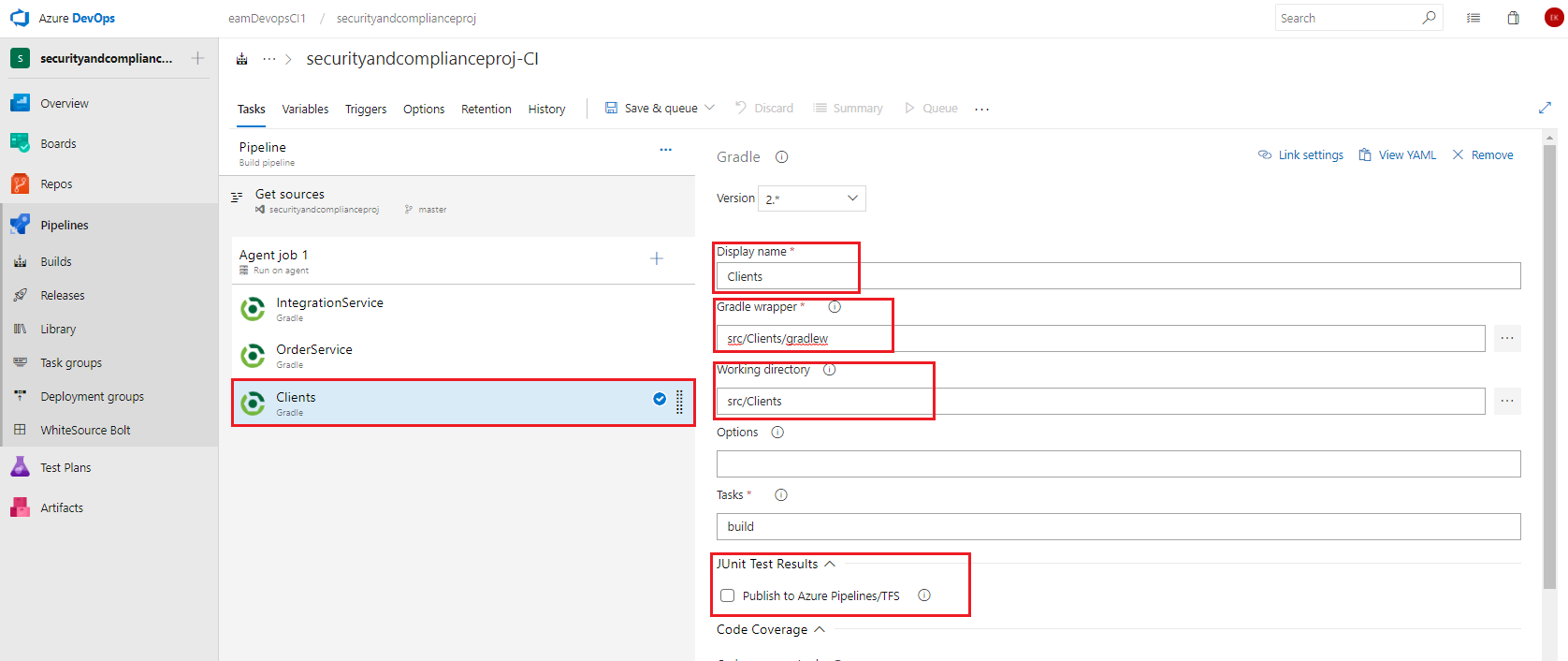
    Screenshot of the third gradle task with the field values mentioned configured and highlighted

  9. Click on the Agent job 1 section, click the + button to add a task, click on Utility and scroll down to find the Copy Files task. Then, click the Add button twice to add two Copy Files tasks.
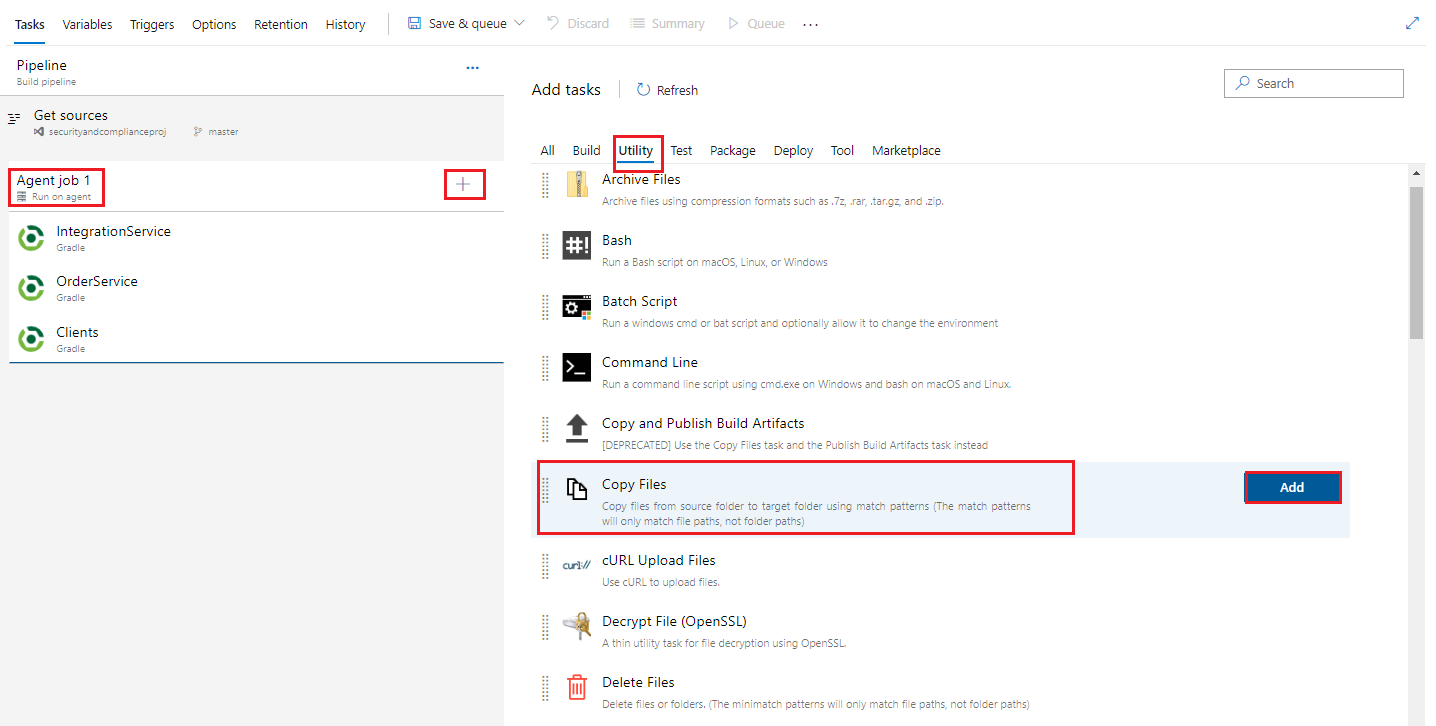
    Screenshot of the Add tasks build task options with Copy Files highlighted

  10. Still in the Add tasks pane under Utility and scroll down to find the Publish Build Artifacts task. Then, click the Add button twice to add two Publish Build Artifact tasks.
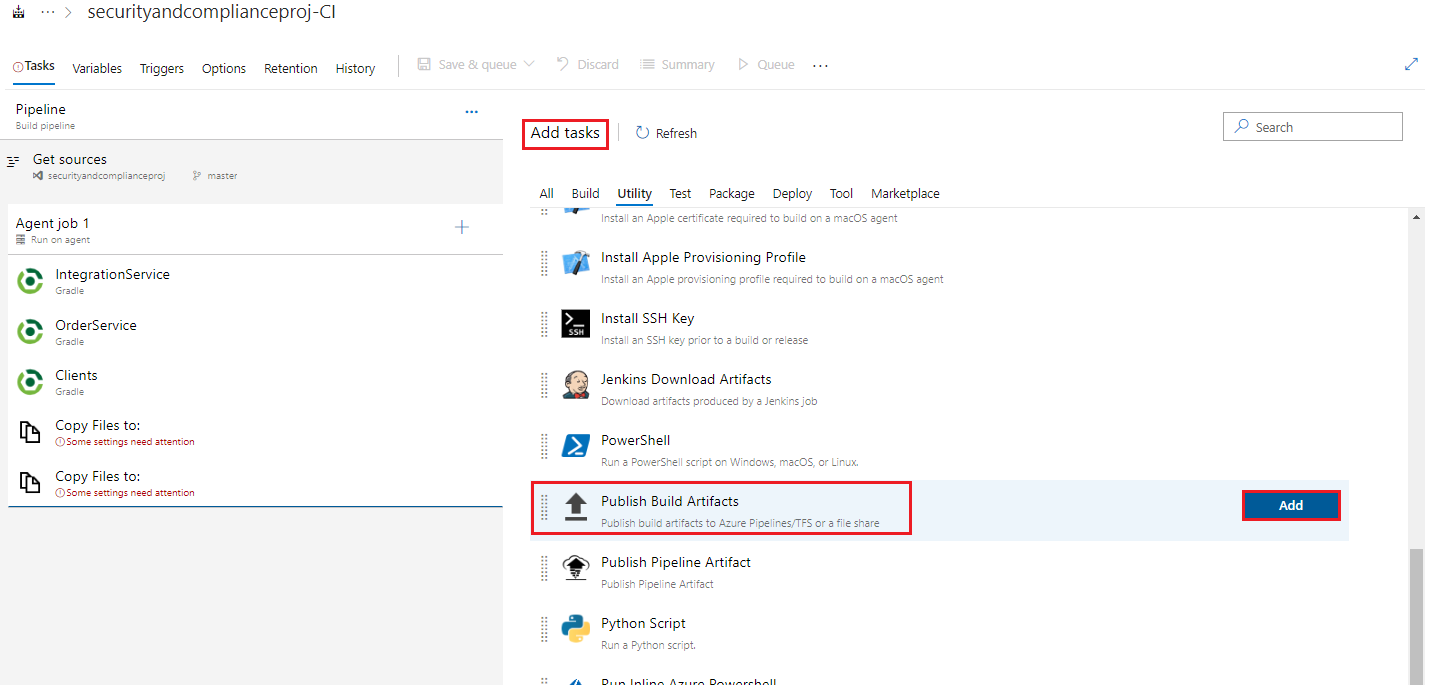
    Screenshot of the Add tasks build task options with Copy Files highlighted

  11. Select the first Copy Files to: task, and fill in the listed fields with the below values, leaving any items not mentioned with their default values.

    • Source Folder: $(Build.SourcesDirectory)\src (either type or browse using the  button to go to src)
    • Contents: */build/libs/!(buildSrc).?ar
    • Target Folder: $(build.artifactstagingdirectory)\drop
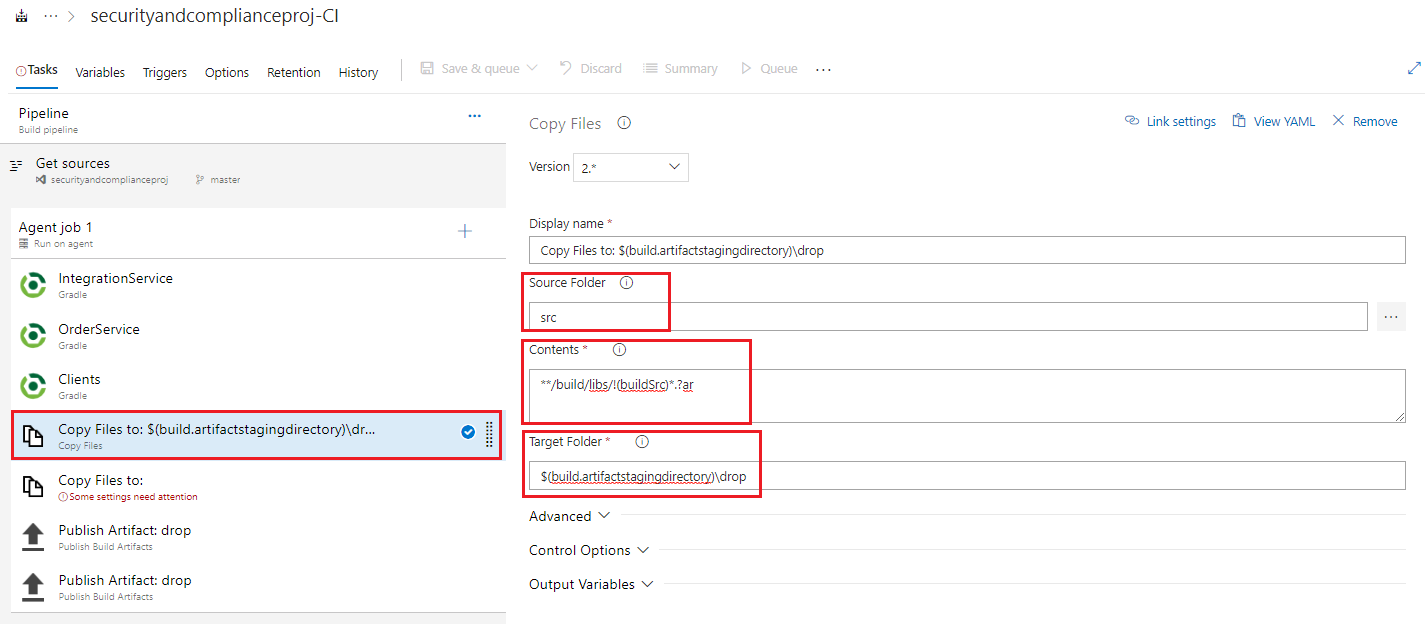
    Screenshot of the first copy files task with the fields mentioned highlighted

    • Note: We will copy the files we want from the build and repo and place them in a staging area on the agent, to be later picked up from there and published as build pipeline artifacts which we can later use in our release pipeline. To view more details about the variables that we are using in the tasks you can take a lok at the page Predefined build variables
  12. Select the second Copy Files to: task, and fill in the listed fields with the below values, leaving any items not mentioned with their default values.

    • Source Folder: $(Build.SourcesDirectory)
    • Contents: **/deploy/SSH-MRP-Artifacts.ps1 **/deploy/deploy_mrp_app.sh **/deploy/MongoRecords.js
    • Target Folder: $(build.artifactstagingdirectory)
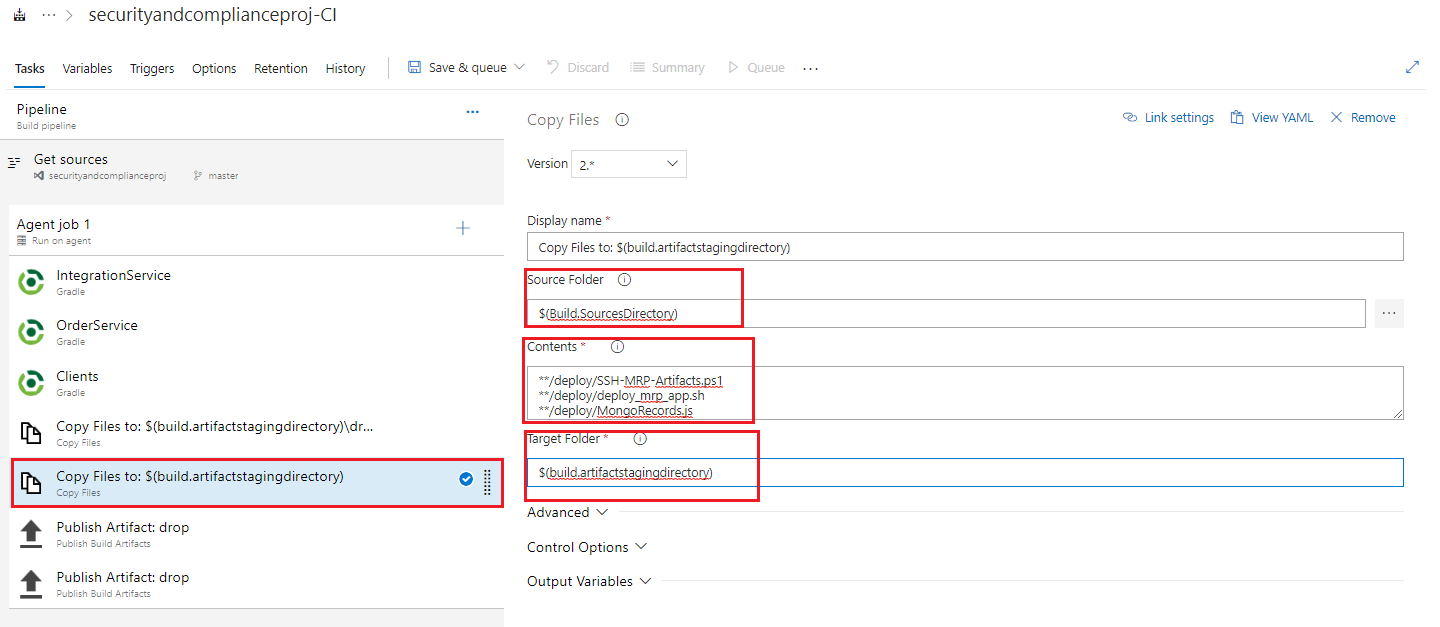
    Screenshot of the second copy files task with the fields mentioned highlighted

    -Note: Try to get the formatting as it appears in the screenshot to ensure the task works smoothly. Ultimately when you check the build artifacts at the end of the lab, you will know if the task is working correctly or not and can troubleshoot or amend as you need.

  13. Select the first Publish Artifact task, and fill in the listed fields with the below values, leaving any items not mentioned with their default values.

    • Path to publish: $(build.artifactstagingdirectory)\drop
    • Artifact Name: drop
    • Artifact publish location: Azure Pipelines/TFS
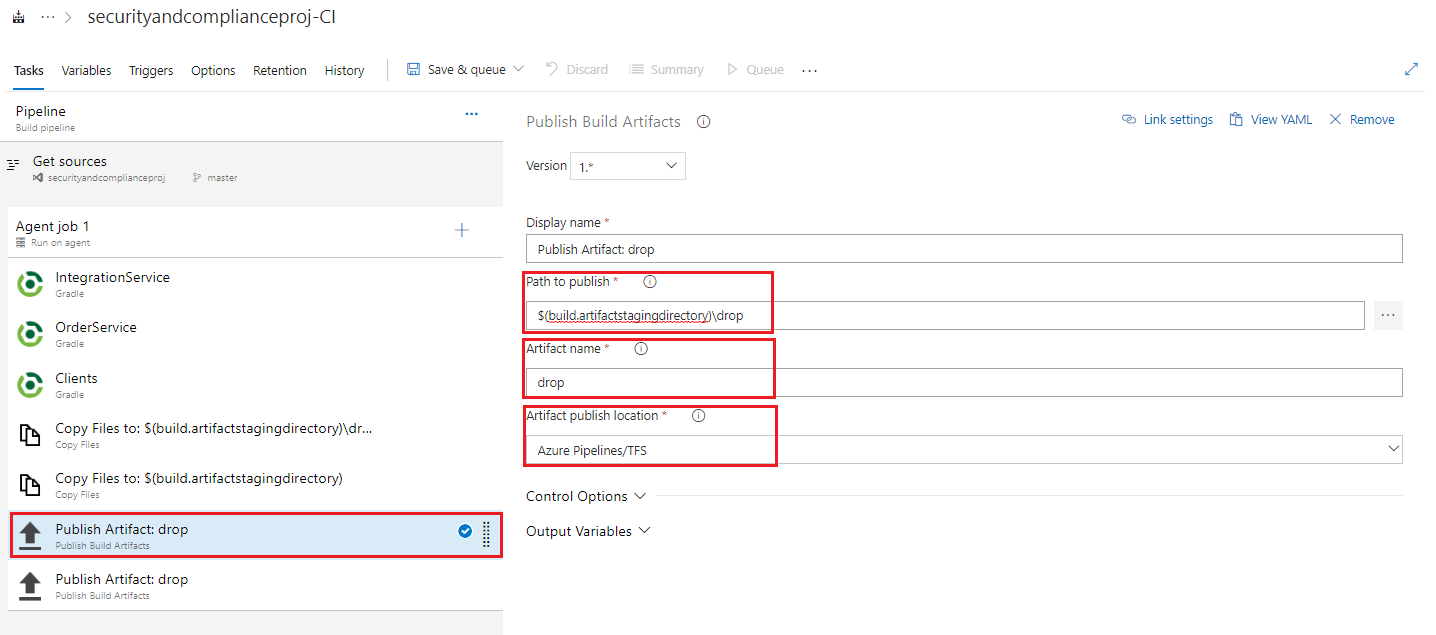
    Screenshot of the first Publish Artifacttask with the fields mentioned highlighted

    • Note: In these publish tasks, we are taking the items from the agent staging area and publishing them as build pipeline artifacts for later use in our release pipeline. We will not create and deploy using our release pipeline in this lab but if you wish you may retain this build pipeline for your own testing and use later.
  14. Select the second Publish Artifact task, and fill in the input values with the following:

    • Path to publish: $(build.artifactstagingdirectory)\deploy
    • Artifact Name: deploy
    • Artifact publish location: Azure Pipelines/TFS
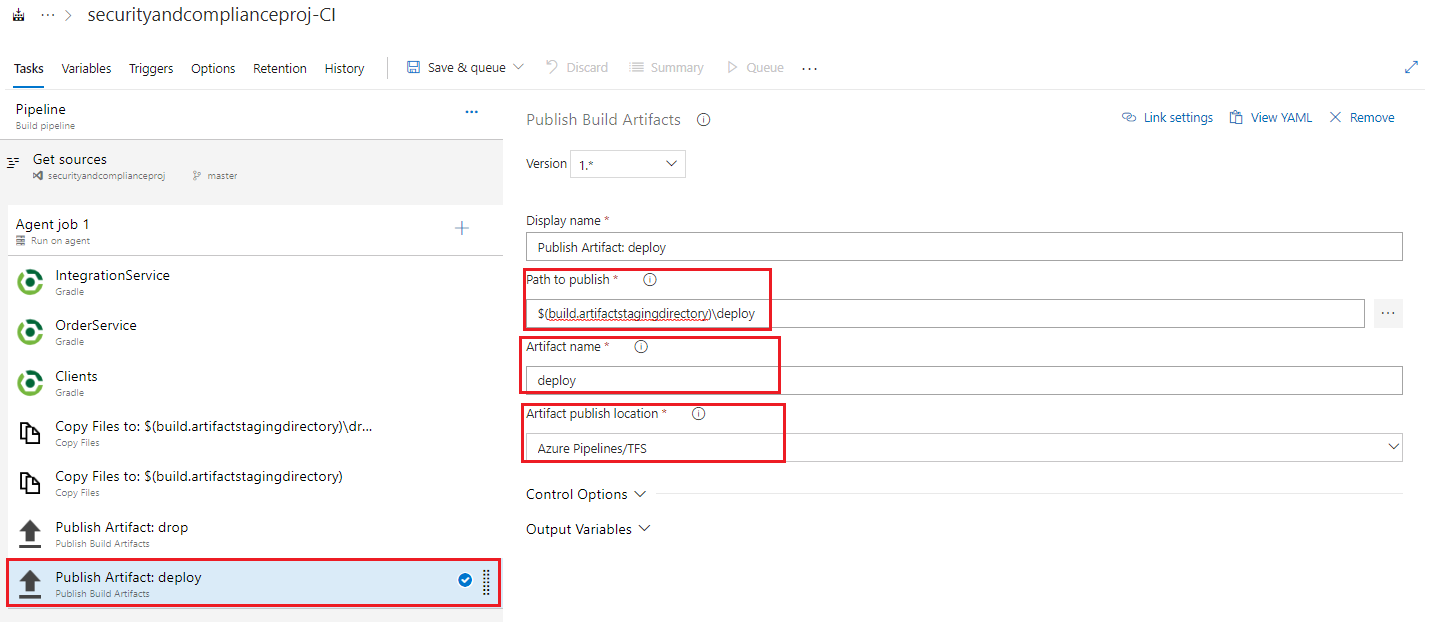
    Screenshot of the second Publish Artifact task with the fields mentioned highlighted

  15. Click Save and Queue, and then select Save and Queue from the drop down options to save the build pipeline and trigger a manual build, and in the Save build pipeline and queue dialogue click Save & queue again.
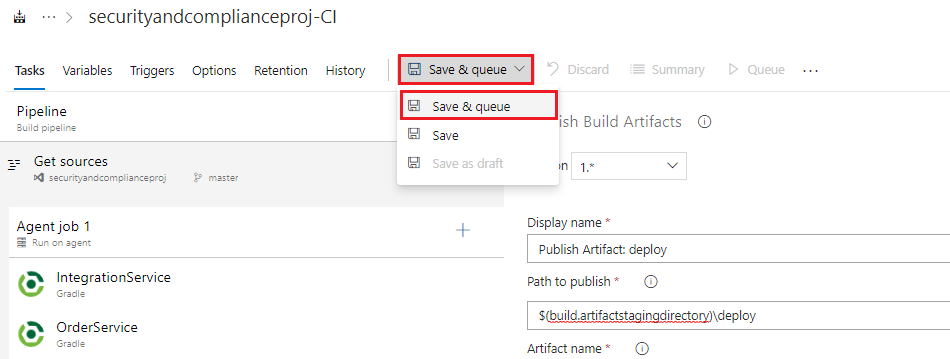
    Screenshot of the save and queue button with the save and queue option highlighted

  16. In the resultant Green Banner that appears click on the build number link to view the build output and logs as it progresses
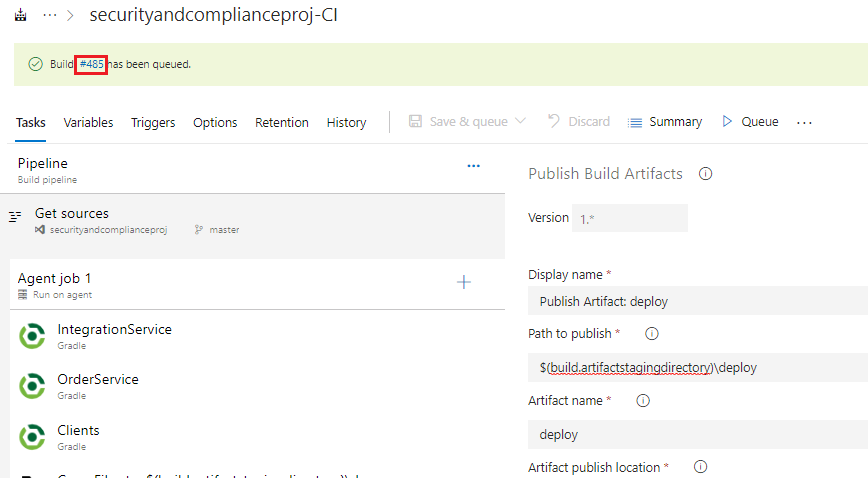
    Screenshot of the green build banner with the build number link highlighted

  17. View the output as it progresses and ensure it runs successfully before continuing with the next task.
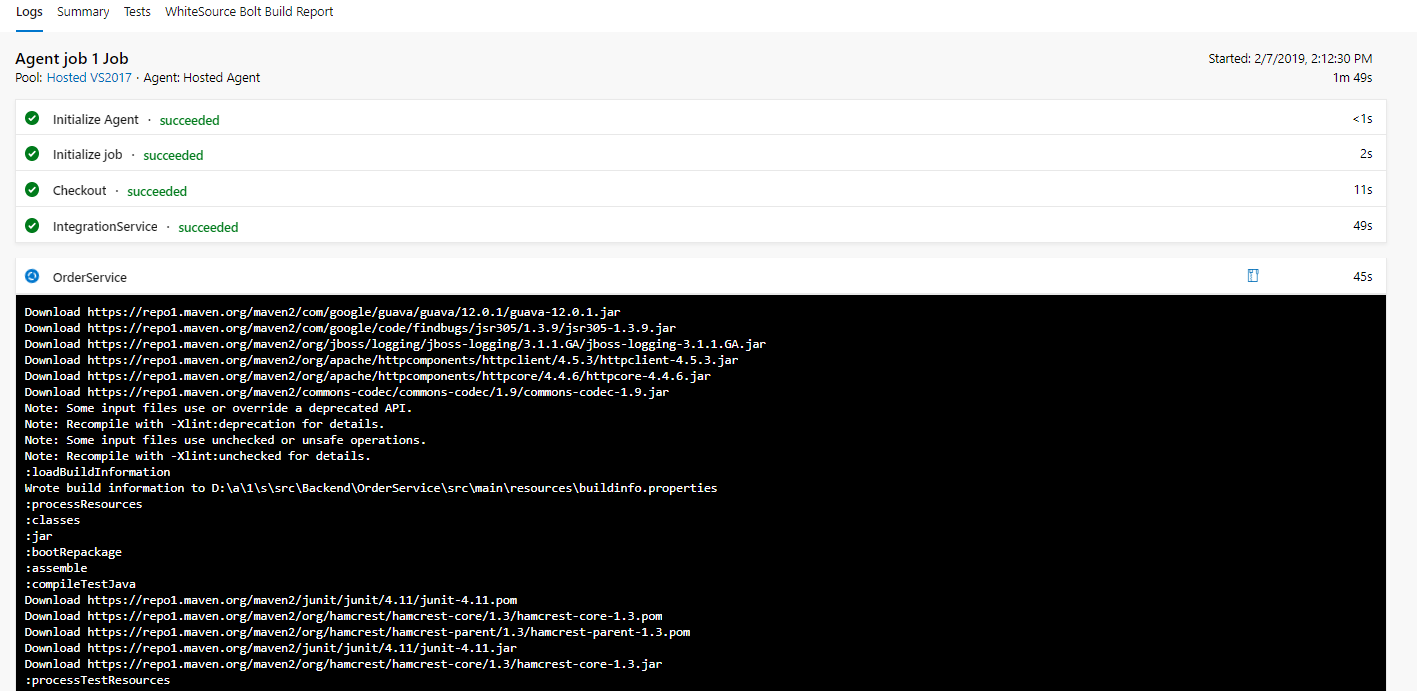
    Screenshot of the first copy files task with the fields mentioned highlighted

Task 3: Install WhiteSource Bolt from the Azure DevOps marketplace and activate it

  1. Return to our newly created build pipeline, and under Tasks go to the Agent job 1 section, click the + sign to add a task, then click on Marketplace, type whiteSource in the search dialogue, locate WhiteSource Bolt and click Gt it Free
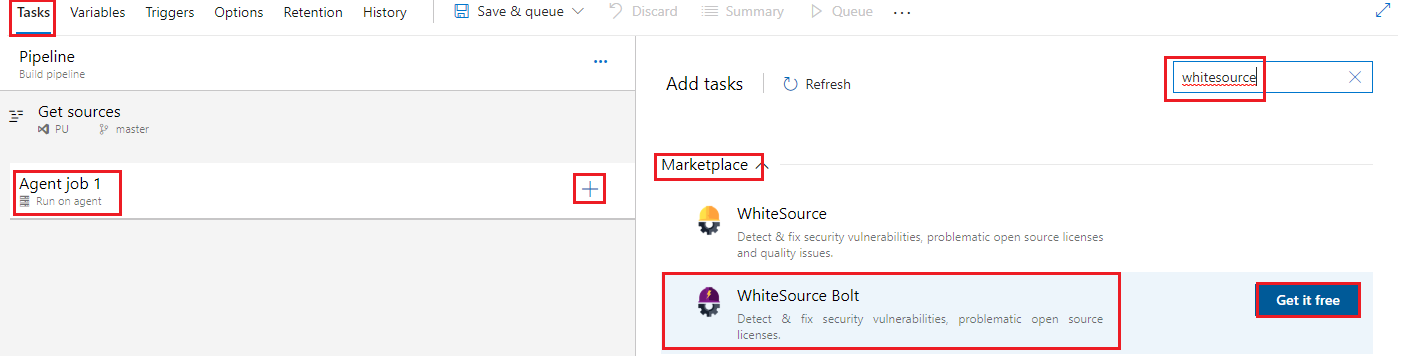
    Screenshot of the Add tasks pane in Marketplace with WhiteSource Bolt highlighted

    -NoteWhiteSource is for build servers and WhiteSource Bolt is specifically for *Azure DevOps8, hence we will use that.

  2. You are taken to the WhiteSource Bolt page in the Azure DevOps Marketplace, click Get it free
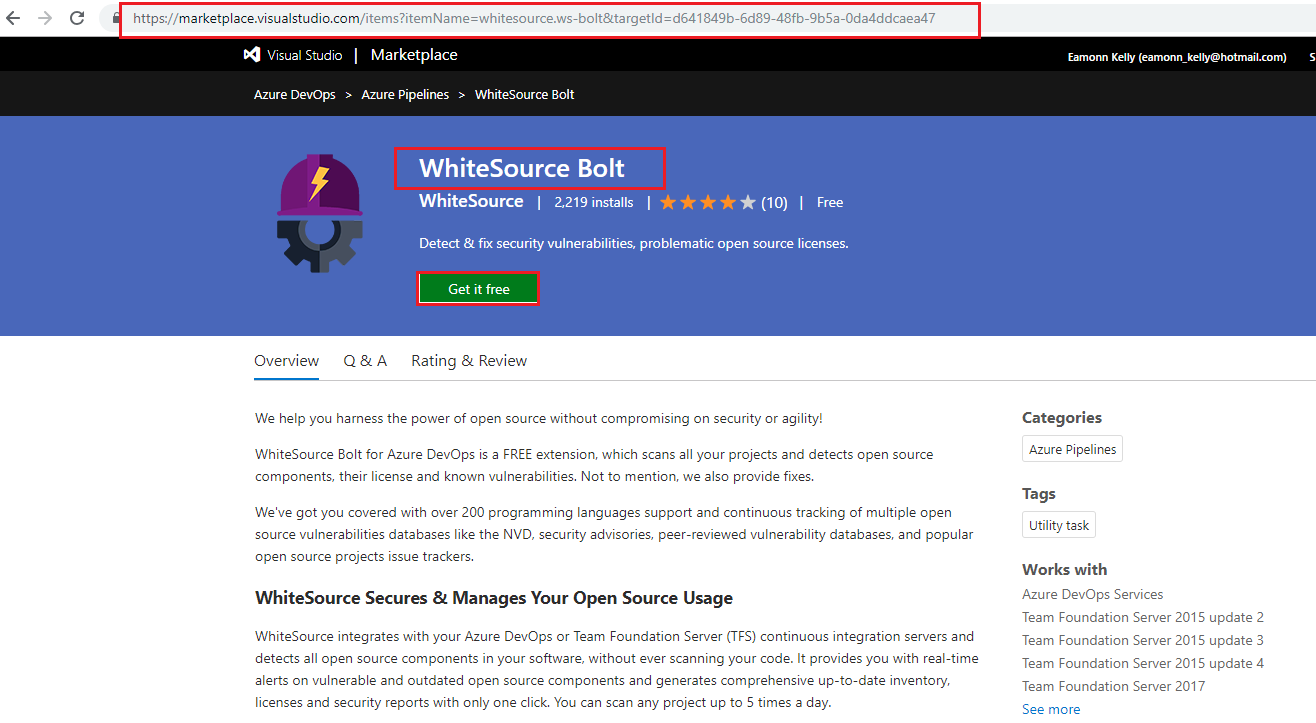
    Screenshot of the Azure DevOps Marketplace with WhiteSource Bolt page listed with the Get it free button highlighted

  3. On the Select an Azure DevOps organization page select your Azure DevOps organization and choose Install
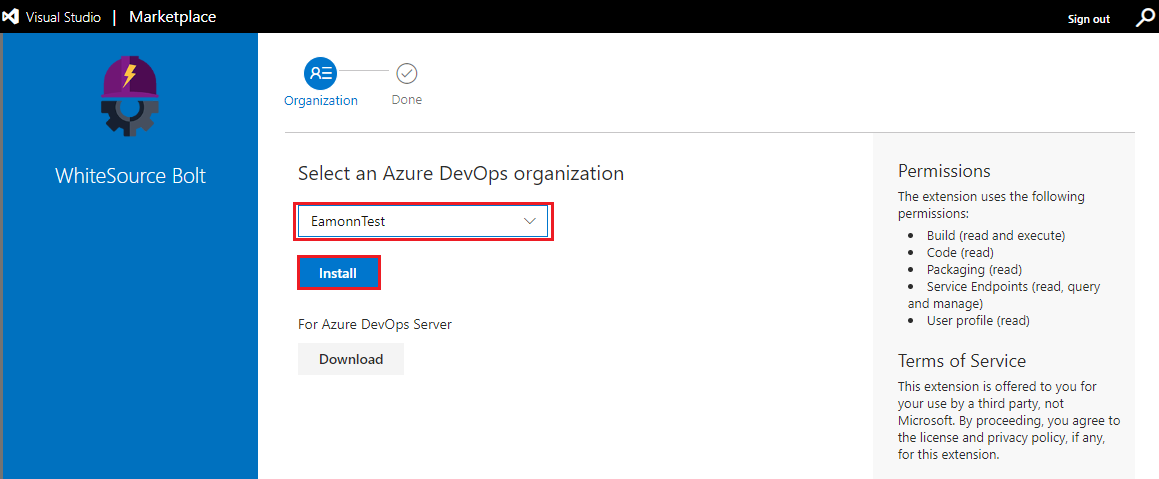
    Screenshot of the Azure DevOps Marketplace select an organization page with the Install button highlighted

  4. Once installed click Proceed to organization
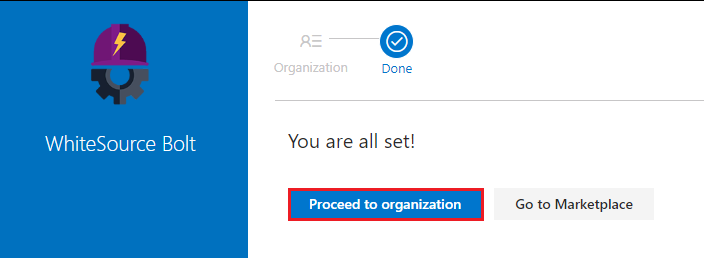
    Screenshot of the installation complete page with proceed to organization button highlighted

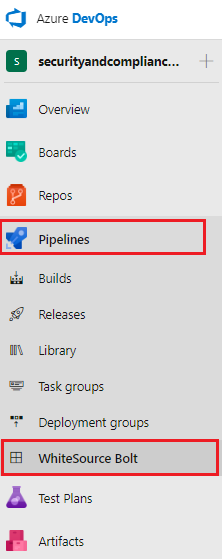
  5. In your Azure DevOps project go to Pipelines and then select WhiteSource Bolt
    Screenshot of the installation complete page with proceed to organization button highlighted

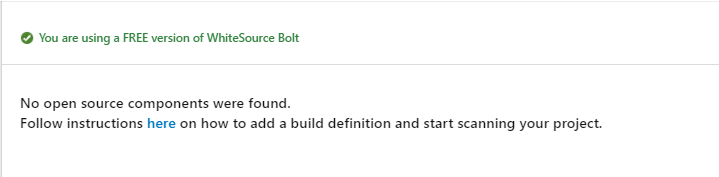
  6. If prompted enter your email address and organization to activate your WhiteSource Bolt extension. You may not need to enter your email address and organization depending on your environment, you may be brought straight to the page You are using a FREE version of WhiteSource Bolt, indicating it is ready to integarte iunto your build pipelines.
    Screenshot of the installation complete page with proceed to organization button highlighted

Task 4: Add WhiteSource Bolt as a build task in our build pipeline

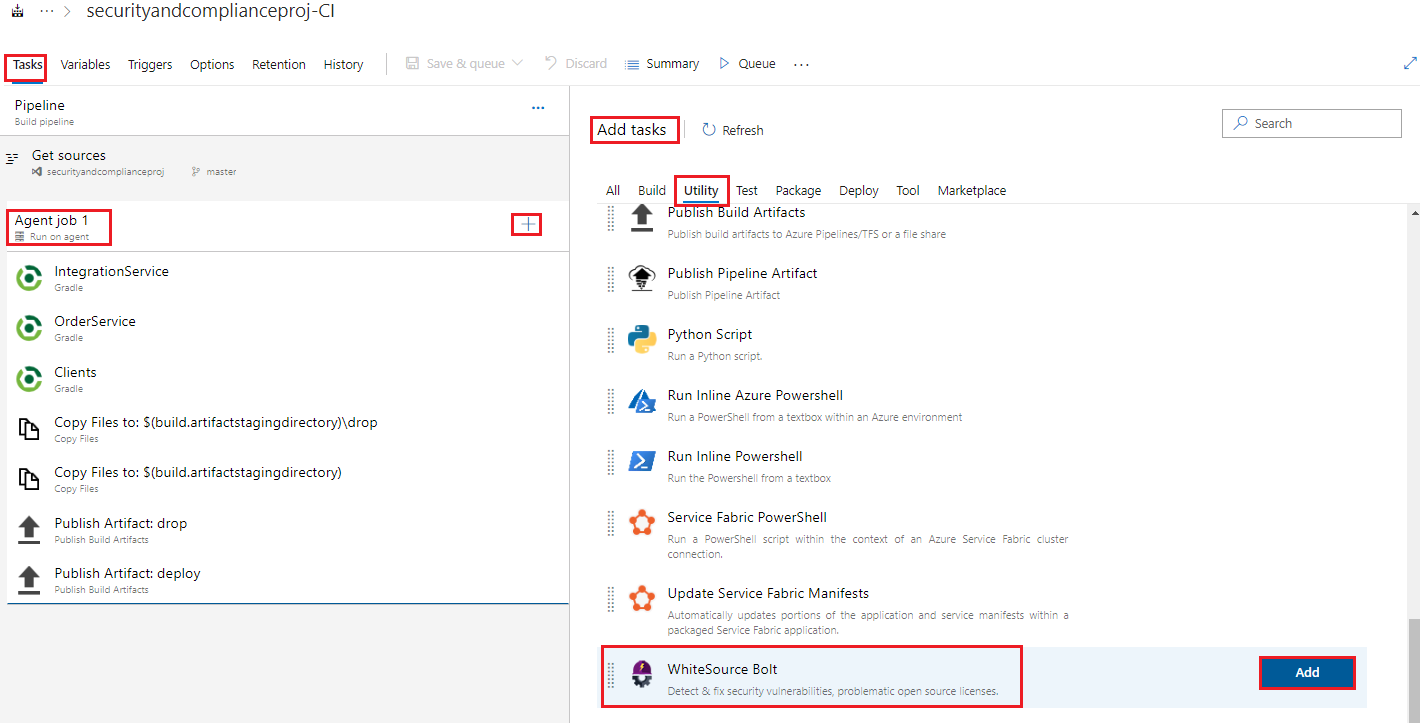
  1. Return to the Build pipeline we created and under Tasks go to the Agent job 1 section, click the + sign to add a task, then click on Utility, and scroll down to the end of the listed items to locate WhiteSource Bolt, then click Add
    Screenshot of the Add tasks pane under utility with WhiteSource Bolt highlighted

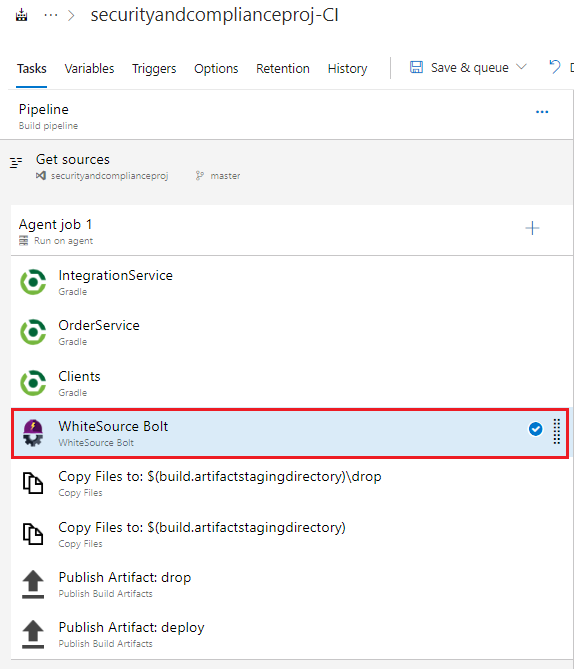
  2. Move the WhiteSource build task, by clicking on it and dragging it upwards, to occur after the gradle Clients task, or the last gradle build task
    Screenshot of the WhiteSource Bolt task highlighted listed after the gradle Clients build task

  3. Accept the default values in the WhiteSource Bolt task and Save the build pipeline

Task 5: Run our build pipeline and view WhiteSource Bolt security and compliance report

  1. Start a build by clicking > Queue and then click Queue again when prompted
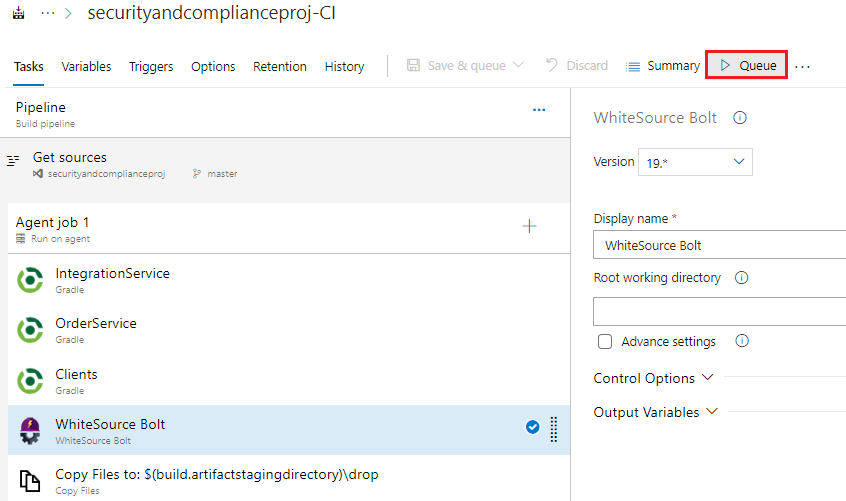
    Screenshot of the Build pipeline with the > queue button highlighted

  2. In the resultant Green Banner that appears click on the build number link to view the build output and logs as it progresses
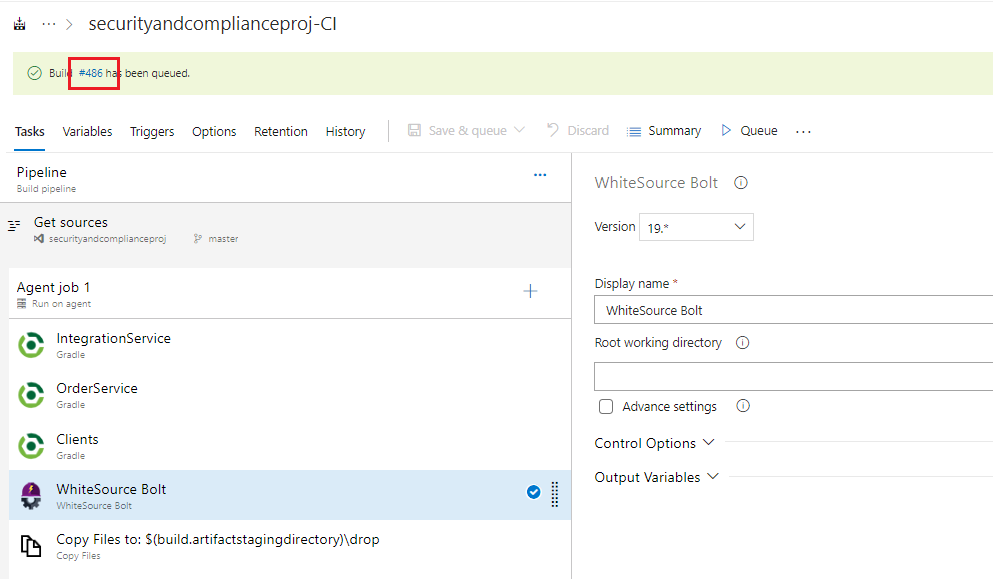
    Screenshot of the Build pipeline with the > queue button highlighted

  3. View the build as it progresses and ensure it runs successfully and the WhiteSource Bolt section runs successfully
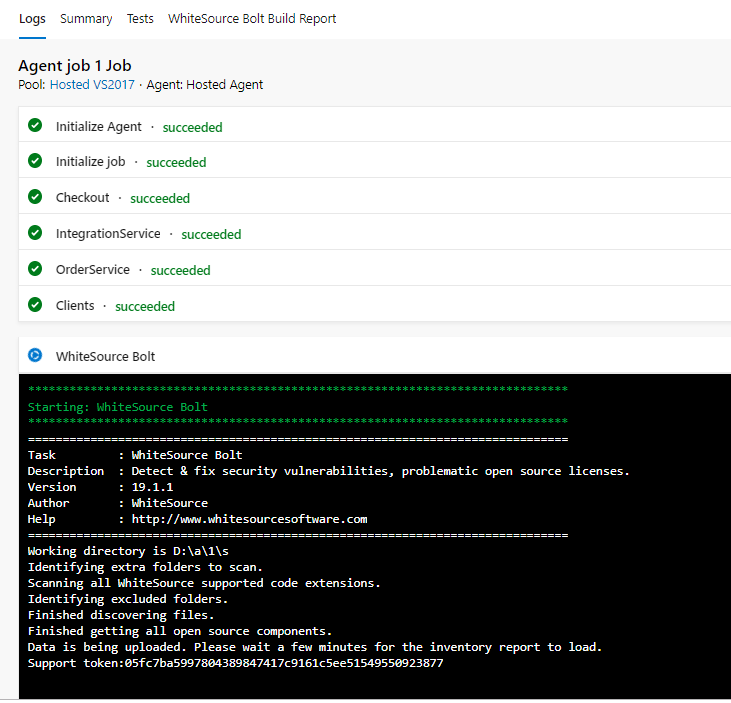
    Screenshot of the build pipeline output logs

  4. When the build is completed go to Pipelines > WhiteSource Bolt and view the generated report

  5. Scroll through the report and view various elements such as

    • Vulnerability Score
    • Vulnerable Libraries
    • Severity Distribution
    • Aging Vulnerable Libraries
    • License Risks and Compliance and the associated Risk level: Apache 2.0 is listed with Risk level unknown, and two occurrences of it
    • Outdated libraries section > there is one item list gradle-REL_1.0-milestone-1, view the version details and what the recommendations are i.e. Consider updating to latest version
    • Inventory

    • Note: There is also an option to export the report.

Congratulations! You have created an open source based build pipeline and added WhiteSource Bolt to your build pipeline to check for security and compliance vulnerabilities

Summary

In this lab you have completed the following tasks:

  • Created an Azure DevOps account and populate the project repository with our application code
  • Create a Build pipeline based around open source products
  • Installed WhiteSource Bolt from the Azure DevOps Marketplace and activated it
  • Added WhiteSource Bolt as a build task in our build pipeline
  • Ran our build pipeline and viewed WhiteSource security and compliance report that resulted from scanning our application code.

Monday, August 17, 2020

Steps to Deploy Angular application on Kubernetes


Introduction

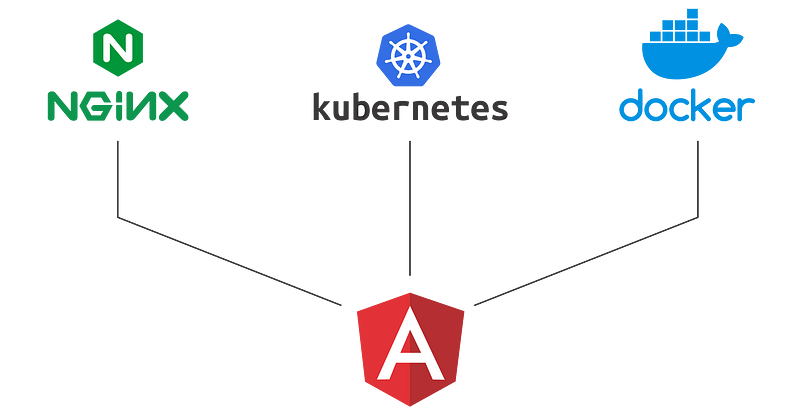
Angular is a JavaScript framework for building web applications and apps in JavaScript, HTML, and TypeScript, which is a superset of JavaScript. Angular provides built-in features for animation, HTTP service, and materials which in turn has features such as auto-complete, navigation, toolbar, menus, etc. The code is written in TypeScript, which compiles to JavaScript and displays the same in the browser.

In this tutorial, we will create a basic angular app. Write a docker file to build a compressed angular app and then create deployment manifest for angular application.

Steps to Deploy Angular application on KubernetesSteps to Deploy Angular application on Kubernetes

Prerequisite

Angular: A little knowledge of angular.

Nodejs: To run the application locally, we need node environment.

Docker: Docker CLI should be installed in your system to build and push the image. You can also set up a CI tool to build the docker image. I will talk about this in the next tutorial.

Nginx: Basic knowledge of Nginx configuration.

Kubernetes: Kubernetes is an orchestration tool, where we will deploy the application. For the demo sake, you can use minikube as well.

What we will do

1: Create an Angular application

2: Write custom Nginx config

3: Write a multistage docker file

3: Create a K8s deployment manifest and service manifest

4: Test the application

Step 1: Create an Angular application

Now, let’s create an Angular Application. By running the below command, angular will create and initialize a new Angular app, which we will use to deploy.

ng new spa-demo

After completion of above command, go inside the directory.

cd spa-demo

Run the development server.

ng serve

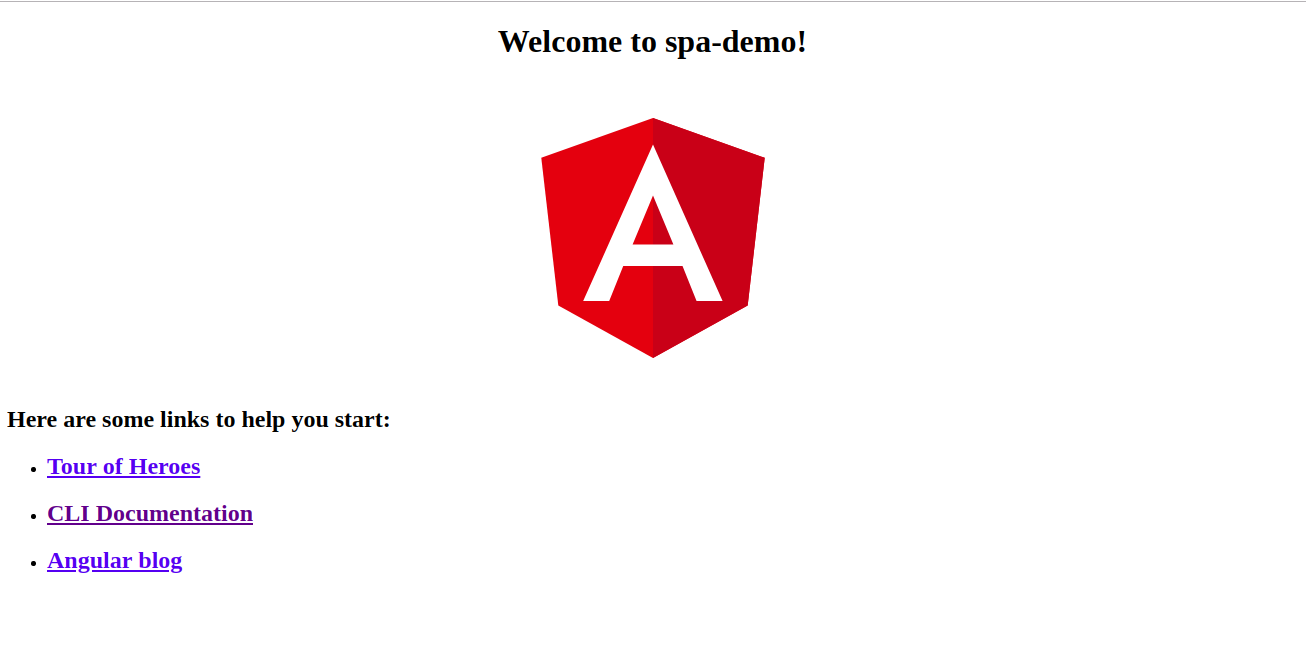
Now, at visiting http://localhost:4200/, you will see the view of this Angular app.

Angular app is ready for productionView of Angular App

Step 2: Write a custom config for Nginx

First, add an Nginx custom configuration file inside the new spa-demo directory, named nginx-custom.conf. Here is the gist link.

# Expires map
map $sent_http_content_type $expires {
default off;
text/html epoch;
text/css max;
application/json max;
application/javascript max;
~image/ max;
}

server {
listen 80;
location / {
root /usr/share/nginx/html;
index index.html index.htm;
try_files $uri $uri/ /index.html =404;
}
expires $expires;
gzip on;
}

The above Nginx custom config contains:

  • Expiration header for images and other content (CSS, HTML etc), which travels through the web to the browser for the maximum amount of time but do change it according to need.
  • Every single page application uses its routing module to go to its route, but it needs to go through its home route, so we need to redirect every route to home route, then the single page application will take care of rest of the thing.
  • At last, we enable gzip compression.

Step 3: Create a multistage docker file to build the angular application

Now, create a Dockerfile inside the spa-demo project directory, named- Dockerfile. Here is the gist link.

# Stage 0, "build-stage", based on Node.js, to build and compile the frontend
FROM node:10.8.0 as build-stage
WORKDIR /app
COPY package*.json /app/
RUN npm install
COPY ./ /app/
ARG configuration=production
RUN npm run build -- --output-path=./dist/out --configuration $configuration

# Stage 1, based on Nginx, to have only the compiled app, ready for production with Nginx
FROM nginx:1.15
#Copy ci-dashboard-dist
COPY --from=build-stage /app/dist/out/ /usr/share/nginx/html
#Copy default nginx configuration
COPY ./nginx-custom.conf /etc/nginx/conf.d/default.conf

The above Dockerfile consists of two stages:

First stage: Create a node environment and build the angular application with production configuration.

Second stage: Copy the dist folder from the previous stage to Nginx container and copy nginx-custom.conf inside the nginx

Build and push the docker image

Docker build command

docker build -t inyee/spa-demo:v1 .
docker push inyee/spa-demo:v1

Docker push to docker registry.

docker push inyee/spa-demo:v1

Step 4: Create a K8s deployment manifest and service manifest

To deploy the Angular application in any of the Kubernetes environments, the deployment manifest for angular is listed below. Before deploying the application to production, make sure you modify the manifest file to best suit your needs. You can change the name of the Deployment and the labels, and change your Docker registry and image tag accordingly.

The deployment manifest gist link.

apiVersion: apps/v1beta1
kind: Deployment
metadata:
name: deployment-name
spec:
replicas: 1
template:
metadata:
labels:
label-key : label-value
spec:
containers:
- name: deploment-container-name
image: inyee/spa-demo:v1
imagePullPolicy: Always
ports:
- containerPort: 80

Create a normal service to access the application internally, or you can use this service in ingress to expose it to some domain, named SPA-service.yaml

apiVersion: v1
kind: Service
metadata:
labels:
service-label-key: service-label-value
name: service-name
spec:
type: ClusterIP
ports:
- name: service-port-name
port: 80
protocol: TCP
selector:
deployment-label-key: deployment-label-value

For the demo purpose, create a load balancer service file to access it outside the Kubernetes cluster. Make sure Lable selector is the same as the deployment label, named SPA-load-balancer-service.yaml

apiVersion: v1
kind: Service
metadata:
labels:
service-label-key: service-label-value
name: service-name-loadbalancer
spec:
type: LoadBalancer
ports:
- name: service-port-name
port: 80
protocol: TCP
selector:
deployment-label-key: deployment-label-value
#for creating a deployment in kubernetes
kubectl apply -f spa-deployment.yaml
#for internal communicating to angualar application
kubeclt apply -f SPA-service.yaml
#for access the angular application outside kubernetes
kubeclt apply -f SPA-load-balancer-service.yaml

Run the command listed below to deploy the angular application in Kubernetes environment.

  • Create a deployment in Kubernetes cluster
 kubectl apply -f spa-deployment.yaml
  • Create a ClusterIP service.
kubeclt apply -f SPA-service.yaml
  • Create a load balancer service to access it via some External IP, provided by the service.

kubeclt apply -f SPA-load-balancer-service.yaml
kubectl get svc -owide
  • Run the below command to get External IP of the of service.
kubectl get svc
NAME TYPE CLUSTER-IP EXTERNAL-IP PORT(S) AGE
service-name ClusterIP xx.xx.xx.xx <none> 80:31527/TCP 1d
service-name-loadbalancer LoadBalancer xx.xx.xx.xx xx.xx.xx.xx 80:31202/TCP 1d

Go to the external IP on the browser, you will see the same angular app which we had created initially.

Angular app is ready for productionAngular app is ready for production

That’s it! Now our Angular app is ready for production!

You can follow me at the below profiles and can ask any questions related to Angular, SPA, JavaScript, Kubernetes, etc.

How to Add real-time Web Functionality to Angular app using ASP.NET


In this post, I am going to go through steps needed to add real-time web functionality to Angular App using ASP.NET Core SignalR and Azure SignalR Service bindings for Azure Functions 2.0. The specific topics which this article is going to cover are

  • Add ASP.NET Core SignalR to ASP.NET Core 2.1 Web API
    • ASP.NET Core SignalR
    • ASP.NET Core SignalR scale out using
      • Azure SignalR Service backplane
      • Redis Cache backplane
  • Publish/Subscribe messages to SignalR Hub from Angular App
  • Publish/Subscribe messages to SignalR Hub using Azure SignalR Service bindings for Azure Functions 2.0 from Angular App
  • Build Docker images and deploy to Azure Kubernetes Service

The tools used to develop these components are Visual Studio for Mac/VS Code/VS 2017, AKS Dashboard, Docker for Desktop and kubectl. 

Add ASP.NET Core SignalR to ASP.NET Core 2.1 Web API

ASP.NET Core SignalR is an open-source library that simplifies adding real-time web functionality to apps. Real-time web functionality enables server-side code to push content to clients instantly. The next sections are going to go through changes needed to add SignalR to ASP.NET Core 2.1 Web API along with SignalR scale out using Azure SignalR Service and Redis backplanes.

ASP.NET Core SignalR

The main pointers about component diagram displayed below are

  • On navigating to Angular App (Browser), user will be authenticated and Access Token will be retrieved from Azure AD using MSAL
  • Angular App will pass the bearer token (JWT) in requests and ASP.NET Core 2.1 Web API will validate the Access Token
  • Angular App will establish connection to ASP.NET Core SignalR Hub (Web API) and publish/subscribe Messages
  • Angular App will establish connection to Azure SignalR Service using Function App endpoint and publish/subscribe Messages
  • Angular App, ASP.NET Core Web API and SQL Server are hosted in Azure Kubernetes Service. I have color coded the Pods assuming two Node configuration.


The steps needed to enable ASP.NET Core SignalR in ASP.NET Core 2.1 Web API are

  • Configure SignalR Hub: The SignalR Hubs API enables you to call methods on connected clients from the server. In the server code, you define methods that are called by client. In the client code, you define methods that are called from the server. SignalR takes care of everything behind the scenes that makes real-time client-to-server and server-to-client communications possible. Add INotificationHub interface andNotificationHub class which are needed to define methods that are called by client.
   public interface INotificationHub
    {
        Task MessageNotification(string message);
        Task PublishMessageAck(string value);
    }
  public class NotificationHub : Hub<INotificationHub>
    {
        public async Task PublishMessage(string message)
        {
            await this.Clients.AllExcept(this.Context.ConnectionId).MessageNotification($"Broadcast: {message}");
            await this.Clients.Caller.PublishMessageAck($"Broadcast Ack: {message}");
        }
        public override async Task OnConnectedAsync()
        {
            await Groups.AddToGroupAsync(Context.ConnectionId, "Users");
            await base.OnConnectedAsync();
        }
        public override async Task OnDisconnectedAsync(Exception exception)
        {
            await Groups.RemoveFromGroupAsync(Context.ConnectionId, "Users");
            await base.OnDisconnectedAsync(exception);
        }
    }
  • Specify SignalRConfigMode SingalRConfigMode = SignalRConfigMode.ASPNetCoreSignalR in Startup.cs class
  • Update ConfigureServices method and add SignalR service.
          services.AddSignalR(options =>
           {
                options.EnableDetailedErrors = true;
           });
    • Update Configure method and add SignalR to IApplicationBuilder request execution pipeline. The SignalRHub variable value I have specified in sample is  /api/SignalRHub.
         app.UseSignalR((options) =>
          {
              options.MapHub<NotificationHub>(SignalRHub);
          });
  • Allow the JWT authentication handler to read the access token from the query string when a WebSocket or server sent events request comes in Service.AddAuthentication(...).AddJwtBearer(...) method.
         OnMessageReceived = context =>
         {
              var accessToken = context.Request.Query["access_token"];
              var path = context.HttpContext.Request.Path;
              if (!string.IsNullOrEmpty(accessToken) && (path.StartsWithSegments(SignalRHub)))
              {
                  context.Token = accessToken;
              }
              return Task.CompletedTask;
          },
  • Claims of the authorized user can be accessed by calling Context.User.Claims in NotificationHub class.

In a single node/server scenario this works fine however when ASP.NET Core 2.1 Web API is scaled out e.g. when running more than one Pods, clients connected to SignalR Hub on one Pod won't receive message published on SignalR Hub on another Pod. ASP.NET Core SignalR supports Redis Cache and Azure SignalR Service scale out.

ASP.NET Core SignalR scale out using Redis Cache backplane

Redis cache can be used as backplane for ASP.NET Core SignalR scale out. Redis cache is used as Pub/Sub to forward messages to other servers. This option needs sticky sessions to be enabled. The only change in component diagram from previous implementation is that Web API Pods are communicating with Redis Cache service.

The code changes needed to use Redis backplane are

  • Install Microsoft.AspNetCore.SignalR.Redis Nuget package
  • Specify SignalRConfigMode SingalRConfigMode = SignalRConfigMode.Redis in Startup.cs class
  • Update ConfigureServices method and add AddRedis
           services.AddSignalR(options =>
            {
               options.EnableDetailedErrors = true;
            }).AddRedis(RedisConnectionString);
  • Specify value of "RedisConnectionString": "REDIS_CONNECTION_STRING" in appsettings.json

ASP.NET Core SignalR scale out using Azure SignalR Service backplane

Azure SignalR Service can be used as backplane for ASP.NET Core SignalR scale out. This option doesn't need sticky sessions to be enabled.One of the key reasons to use the Azure SignalR Service is simplicity. With Azure SignalR Service, you don't need to handle problems like performance, scalability, availability. The only change in component diagram from previous implementation is Web API Pods are communicating with Azure SignalR Service.

The code changes needed to use Azure SignalR service are

  • Install Microsoft.Azure.SignalR Nuget package
  • Specify SignalRConfigMode SingalRConfigMode = SignalRConfigMode.AzureSignalRService in Startup.cs class
  • Update ConfigureServices method and add AddAzureSignalR
          services.AddSignalR(options =>
           {
                options.EnableDetailedErrors = true;
           }).AddAzureSignalR(configure =>
           {
                configure.ConnectionString = AzureSignalRConnectionString;
           });
  • Update Configure method and add UseAzureSignalR
        app.UseAzureSignalR((options) =>
          {
              options.MapHub<NotificationHub>(SignalRHub);
          })
  • Specify value of "AzureSignalRConnectionString": "AZURE_SIGNALR_CONNECTION_STRING" in appsettings.json

Publish/Subscribe messages to SignalR Hub from Angular App

Angular App sample is updated to publish/subscribe to SignalR Hub. The main pointers about code snippet listed below are

  • Install aspnet/signalr which provides support for JavaScript and TypeScript clients for SignalR for ASP.NET Core
  • SignalR Hub URL is specified in ${this.config.get().API_URL}${this.config.get().SIGNALR_HUB}
  • Access Token is needed to authorize requests to SignalR Hub and is specified in { accessTokenFactory: () => this.authHelper.getAccessTokenFromCache() }
  • Retry connection interval is 10000
  • App subscribes to MessageNotification and PublishMessageAck messages of SignalR Hub
  • App sends messages to SignalR Hub using PublishMessage
  • Specify 'API_URL': 'WEB_API_URL' in 'environment.ts'
import { EventEmitter, Injectable, OnDestroy, OnInit } from '@angular/core';
import { HubConnection, HubConnectionBuilder } from '@aspnet/signalr';
import * as signalR from '@aspnet/signalr';
import { AuthHelperService, AccessTokenInfo } from './auth-helper.service';
import { Config } from './config/config';
@Injectable({
  providedIn: 'root',
})
export class SignalRService {
  messageReceived = new EventEmitter<string>();
  hubConnection: HubConnection;
  constructor(private authHelper: AuthHelperService, private config: Config) {
  }
  init() {
    this.createConnection();
    this.startConnection();
  }
  private createConnection() {
    this.hubConnection = new HubConnectionBuilder()
      .withUrl(`${this.config.get().API_URL}${this.config.get().SIGNALR_HUB}`,
        { accessTokenFactory: () => this.authHelper.getAccessTokenFromCache() })
      .configureLogging(signalR.LogLevel.Information)
      .build();
    this.hubConnection.onclose(err => {
      console.log('SignalR hub connection closed.');
      this.stopHubAndunSubscribeToServerEvents();
      this.restartConnection(err);
    });
  }
  private restartConnection(err: Error): void {
    console.log(`Error ${err}`);
    console.log('Retrying connection to SignalR Hub ...');
    setTimeout(() => {
      this.startConnection();
    }, 10000);
  }
  private startConnection(): void {
    this.hubConnection
      .start()
      .then(() => {
        console.log('SignalR Hub connection started');
        this.subscribeToServerEvents();
      })
      .catch(err => {
        this.restartConnection(err);
      });
  }
  public publishMessage(message: string) {
    this.hubConnection.invoke('PublishMessage', message);
  }
  private subscribeToServerEvents(): void {
    this.hubConnection.on('MessageNotification', (data: any) => {
      this.messageReceived.emit('MessageNotification:' + data);
    });
    this.hubConnection.on('PublishMessageAck', (data: any) => {
      this.messageReceived.emit('MessageNotification - Ack :' + data);
    });
  }
  private stopHubAndunSubscribeToServerEvents(): void {
    this.hubConnection.off('MessageNotification');
    this.hubConnection.off('PublishMessageAck');
    this.hubConnection.stop().then(() => console.log('Hub connection stopped'));
  }
}

Publish/Subscribe messages to SignalR Hub using Azure SignalR Service bindings for Azure Functions 2.0 from Angular App

The previous blog of this series describes steps needed to develop a Function App with Azure SignalR Service bindings for Azure Functions 2.0. Angular App sample is updated to publish/subscribe to Azure SignalR Service Hub through Azure Functions (you don't need to host a web application at all). The main pointers about code snippet listed below are

  • Install aspnet/signalr which provides support for JavaScript and TypeScript clients for SignalR for ASP.NET Core
  • ${this.config.get().FUNCTION_APP_URL}negotiate post request will return SignalRConnectionInfo object having url and accessToken.
  • SignalRConnectionInfo is needed to connect to Azure SignalR Service Hub by specifying accessTokenFactory: () => info.accessToken and url in withUrl(url, options)
  • Retry connection interval is 10000
  • App sends messages to SignalR Hub by sending a post request to ${this.config.get().FUNCTION_APP_URL}sendmessage
  • App subscribes to SendMessage i.e. this.hubConnection.on('sendMessage', (data: any) of SignalR Hub
  • Specify 'FUNCTION_APP_URL': 'FUNCTION_APP_URLFUNCTION_APP_URL' in environment.ts
import { Injectable, EventEmitter, OnDestroy } from '@angular/core';
import { HttpClient, HttpErrorResponse } from '@angular/common/http';
import { HubConnection, IHttpConnectionOptions } from '@aspnet/signalr';
import * as signalR from '@aspnet/signalr';
import { Observable, throwError } from 'rxjs';
import { SignalRConnectionInfo } from './signalRConnectionInfo';
import { Config } from './config/config';
@Injectable({
    providedIn: 'root'
})
export class SignalRFuncService {
    hubConnection: HubConnection;
    messageReceived = new EventEmitter<string>();
    constructor(private http: HttpClient, private config: Config) {
    }
    private getConnectionInfo(): Observable<SignalRConnectionInfo> {
        const requestUrl = `${this.config.get().FUNCTION_APP_URL}negotiate`;
        return this.http.post<SignalRConnectionInfo>(requestUrl, null);
    }
    init() {
        this.getConnectionInfo().subscribe((info: SignalRConnectionInfo) => {
            const options = {
                accessTokenFactory: () => info.accessToken
            };
            this.createConnection(info.url, options);
            this.startConnection();
        },
        error => {
            console.error(`An error occurred during init: ${error}`);
            console.log('Retrying connection to Azure Function - SignalR Hub ...');
            setTimeout(() => {
                this.init();
            }, 10000);
        });
    }    private createConnection(url: string, options: IHttpConnectionOptions) {
        this.hubConnection = new signalR.HubConnectionBuilder()
            .withUrl(url, options)
            .configureLogging(signalR.LogLevel.Information)
            .build();
        this.hubConnection.onclose(err => {
            console.log('Azure Function - SignalR Hub connection closed.');
            this.stopHubAndunSubscribeToServerEvents();
            this.restartConnection(err);
        });
    }
    private startConnection(): void {
        this.hubConnection
            .start()
            .then(() => {
                console.log('Azure Function - SignalR Hub connection started.');
                this.subscribeToServerEvents();
            })
            .catch(err => {
                this.restartConnection(err);
            });
    }
    private restartConnection(err: Error): void {
        console.log(`Error ${err}`);
        console.log('Retrying connection to Azure Function - SignalR Hub ...');
        setTimeout(() => {
            this.startConnection();
        }, 10000);
    }
    send(message: string) {
        const requestUrl = `${this.config.get().FUNCTION_APP_URL}sendmessage`;
        this.http.post(requestUrl, message).subscribe(
            (data: any) => console.log(`Func Hub sendMessage: ${message}`),
            error => console.error(`An error occurred in sendMessage: ${error}`)
        );
    }
    private subscribeToServerEvents(): void {
        this.hubConnection.on('sendMessage', (data: any) => {
            this.messageReceived.emit('MessageNotification - Function: ' + data);
        });
    }
    private stopHubAndunSubscribeToServerEvents(): void {
        this.hubConnection.off('sendMessage');
        this.hubConnection.stop().then(() => console.log('Hub connection stopped'));
    }
}

export class SignalRConnectionInfo {
    url: string;
    accessToken: string;
}

Build Docker Images and Deploy to Azure Kubernetes Service

Build docker images for ASP.NET Core Web API and Angular App and deploy these docker images to Azure Kubernetes Service cluster. After deployment, browse to Angular App and send message either using ASP.NET Core SignalR or Azure Functions 2.0 endpoint.

Summary

This completes the article on add real-time web functionality to Angular App using ASP.NET Core SignalR and Azure SignalR Service bindings for Azure Functions 2.0. The complete source code can be downloaded from GitHub-AzureFunctions and GitHub-AKS.

Originally published on blogs.msdn.microsoft.com

Hope this post will surely help and you! Thanks for reading, Please share if you liked it!

Cache Design and patterns

 In this article  we will look at application design and how cache design will be helping to get data from back end quickly.  scope of this ...