Saturday, August 15, 2020

Login and Registration ASP.NET Web API Using Angular 8


spider-web-in-rain

In this article, we will learn the step by step process of creating login and registration pages in a Web API using Angular 8 using the following technologies: 

  • ASP.NET Web API.
  • Angular 8.
  • SQL Server.
  • Bootstrap.
You may also like: Angular 8: All You Need to Know.

Prerequisites

  • Basic knowledge of Angular and Web API.
  • Visual Studio Code and Visual Studio IDE should be installed.
  • SQL Server Management Studio.
  • Nodejs should be installed.

Step 1

Open SQL Server Management Studio, create a database named Employee, and in this database, create a table. Give that table a name like Employeemaster.

CREATE TABLE [dbo].[Employeemaster](  
    [UserId] [int] IDENTITY(1,1) NOT NULL,  
    [UserName] [varchar](50) NOT NULL,  
    [LoginName] [varchar](50) NULL,  
    [Password] [varchar](50) NOT NULL,  
    [Email] [varchar](50) NULL,  
    [ContactNo] [varchar](15) NULL,  
    [Address] [varchar](50) NULL,  
    [IsApporved] [int] NULL,  
    [Status] [int] NULL,  
    [TotalCnt] [int] NULL,  
PRIMARY KEY CLUSTERED   
(  
    [UserId] ASC  
)WITH (PAD_INDEX = OFF, STATISTICS_NORECOMPUTE = OFF, IGNORE_DUP_KEY = OFF, ALLOW_ROW_LOCKS = ON, ALLOW_PAGE_LOCKS = ON) ON [PRIMARY]  
) ON [PRIMARY]  
GO


Now, create a stored procedure with the name, Usp_Login for adding the login functionality.

create proc  [dbo].[Usp_Login]  
@UserName varchar(50)='',  
@Password varchar(50)=''  
as begin  
    declare @UserId int =0,@TotalCnt int =0  
    select @UserId=UserId,@TotalCnt=TotalCnt from  Employeemaster um   
    where LoginName=@UserName and Password=@Password and Status<>3 and IsApporved=1  
    if(@TotalCnt>=5)  
    begin  
       select 0 UserId,'' UserName,'' LoginName,'' Password,'' Email,'' ContactNo,   
    ''Address,0 IsApporved,-1 Status  
    end  
    if(@UserId>0)  
    begin  
        select UserId, UserName, LoginName, Password, Email, ContactNo,   
        Address, IsApporved, Status from  Employeemaster um   
        where UserId=@UserId   
        --update  Employeemaster  set  Status=2 where UserId=@UserId   
    end  
    else  
    begin  
       Update Employeemaster set @TotalCnt=TotalCnt+1    
       where LoginName=@UserName and Status=1 and IsApporved=1  
       select 0 UserId,'' UserName,'' LoginName,'' Password,'' Email,'' ContactNo,   
    ''Address,0 IsApporved,0 Status  
    end  
    end


Step 2

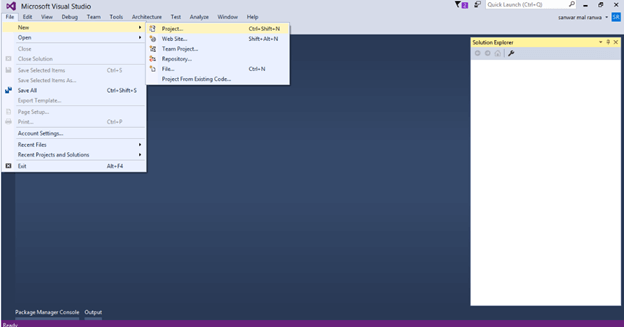
Open Visual Studio and create a new project.

Create Registration And Login Page Using Angular 7 And Web API

Create Registration And Login Page Using Angular 7 And Web API

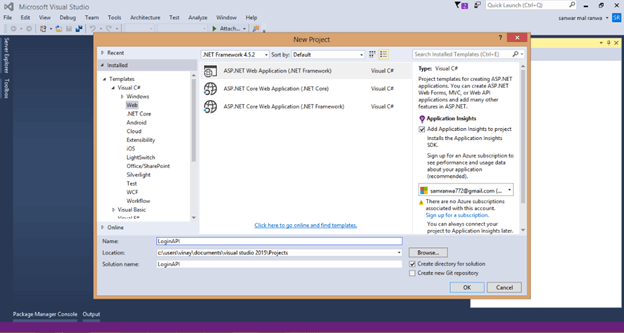
Change the name as LoginAPI and select Web API as its template.

Create Registration And Login Page Using Angular 7 And Web API

Step 3

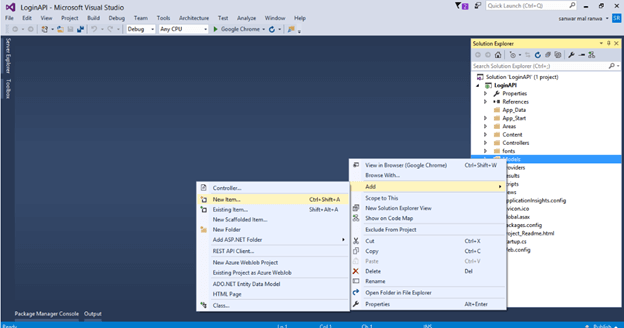
Right-click the Models folder from Solution Explorer and go to Add >> New Item >> data.Create Registration And Login Page Using Angular 7 And Web API

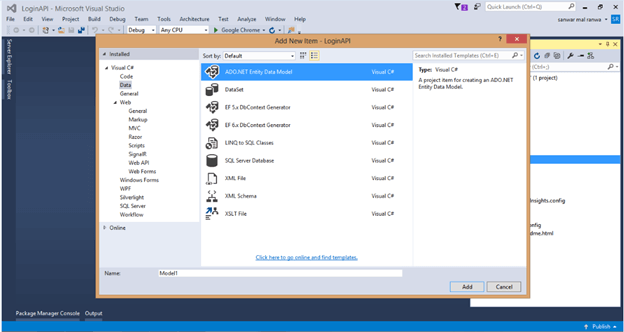
Click on the ADO.NET Entity Data Model option and click Add.Create Registration And Login Page Using Angular 7 And Web API

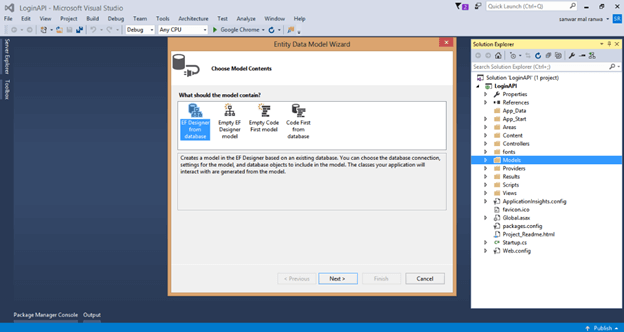
Select EF designer from the database and click the Next button.

Create Registration And Login Page Using Angular 7 And Web API

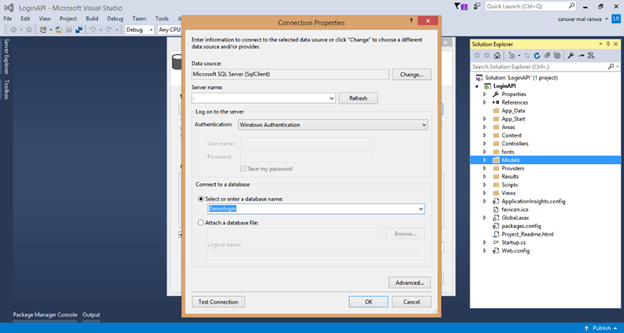
Add the connection properties, select database name on the next page, and click OK.Create Registration And Login Page Using Angular 7 And Web API

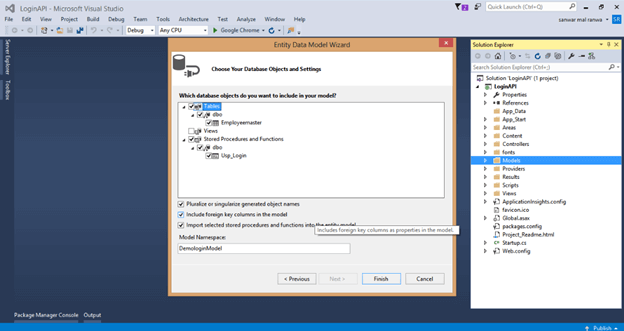
Check the Tables and Stored procedure checkboxes. The internal options will be selected by default. Now, click the Finish button.

Create Registration And Login Page Using Angular 7 And Web API

Our data model is created now.

Step 4

Right-click on the Models folder and add two classes — Login and Response respectively. Now, paste the following codes in these classes. 

using LoginAPI.Models;


Step 5

Right-click on the Controllers folder and add a new controller. Name it as Logincontroller.

Add the following namespace in the Login controller.

[Route("Api/Login/createcontact")]  
       [HttpPost]  
       public object createcontact(Registration Lvm)  
       {  
           try  
           {  
               DemologinEntities db = new DemologinEntities();  
               Employeemaster Em = new Employeemaster();  
               if (Em.UserId == 0)  
               {  
                   Em.UserName = Lvm.UserName;  
                   Em.LoginName = Lvm.LoginName;  
                   Em.Password = Lvm.Password;  
                   Em.Email = Lvm.Email;  
                   Em.ContactNo = Lvm.ContactNo;  
                   Em.Address = Lvm.Address;  
                   Em.IsApporved = Lvm.IsApporved;  
                   Em.Status = Lvm.Status;  
                   db.Employeemasters.Add(Em);  
                   db.SaveChanges();  
                   return new Response  
                   { Status = "Success", Message = "SuccessFully Saved." };  
               }  
           }  
           catch (Exception)  
           {  
               throw;  
           }  
           return new Response  
           { Status = "Error", Message = "Invalid Data." };  
       }


Now, add a method to insert data into the database for user registration.

[Route("Api/Login/UserLogin")]  
       [HttpPost]  
       public Response Login(Login Lg)  
       {  
           DemologinEntities DB = new DemologinEntities();  
           var Obj = DB.Usp_Login(Lg.UserName, Lg.Password).ToList<Usp_Login_Result>().FirstOrDefault();  
           if (Obj.Status == 0)  
               return new Response { Status = "Invalid", Message = "Invalid User." };  
           if (Obj.Status == -1)  
               return new Response { Status = "Inactive", Message = "User Inactive." };  
           else  
               return new Response { Status = "Success", Message = Lg.UserName };  
       }

Step 6

Add a new method for logging into the Login controller with the following lines of code.

using System;  
using System.Collections.Generic;  
using System.Linq;  
using System.Net;  
using System.Net.Http;  
using System.Web.Http;  
using LoginAPI.Models;  
namespace LoginAPI.Controllers  
{  
    public class LoginController : ApiController  
    {  
        //For user login   
        [Route("Api/Login/UserLogin")]  
        [HttpPost]  
        public Response Login(Login Lg)  
        {  
            DemologinEntities DB = new DemologinEntities();  
            var Obj = DB.Usp_Login(Lg.UserName, Lg.Password).ToList<Usp_Login_Result>().FirstOrDefault();  
            if (Obj.Status == 0)  
                return new Response { Status = "Invalid", Message = "Invalid User." };  
            if (Obj.Status == -1)  
                return new Response { Status = "Inactive", Message = "User Inactive." };  
            else  
                return new Response { Status = "Success", Message = Lg.UserName };  
        }  
        //For new user Registration  
        [Route("Api/Login/createcontact")]  
        [HttpPost]  
        public object createcontact(Registration Lvm)  
        {  
            try  
            {  
                DemologinEntities db = new DemologinEntities();  
                Employeemaster Em = new Employeemaster();  
                if (Em.UserId == 0)  
                {  
                    Em.UserName = Lvm.UserName;  
                    Em.LoginName = Lvm.LoginName;  
                    Em.Password = Lvm.Password;  
                    Em.Email = Lvm.Email;  
                    Em.ContactNo = Lvm.ContactNo;  
                    Em.Address = Lvm.Address;  
                    Em.IsApporved = Lvm.IsApporved;  
                    Em.Status = Lvm.Status;  
                    db.Employeemasters.Add(Em);  
                    db.SaveChanges();  
                    return new Response  
                    { Status = "Success", Message = "SuccessFully Saved." };  
                }  
            }  
            catch (Exception)  
            {  
                throw;  
            }  
            return new Response  
            { Status = "Error", Message = "Invalid Data." };  
        }  
    }  
}


Complete Login controller

EnableCorsAttribute cors = new EnableCorsAttribute("*", "*", "*");  
config.EnableCors(cors);


Step 7

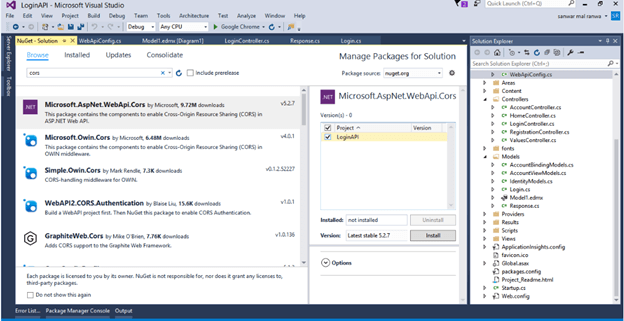
Now, let's enable Cors. Go to Tools, open NuGet Package Manager, search for Cors, and install the "Microsoft.Asp.Net.WebApi.Cors" package.Create Registration And Login Page Using Angular 7 And Web APIOpen Webapiconfig.cs and add the following lines.

ng new login


Step 8

Create an Angular 8 project with a name "login" by using the following command.

npm install bootstrap --save


Step 9

Open Visual Studio Code, open the newly created project and add bootstrap to this project.

export class Register {  
    UserName:string;  
    LoginName:string;  
    Password:string;  
    Email:string;  
    ContactNo:string;  
    Address:string  
}


Step 10

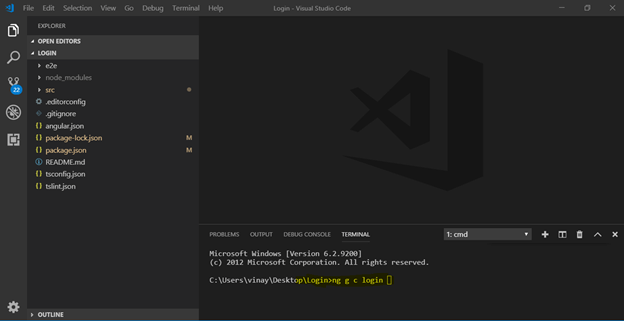
Now, create three components for the login page, registration page, and dashboard respectively. To create the components, open terminal and use the following commands.

  • ng g c login
  • ng g c register
  • ng g c dashboard

Create Registration And Login Page Using Angular 7 And Web API

Step 11

Create a class named "register". ng g class register Add the required properties in the class.

ng g s login


Step 12

Create a service to call the Web API.

import { Injectable } from '@angular/core';  
import {HttpClient} from '@angular/common/http';  
import {HttpHeaders} from '@angular/common/http';  
import { from, Observable } from 'rxjs';  
import { Register } from "../app/register";  
@Injectable({  
  providedIn: 'root'  
})  
export class LoginService {  
  Url :string;  
  token : string;  
  header : any;  
  constructor(private http : HttpClient) {   
    this.Url = 'http://localhost:14812/api/Login/';  
    const headerSettings: {[name: string]: string | string[]; } = {};  
    this.header = new HttpHeaders(headerSettings);  
  }  
  Login(model : any){  
    debugger;  
     var a =this.Url+'UserLogin';  
   return this.http.post<any>(this.Url+'UserLogin',model,{ headers: this.header});  
  }  
   CreateUser(register:Register)  
   {  
    const httpOptions = { headers: new HttpHeaders({ 'Content-Type': 'application/json' }) };  
    return this.http.post<Register[]>(this.Url + '/createcontact/', register, httpOptions)  
   }  
}


Open the login service and import required packages and classes. Add the following lines of code in the login.service.ts file.

<div class="container" style="padding-top:40px;">  
    <div class="row">  
      <div class="col-md-6 mx-auto">  
        <div class="card mx-4">  
          <div class="card-body p-4">  
            <form [formGroup]="employeeForm" (ngSubmit)="onFormSubmit(employeeForm.value)">  
              <h1 style="text-align:center">Register</h1>  
              <div class="input-group mb-3">  
                <input type="text" class="form-control" placeholder="Username"  formControlName="UserName">  
              </div>  
              <div class="input-group mb-3">  
                <input type="text" class="form-control" placeholder="Loginname"  formControlName="LoginName">  
              </div>  
              <div class="input-group mb-3">  
                <input type="password" class="form-control" placeholder="Password"  formControlName="Password">  
              </div>  
              <div class="input-group mb-4">  
                <input type="text" class="form-control" placeholder="Email"  formControlName="Email">  
              </div>  
              <div class="input-group mb-4">  
                <input type="text" class="form-control" placeholder="Contact No"  formControlName="ContactNo">  
              </div>  
              <div class="input-group mb-4">  
                <input type="text" class="form-control" placeholder="Address"  formControlName="Address">  
              </div>  
              <button type="submit" class="btn btn-block btn-success">Add User</button>  
            </form>  
          </div>  
        </div>  
      </div>  
    </div>  
  </div>


Step 13

Now, open register.component.html and add the following HTML code to design the registration form.

import { Component, OnInit } from '@angular/core';    
import { LoginService } from '../login.service';    
import {Register} from '../register';    
import {Observable} from 'rxjs';    
import { NgForm, FormBuilder, FormGroup, Validators, FormControl } from '@angular/forms';    
@Component({    
  selector: 'app-register',    
  templateUrl: './register.component.html',    
  styleUrls: ['./register.component.css']    
})    
export class RegisterComponent implements OnInit {    
  data = false;    
  UserForm: any;    
  massage:string;    
  constructor(private formbulider: FormBuilder,private loginService:LoginService) { }    
  ngOnInit() {    
    thisthis.UserForm = this.formbulider.group({    
      UserName: ['', [Validators.required]],    
      LoginName: ['', [Validators.required]],    
      Password: ['', [Validators.required]],    
      Email: ['', [Validators.required]],    
      ContactNo: ['', [Validators.required]],    
      Address: ['', [Validators.required]],    
    });    
  }    
   onFormSubmit()    
  {    
    const user = this.UserForm.value;    
    this.Createemployee(user);    
  }    
  Createemployee(register:Register)    
  {    
  this.loginService.CreateUser(register).subscribe(    
    ()=>    
    {    
      this.data = true;    
      this.massage = 'Data saved Successfully';    
      this.UserForm.reset();    
    });    
  }    
}


Step 14

Open register.componet.ts file and add following lines.

<div class="container" style="padding-top:60px;">  
  <div class="row">  
    <div class="col-md-6 mx-auto">  
      <div class="card-group">  
        <div class="card p-4">  
          <div class="card-body">  
            <form name="form" (ngSubmit)="login()" #f="ngForm">   
              <h1 style="text-align:center">Login</h1>  
              <div class="input-group mb-3">  
                <div class="input-group-prepend">  
                  <span class="input-group-text"><i class="icon-user"></i></span>  
                </div>  
                <input type="text" name="UserName" [(ngModel)]="model.UserName" class="form-control sty1" placeholder="Email" required>  
              </div>  
              <div class="input-group mb-4">  
                <div class="input-group-prepend">  
                  <span class="input-group-text"><i class="icon-lock"></i></span>  
                </div>  
                <input  type="password" name="Passward" [(ngModel)]="model.Password" class="form-control"  
               placeholder="Password">  
              </div>  
              <div>  
                  <p style="color:#E92626;font-size:20px;font-weight:normal" Class="success" align="left">  
                    {{errorMessage}}  
                  </p>  
                </div>  
              <div class="row">  
                <div class="col-6">  
                  <button type="submit" class="btn btn-primary px-4">Login</button>  
                </div>  
                <div class="col-6 text-right">  
                  <button type="button" class="btn btn-link px-0">Forgot password?</button>  
                </div>  
              </div>  
            </form>  
          </div>  
        </div>  
      </div>  
    </div>  
  </div>  
</div>


Step 15

Open login.componet.html and add this HTML.

import { Component, OnInit } from '@angular/core';    
import { Router } from '@angular/router';    
import { LoginService } from '../login.service';    
 import { FormsModule } from '@angular/forms';    
@Component({    
  selector: 'app-login',    
  templateUrl: './login.component.html',    
  styleUrls: ['./login.component.css']    
})    
export class LoginComponent {    
  model : any={};    
  errorMessage:string;    
  constructor(private router:Router,private LoginService:LoginService) { }    
  ngOnInit() {    
    sessionStorage.removeItem('UserName');    
    sessionStorage.clear();    
  }    
  login(){    
    debugger;    
    this.LoginService.Login(this.model).subscribe(    
      data => {    
        debugger;    
        if(data.Status=="Success")    
        {       
          this.router.navigate(['/Dashboard']);    
          debugger;    
        }    
        else{    
          this.errorMessage = data.Message;    
        }    
      },    
      error => {    
        this.errorMessage = error.message;    
      });    
  };    
 }


Open login.componet.ts and add following code.

<div>  
  <div class="row">  
    <div class="col-sm-12 btn btn-primary">  
        Welcome to DashBoard  
    </div>  
  </div>  
</div>


Step 16

Now, open dashboard.component.html and add the following lines.

import { NgModule } from '@angular/core';    
import { Routes, RouterModule } from '@angular/router';    
import { DashboardComponent } from './dashboard/dashboard.component';    
import { LoginComponent } from './login/login.component';    
import { RegisterComponent } from './register/register.component';    
export const routes: Routes = [    
  {    
    path: '',    
    redirectTo: 'login',    
    pathMatch: 'full',    
  },    
  {    
    path: 'login',    
    component: LoginComponent,    
    data: {    
      title: 'Login Page'    
    }    
  },    
  {    
    path: 'Dasboard',    
    component: DashboardComponent,    
    data: {    
      title: 'Dashboard Page'    
    }    
  },    
  {    
    path: 'AddUser',    
    component: RegisterComponent,    
    data: {    
      title: 'Add User Page'    
    }    
  },    
];    
@NgModule({    
  imports: [RouterModule.forRoot(routes)],    
  exports: [RouterModule]    
})    
export class AppRoutingModule { }


Step 17

Now, open app-routing.module.ts file and add the following lines to create routing.

import { NgModule } from '@angular/core'; 
import { Routes, RouterModule } from '@angular/router'; 
import { DashboardComponent } from './dashboard/dashboard.component'; 
import { LoginComponent } from './login/login.component'; 
import { RegisterComponent } from './register/register.component'; 
export const routes: Routes = [ 
  { path: '', redirectTo: 'login', pathMatch: 'full', }, 
  { path: 'login', component: LoginComponent, data: { title: 'Login Page' } }, 
  { path: 'Dasboard', component: DashboardComponent, data: { title: 'Dashboard Page' } }, 
  { path: 'AddUser', component: RegisterComponent, data: { title: 'Add User Page' } }, 
]; 
@NgModule({ 
  imports: [RouterModule.forRoot(routes)], 
  exports: [RouterModule] 
}) 
export class AppRoutingModule { }


Step 18

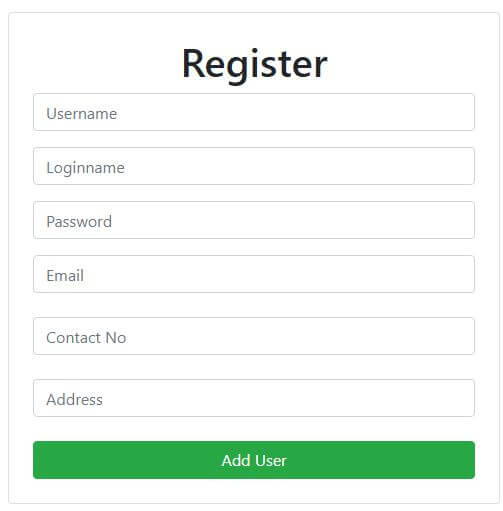
Now, let us run the project and redirect the URL to the "Add User" page.

Create Registration And Login Page Using Angular 7 And Web API

Enter the details and click on the "Add User" button.

Step 19

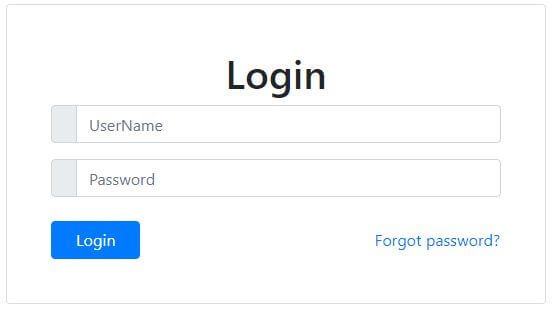
Now, run the project's default URL which takes us to the login page. Enter the username and password and click "Login".

Create Registration And Login Page Using Angular 7 And Web API

The following Page will be displayed.

Create Registration And Login Page Using Angular 7 And Web API

Summary

In this article, we discussed the process of Login and Registration page creation in an application using Angular 7 and Web API.

Login & Reactive Form Example with Validation in Angular 8 - very good 20 min task

 https://morioh.com/p/a0a3e6078712

Reactive forms are one approach (alongside with the template-driven approach) of working with forms in Angular 7/8.

Prerequisites

You need to have Node.js and npm installed on your system.

You also need Angular CLI 8 installed otherwise, you can simply run the npm install -g @angular/cli command to install it.

Generating a New Angular 8 Project

Let's start our tutorial by generating a project from scratch. You can skip this part if you already have a project.

Open a new terminal and run this command:

$ ng new angular-login-demo

You will be asked if Would you like to add Angular routing? Enter y and Which stylesheet format would you like to use? Choose CSS.

The CLI will generate the necessary source and configuration files and install the npm dependencies. You'll also have routing setup without further intervention from you. You only need to add your components in the routes array in the src/app/app-routing.module.ts file which is the root routing module of our application.

Generating Components, Interface, Service and Router Guard

Let's now generate the different artifacts needed in our project. We'll need a couple of components, a service, an interface and a Router guard.

Head back to your terminal and navigate in the root folder of your project:

$ cd angular-login-demo

Generating Login and Admin Components

Next, use the ng generate command to generate the components:

$ ng g c login
$ ng g c admin

We generate two LoginComponent and AdminComponent components.

The login component will contain a model-driven (reactive) form for submitting the user's email and password.

The admin component will be protected from public access. Only logged in users will be able to access it and will contain a logout button permitting the user to log out.

You need to add these components to the routing module. Open the src/app/app-routing.module.ts file and the following changes:

import { NgModule } from '@angular/core';
import { Routes, RouterModule } from '@angular/router';

import { LoginComponent } from './login/login.component';
import { AdminComponent } from './admin/admin.component';

const routes: Routes = [
{ path: '', pathMatch: 'full', redirectTo: 'login'},
{ path: 'login', component: LoginComponent },
{ path: 'admin', component: AdminComponent }
];

@NgModule({
imports: [RouterModule.forRoot(routes)],
exports: [RouterModule]
})
export class AppRoutingModule { }

We add three routes, one for redirecting the empty path to the login path, the login path and the admin path. Now, when you visit the http://127.0.0.1:4200/ address you'll be redirected to http://127.0.0.1:4200/login.

If you serve your application at this point, you'll get the following page:
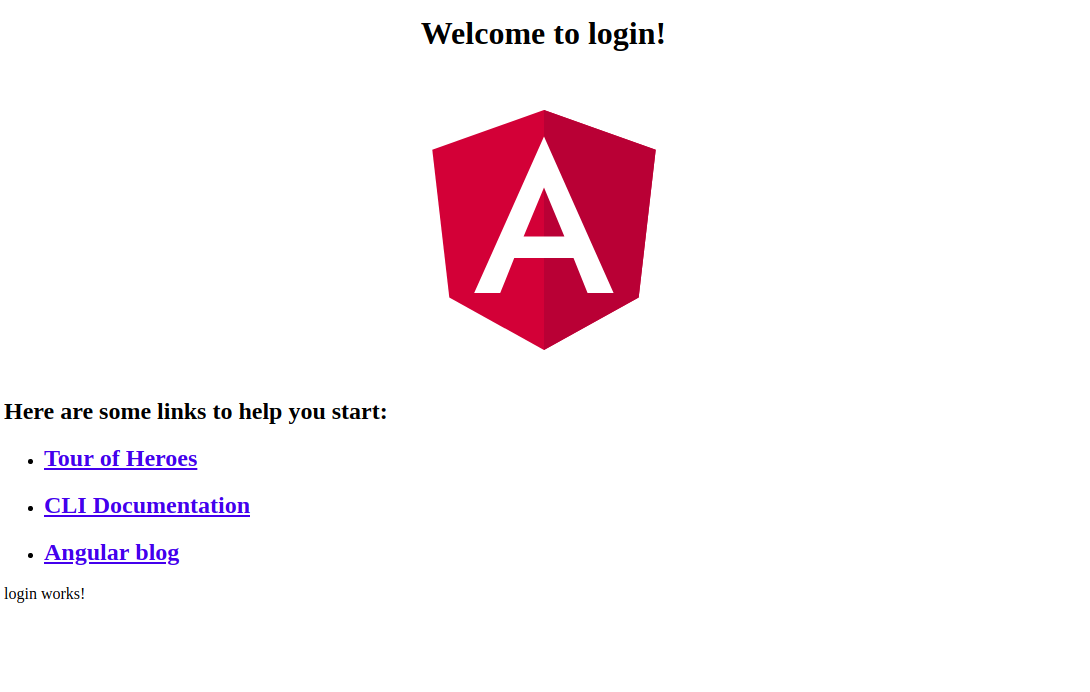
Let's remove this default HTML code. Open the src/app/app.component.html file and remove everything but leave <router-outlet>:

<router-outlet></router-outlet>

Generating the User Model/Interface

We'll be working with a user model so we need to generate a User interface. In your terminal, run the following command:

$ ng g interface user

Open the src/app/user.ts file and update it accordingly:

export  interface  User {
email: string;
password: string;
}

Our model is comprised of an email and password.

Generating an Angular Authentication Service

Let's now create an Angular service that encapsulates the methods that we'll be calling in our components to enable users to login and logout. In your terminal:

$ ng g service auth

Open the src/app/auth.service.ts file and update it accordingly:

import { Injectable } from '@angular/core';
import { User } from './user';

@Injectable({
providedIn: 'root'
})
export class AuthService {

constructor() { }

public login(userInfo: User){
localStorage.setItem('ACCESS_TOKEN', "access_token");
}

public isLoggedIn(){
return localStorage.getItem('ACCESS_TOKEN') !== null;

}

public logout(){
localStorage.removeItem('ACCESS_TOKEN');
}
}

Creating a Router Guard

Let's now create a Router guard that will be used for securing the admin component. In your terminal, run this command:

$ ng generate guard auth

Open the src/app/auth.guard.ts file and update it accordingly:

import { Injectable } from '@angular/core';
import { CanActivate, ActivatedRouteSnapshot, RouterStateSnapshot } from '@angular/router';
import { Observable } from 'rxjs';
import { AuthService } from './auth.service';

@Injectable({
providedIn: 'root'
})
export class AuthGuard implements CanActivate {
constructor(private authService: AuthService){}
canActivate(
next: ActivatedRouteSnapshot,
state: RouterStateSnapshot): Observable<boolean> | Promise<boolean> | boolean {

  return this.authService.isLoggedIn();

}
}

We import AuthService and inject it via the class constructor then in the canActivate() method, we call and return the isLoggedIn() method.

The canActivate() method returns true if the isLoggedIn() methods returns true i.e if the user is logged in.

If the canActivate() method returns true the route which has this guard applied can be accessed by the user.

Next, you need to apply this guard to the route you want to protect. Open the src/app/app-routing.module.ts file and update it accordingly:

import { NgModule } from '@angular/core';
import { Routes, RouterModule } from '@angular/router';

import { LoginComponent } from './login/login.component';
import { AdminComponent } from './admin/admin.component';
import { AuthGuard } from './auth.guard';

const routes: Routes = [
{ path: '', pathMatch: 'full', redirectTo: 'login'},
{ path: 'login', component: LoginComponent },
{ path: 'admin', component: AdminComponent, canActivate: [AuthGuard] }
];

@NgModule({
imports: [RouterModule.forRoot(routes)],
exports: [RouterModule]
})
export class AppRoutingModule { }

We use the canActivate array of the admin route to apply AuthGuard to the route which protects it from users that are not logged in.

****

You may also like: Angular 8 Tutorial: Routing & Navigation Example

****

Creating the Login Form using Angular 8 Reactive Forms

Before using reactive forms in Angular we need to import FormsModule and ReactiveFormsModule in the application module.

Open the src/app/app.module.ts file and update it accordingly:

import { BrowserModule } from '@angular/platform-browser';
import { NgModule } from '@angular/core';
import { FormsModule, ReactiveFormsModule} from '@angular/forms';

import { AppRoutingModule } from './app-routing.module';
import { AppComponent } from './app.component';
import { LoginComponent } from './login/login.component';
import { AdminComponent } from './admin/admin.component';

@NgModule({
declarations: [
AppComponent,
LoginComponent,
AdminComponent
],
imports: [
BrowserModule,
FormsModule,
ReactiveFormsModule,
AppRoutingModule
],
providers: [],
bootstrap: [AppComponent]
})
export class AppModule { }

We can now use reactive forms in our application!

Open the src/app/login.component.ts file and import:

  • FormBuilderFormGroupValidators symbols that are used to create Angular reactive forms,
  • Router for routing,
  • AuthService and the User model.
import { FormBuilder, FormGroup, Validators } from  '@angular/forms';
import { Router } from '@angular/router';
import { User } from '../user';
import { AuthService } from '../auth.service';

Next, inject the FormBuilderRouter and AuthService via the service constructor:

export class LoginComponent implements OnInit {

constructor(private authService: AuthService, private router: Router, private formBuilder: FormBuilder ) { }

ngOnInit() {
}
}

Next, add these service variables:

  loginForm: FormGroup;
isSubmitted = false;

Next, in the ngOnInit() life-cycle event, create the form:

ngOnInit() {
this.loginForm = this.formBuilder.group({
email: ['', Validators.required],
password: ['', Validators.required]
});
}

Next, add a get property to make easy to access the form controls on the HTML form:

get formControls() { return this.loginForm.controls; }

Finally, add the login() method:

  login(){
console.log(this.loginForm.value);
this.isSubmitted = true;
if(this.loginForm.invalid){
return;
}
this.authService.login(this.loginForm.value);
this.router.navigateByUrl('/admin');
}

Let's now create the HTML form. Open the src/app/login.component.html file and the following content:

<h1 style="text-align:center">
Angular Login Example
</h1>
<div class="login">
<h2 class="login-header">Log in</h2>
<form [formGroup]="loginForm" class="login-container" (ngSubmit)="login()">

&lt;p [ngClass]="{ 'has-error': isSubmitted &amp;&amp; formControls.email.errors }"&gt;
  &lt;input type="email" placeholder="Email" formControlName="email"&gt;
&lt;/p&gt;

&lt;div *ngIf="isSubmitted &amp;&amp; formControls.email.errors" class="help-block"&gt;
  &lt;div *ngIf="formControls.email.errors.required"&gt;Email is required&lt;/div&gt;
&lt;/div&gt;

&lt;p [ngClass]="{ 'has-error': isSubmitted &amp;&amp; formControls.password.errors }"&gt;
  &lt;input type="password" placeholder="Password" formControlName="password"&gt;
&lt;/p&gt;

&lt;div *ngIf="isSubmitted &amp;&amp; formControls.password.errors" class="help-block"&gt;
  &lt;div *ngIf="formControls.password.errors.required"&gt;Password is required&lt;/div&gt;
&lt;/div&gt;

&lt;p&gt;
  &lt;input type="submit" value="Log in"&gt;
&lt;/p&gt;

</form>
</div>

For styling the form we'll be using this codepen example.

Open the src/styles.css and add:

@import  url(https://fonts.googleapis.com/css?family=Open+Sans:400,700);
body {
background: #456;
font-family: 'Open Sans', sans-serif;
}

Next, open the src/app/login.component.css file and these styles:

/* 'Open Sans' font from Google Fonts */
@import url(https://fonts.googleapis.com/css?family=Open+Sans:400,700);

.login {
width: 400px;
margin: 16px auto;
font-size: 16px;
}

.login-header,
.login p {
margin-top: 0;
margin-bottom: 0;
}

.login-triangle {
width: 0;
margin-right: auto;
margin-left: auto;
border: 12px solid transparent;
border-bottom-color: rgb(15, 66, 107);
}

.login-header {
background: rgb(12, 77, 129);
padding: 20px;
font-size: 1.4em;
font-weight: normal;
text-align: center;
text-transform: uppercase;
color: #fff;
}

.login-container {
background: #ebebeb;
padding: 12px;
}

.login p {
padding: 12px;
}

.login input {
box-sizing: border-box;
display: block;
width: 100%;
border-width: 1px;
border-style: solid;
padding: 16px;
outline: 0;
font-family: inherit;
font-size: 0.95em;
}

.login input[type="email"],
.login input[type="password"] {
background: #fff;
border-color: #bbb;
color: #555;
}

.login input[type="email"]:focus,
.login input[type="password"]:focus {
border-color: #888;
}

.login input[type="submit"] {
background: rgb(1, 29, 51);
border-color: transparent;
color: #fff;
cursor: pointer;
}

.login input[type="submit"]:hover {
background: #17c;
}

.login input[type="submit"]:focus {
border-color: #05a;
}

This is the screenshot of our reactive login form:
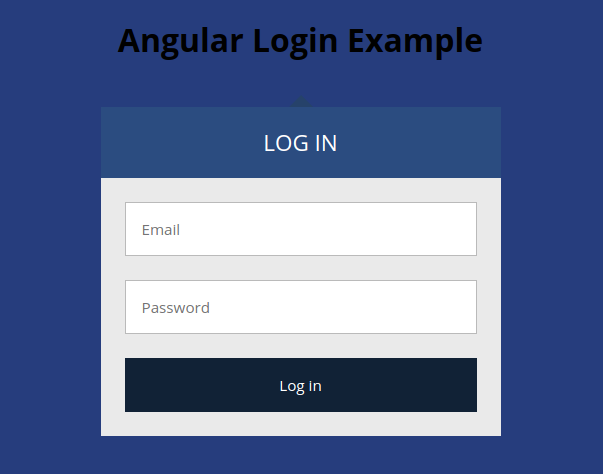
Also, add this CSS style for error class:

.has-error input[type="email"],
.has-error input[type="password"] {
border-color: rgb(216, 12, 12);
color: rgb(230, 14, 14);
}

This is a screenshot of the form when not valid:
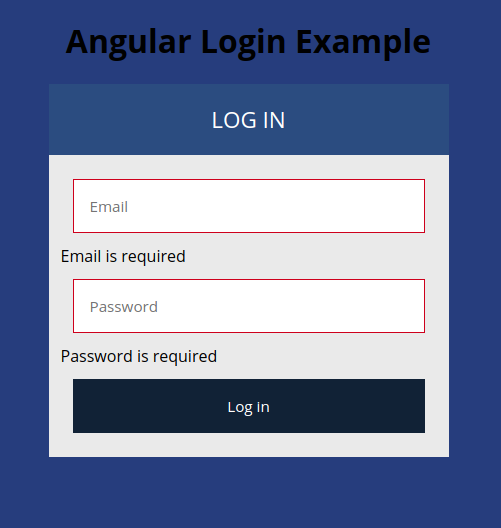
Implementing the Admin Component

Open the src/app/admin.component.ts file and add:

import { Component, OnInit } from '@angular/core';
import { Router } from '@angular/router';
import { AuthService } from '../auth.service';

@Component({
selector: 'app-admin',
templateUrl: './admin.component.html',
styleUrls: ['./admin.component.css']
})
export class AdminComponent implements OnInit {

constructor(private authService: AuthService, private router: Router) { }

ngOnInit() {
}

logout(){
this.authService.logout();
this.router.navigateByUrl('/login');
}

}

Next, open the src/app/admin.component.html file and add:

<div style="text-align:center">
<h1>
Welcome Super Admin!
</h1>
<p>
<button (click)="logout()">
Logout
</button>
</p>
<img width="300" alt="Angular Logo" src="data:image/svg+xml;base64,PHN2ZyB4bWxucz0iaHR0cDovL3d3dy53My5vcmcvMjAwMC9zdmciIHZpZXdCb3g9IjAgMCAyNTAgMjUwIj4KICAgIDxwYXRoIGZpbGw9IiNERDAwMzEiIGQ9Ik0xMjUgMzBMMzEuOSA2My4ybDE0LjIgMTIzLjFMMTI1IDIzMGw3OC45LTQzLjcgMTQuMi0xMjMuMXoiIC8+CiAgICA8cGF0aCBmaWxsPSIjQzMwMDJGIiBkPSJNMTI1IDMwdjIyLjItLjFWMjMwbDc4LjktNDMuNyAxNC4yLTEyMy4xTDEyNSAzMHoiIC8+CiAgICA8cGF0aCAgZmlsbD0iI0ZGRkZGRiIgZD0iTTEyNSA1Mi4xTDY2LjggMTgyLjZoMjEuN2wxMS43LTI5LjJoNDkuNGwxMS43IDI5LjJIMTgzTDEyNSA1Mi4xem0xNyA4My4zaC0zNGwxNy00MC45IDE3IDQwLjl6IiAvPgogIDwvc3ZnPg==">
</div>

Finally, open the src/app/admin.component.css file and add:

button{
background: rgb(1, 29, 51);
border-color: transparent;
color: #fff;
cursor: pointer;
}

This is the screenshot of our admin page:
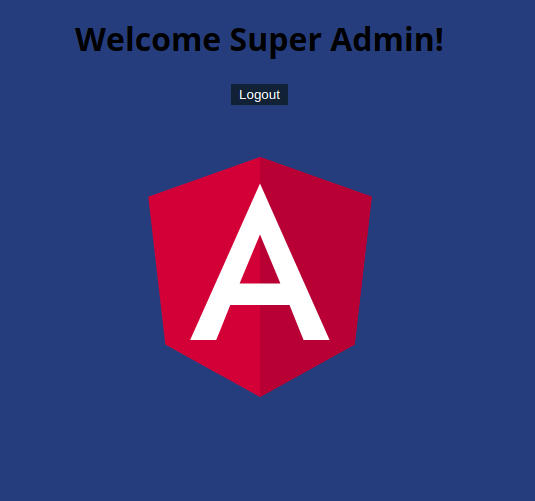
You can log out from the admin page and you will be redirected to the login form.

Conclusion

We reached the end of this tutorial in which we have created a login from with Angular reactive forms. We've also seen how to do form validation.

Learn more

Angular 8 Tutorial - User Registration and Login Example

Angular 8 Tutorial By Example: (REST API, HttpClient GET, Components, Services & ngFor)

Cache Design and patterns

 In this article  we will look at application design and how cache design will be helping to get data from back end quickly.  scope of this ...